GETTING STARTED WITH CLOUD SYNC
Sync your sets and playlists across all your devices using your own private cloud storage. This guide covers syncing for Windows, Mac, Linux, iOS, and Android.
MIXO:DESKTOP SYNC
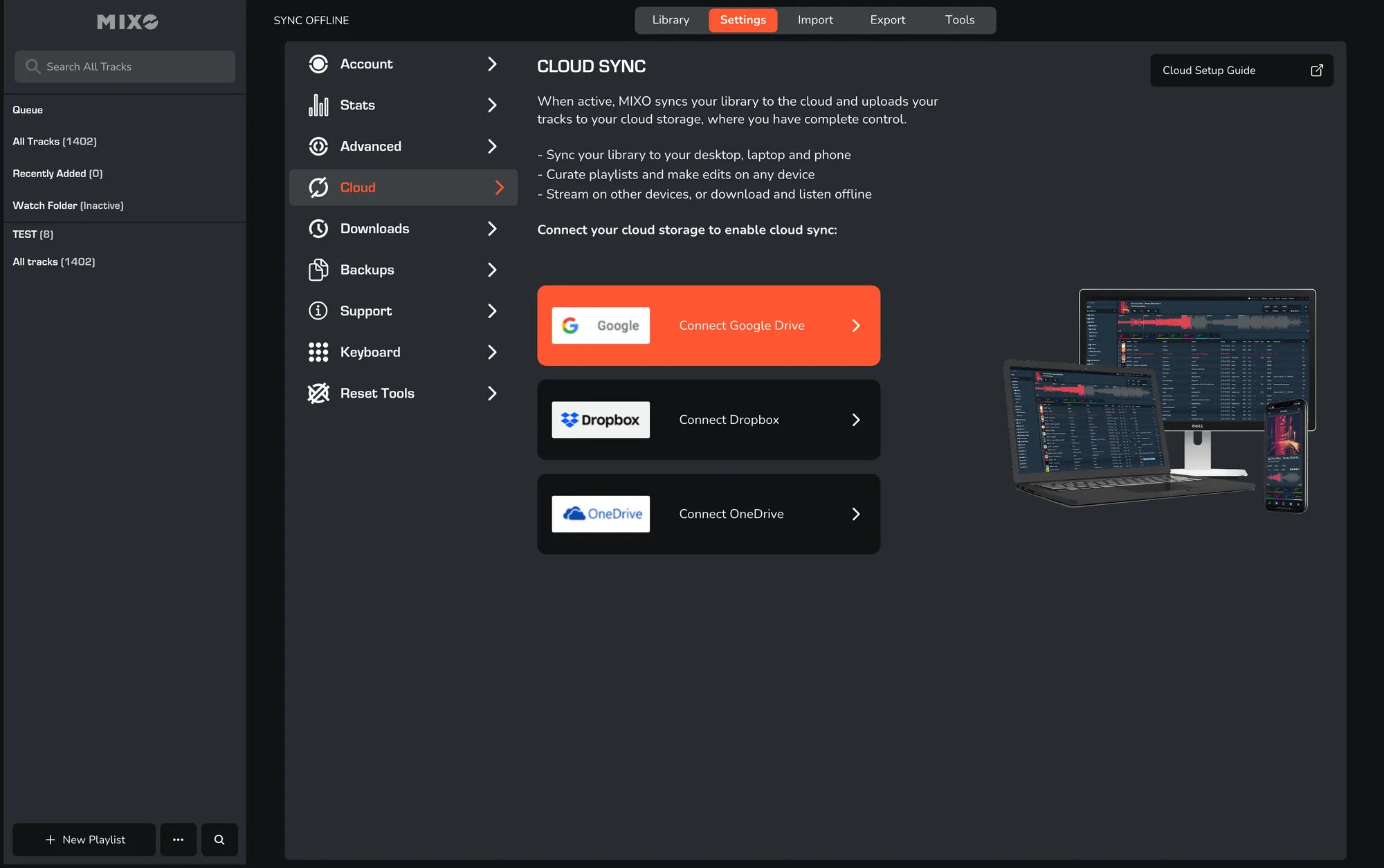
- In MIXO, go to SETTINGS -> CLOUD and select your cloud storage provider (Google Drive, Dropbox, OneDrive)

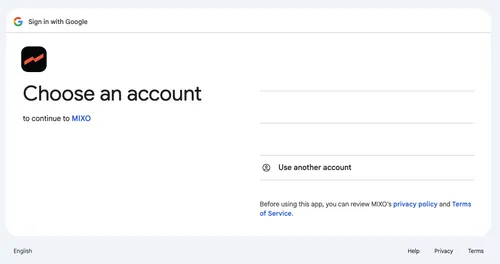
- Auth MIXO in the browser window that opens to begin the sync process.
- Return to MIXO and navigate to IMPORT -> PROGRESS to monitor your tracks being uploaded.
- Install MIXO on your second computer and log in to see your library sync automatically.
- To save files locally, right-click a playlist to toggle the download option or download the entire library via SETTINGS -> CLOUD.
MIXO:MOBILE SYNC
- Connect your cloud storage in the desktop app via SETTINGS -> CLOUD.
- Auth the connection and wait for your tracks to finish uploading in the IMPORT -> PROGRESS view.
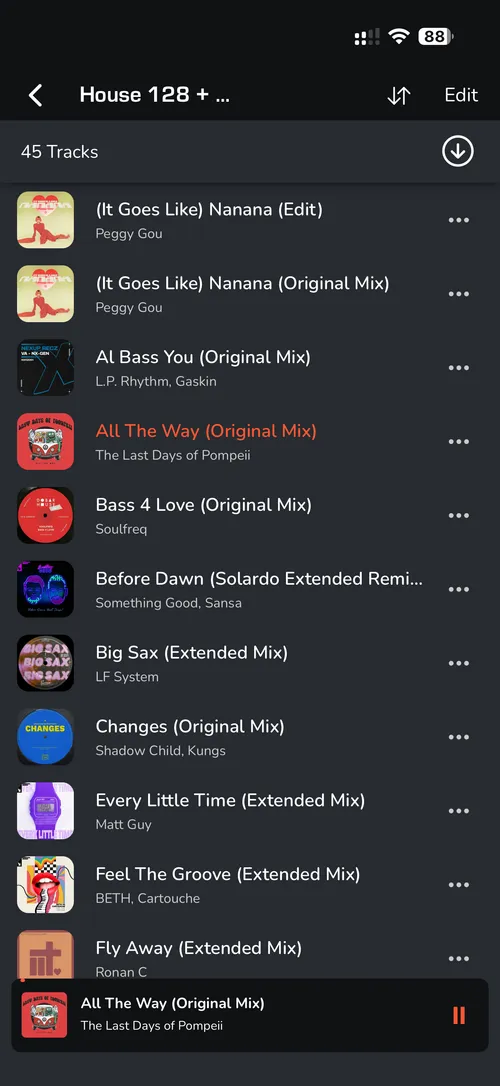
- Download and install MIXO on your phone and log in to sync your library.
- Any changes made to playlists or tracks on your phone will SYNC to all your other devices.
- To listen offline, open a playlist and turn on the Download toggle at the top.