VIRTUAL DJ TO MIXO
How to import your VIRTUAL DJ library into MIXO
1. Close your VIRTUAL DJ application before import.
2. In MIXO, go to the ‘IMPORT’ tab and click VIRTUAL DJ.
MIXO should automatically find your Virtual DJ library. If not, first use the reload icon to reset to the default location, or use the 'Change File' button to manually select the database XML file on another drive.
3. Press the 'START IMPORT' button.
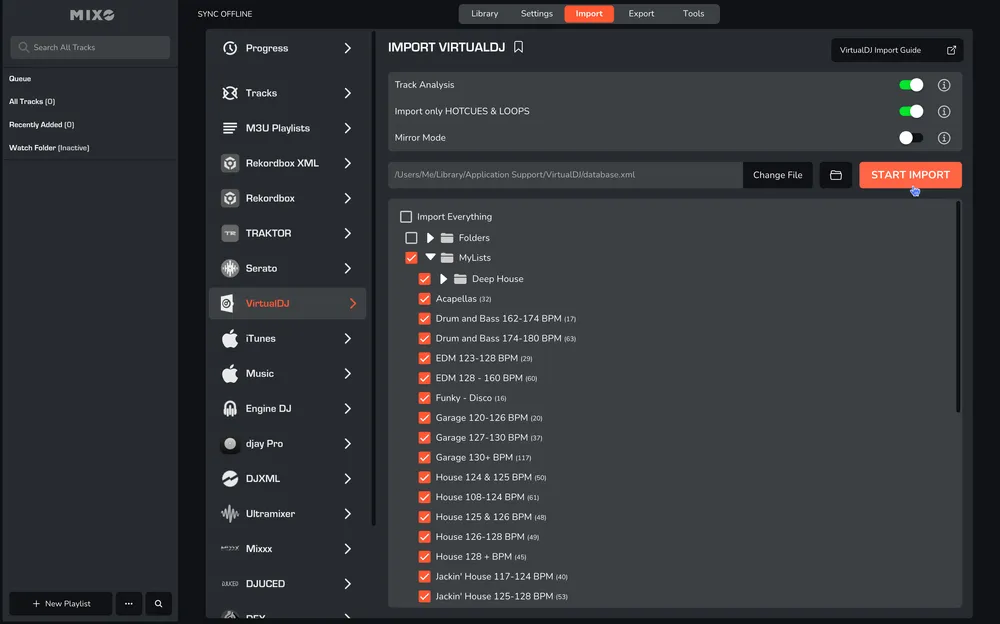
MIXO will import your tracks, custom metadata, loops and cues directly from the Virtual DJ database XML and import playlists from the 'MyLists' and 'Folders' folders in the VirtualDJ folder.
OPTIONS:
Track Analysis - turn off to speed up the import, however, keeping it enabled is recommended to ensure artwork is imported and exporting to DJ software works correctly.
Mirror Mode - when on, your entire MIXO library will be completely replaced by the imported library. By default, MIXO will merge the new import with your existing library.
Import only HOTCUES & LOOPS - turn this off if you would like to import Virtual DJ automix, action, load and remix cues as well.