ULTRAMIXER TO DECKADANCE 2
1. Exporting your playlists from UltraMixer
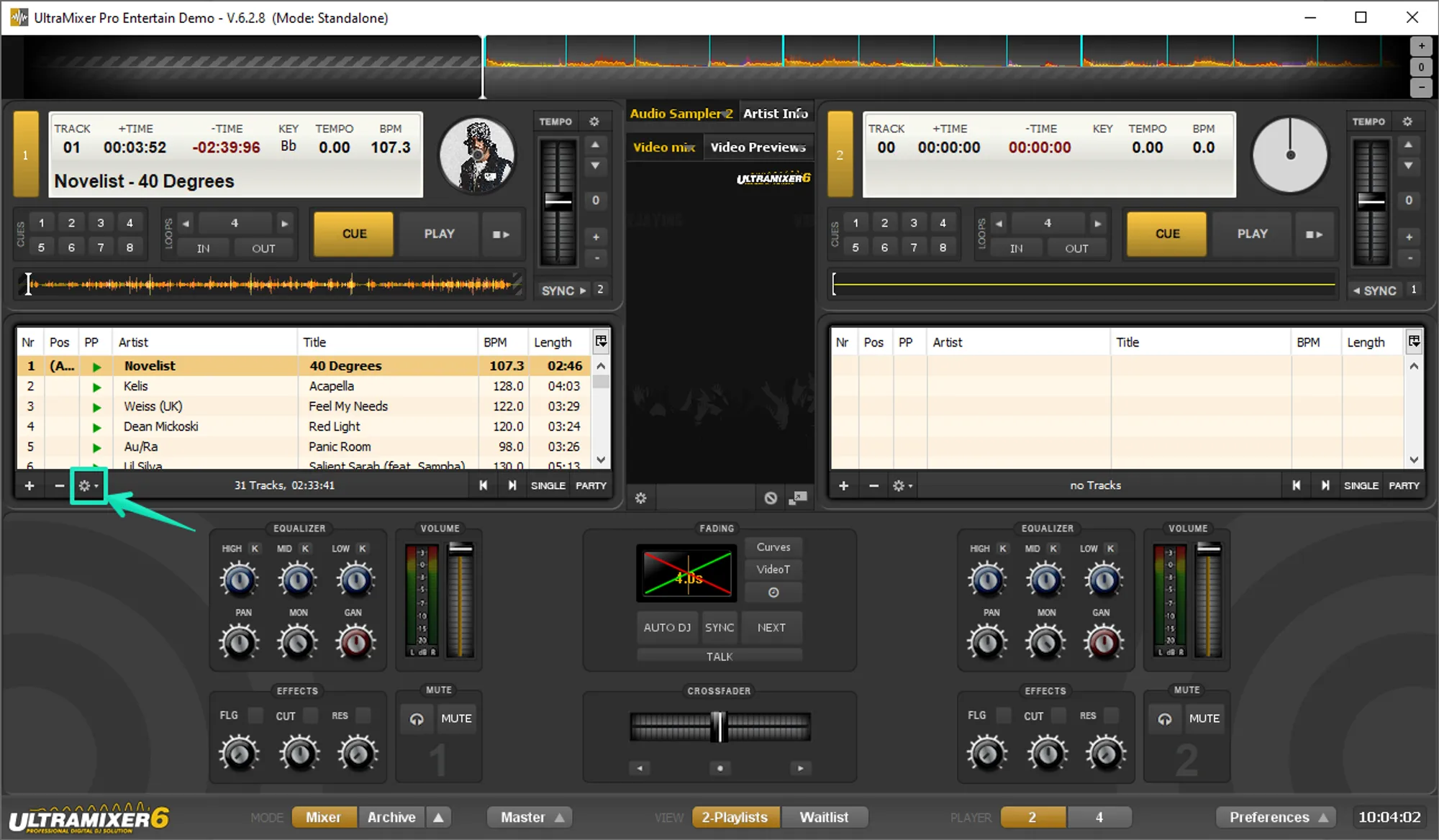
- Open UltraMixer and click the gear icon under the track list

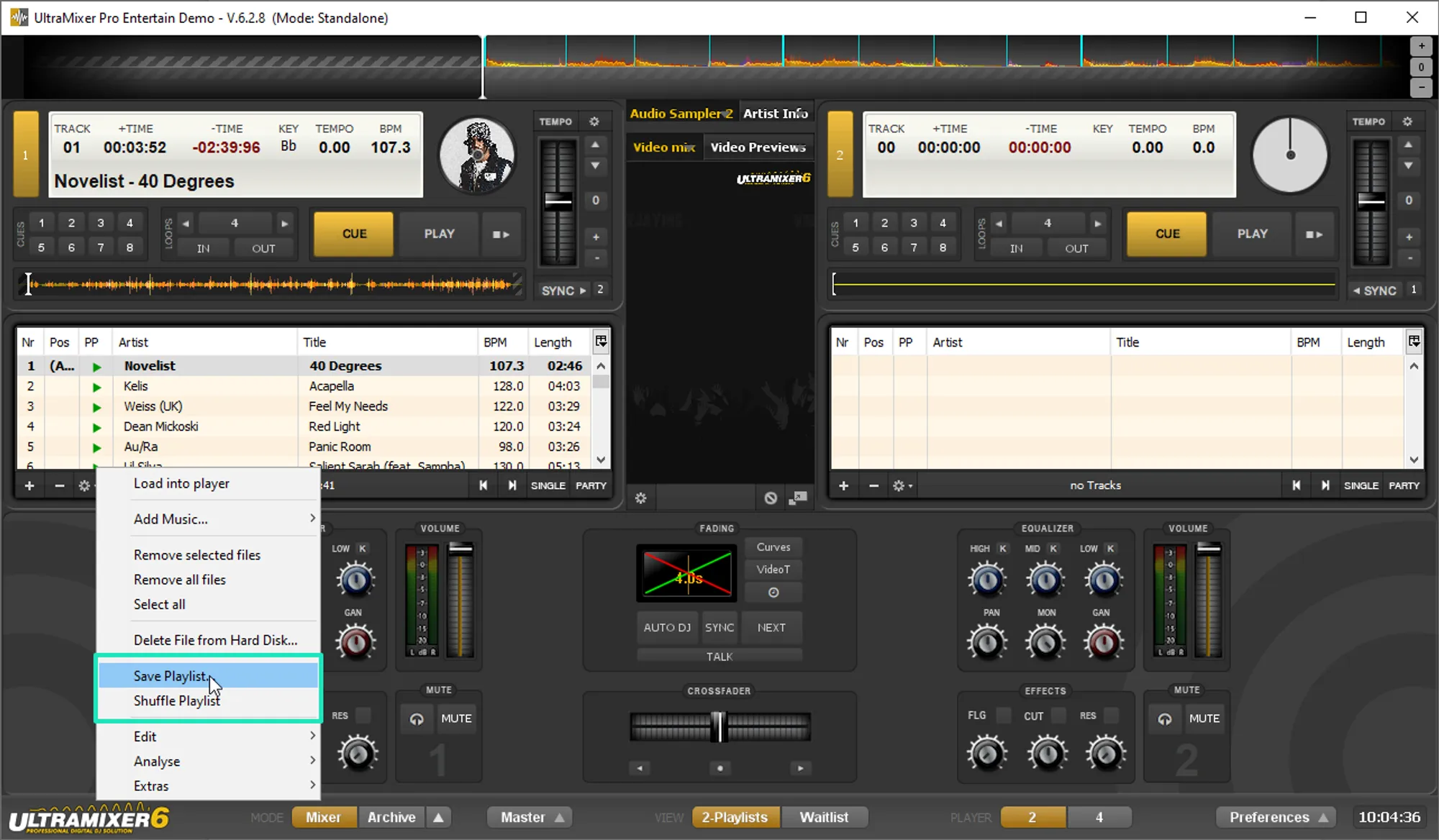
- Select Save Playlist from the menu

- Choose a destination and name to export the playlist. Make sure to save it as an M3U file.
2. Importing your UltraMixer playlists to MIXO
To import your playlists from UltraMixer go to
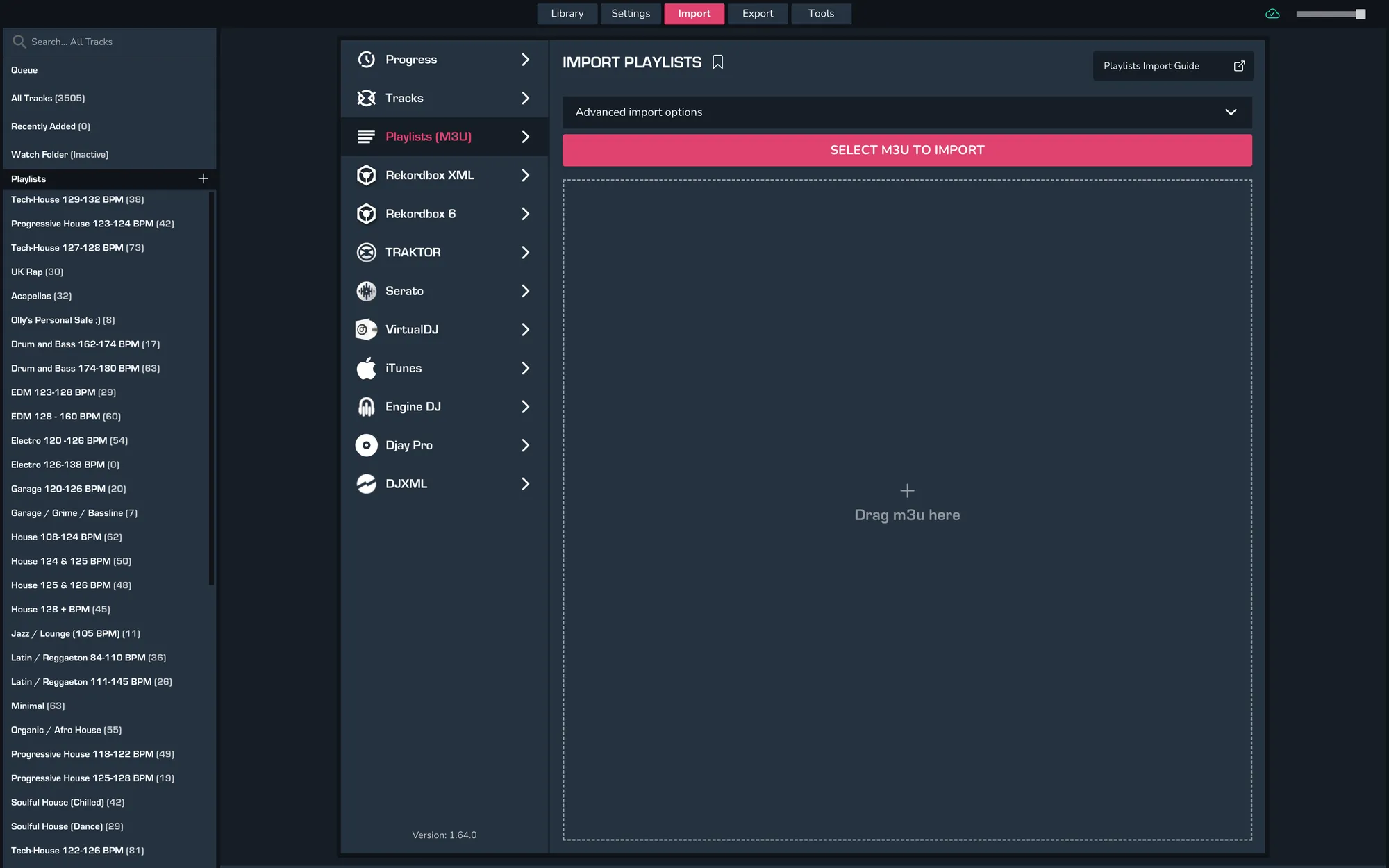
- IMPORT > PLAYLISTS
- Click IMPORT PLAYLISTS

- Select the playlists you exported from UltraMixer from the file browser
- Click Open to import the playlists
3. Exporting your collection & playlists from MIXO
Exporting music is a MIXO:GOLD feature. If you're not already a GOLD user, you'll automatically start a free 7 day GOLD trial.
To now export playlists or entire collections from MIXO to Deckadance 2:
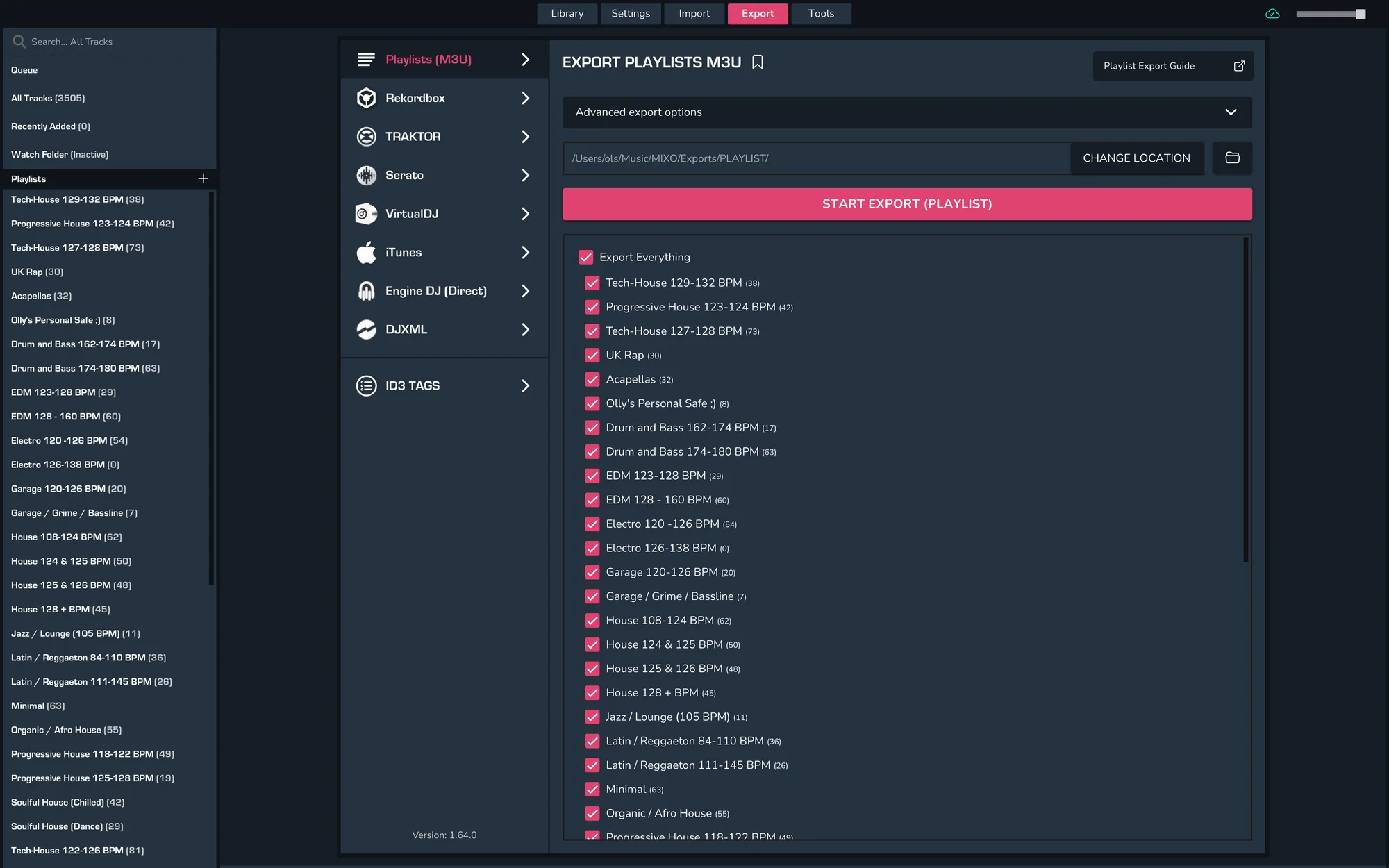
- EXPORT > PLAYLISTS
- Below you will need to confirm which playlists should be exported or if the whole library should be exported.
- Click EXPORT
4. Import your playlists into Deckadance 2
To import the playlists you exported from MIXO into Deckadance, please follow these steps
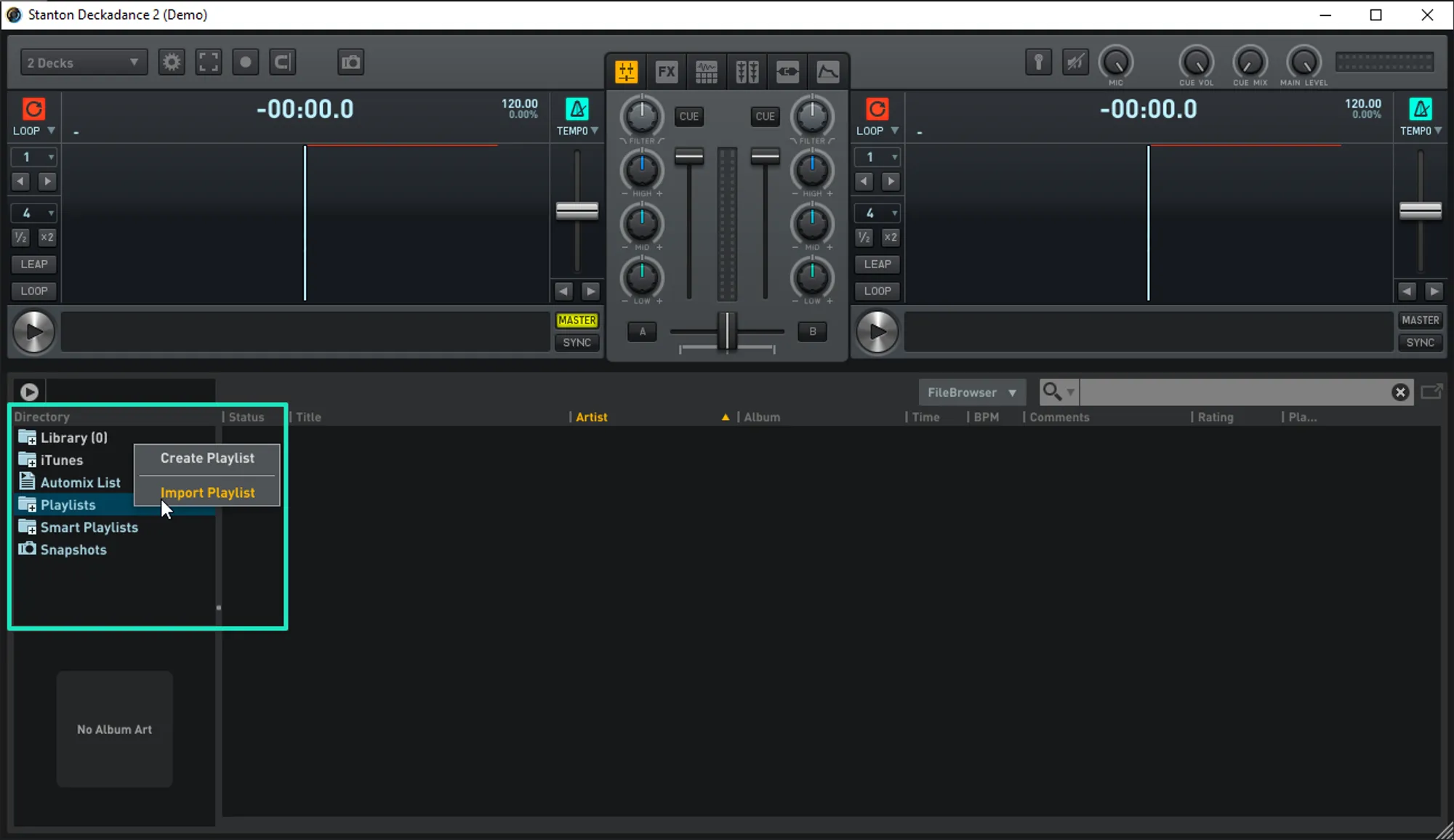
- Open Deckadance 2 and right-click on playlists in the Directory panel
- Select Import Playlist from the menu

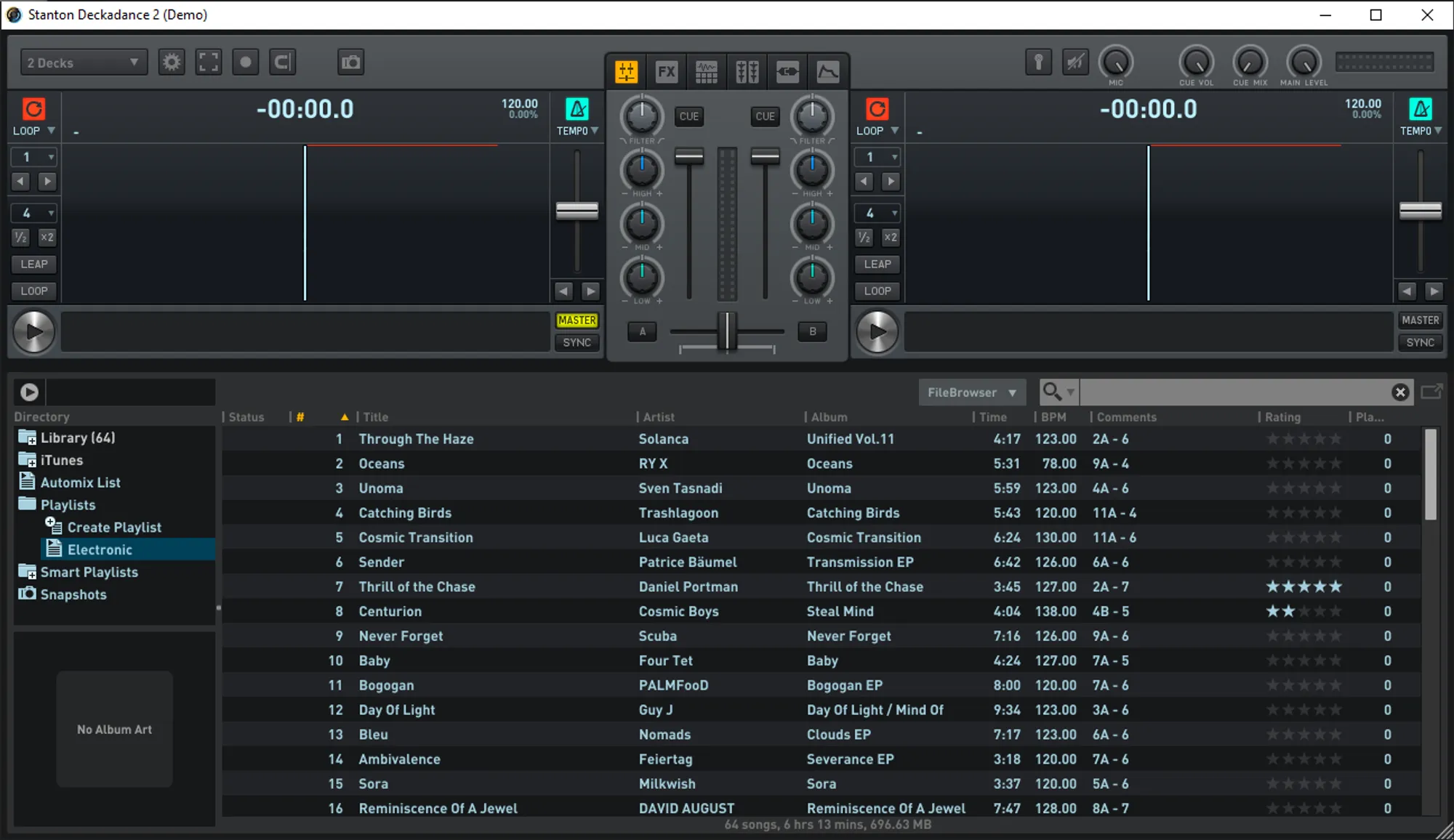
- Select the playlists you exported from MIXO and click Open. By default these can be found in Music > MIXO > Exports > PLAYLISTS
Notes
MIXO does not import beat grids & cue points from UltraMixer.
Backups
MIXO will automatically backup your DJ Libraries every time you export.
It's also a good idea to regularly backup your source library and computer.