TRAKTOR TO MIXO
How to import your TRAKTOR library into MIXO.
1. Close your TRAKTOR application before import.
2. In MIXO, navigate to the ‘IMPORT’ tab.
3. On the left sidebar, select TRAKTOR.
MIXO should automatically locate your TRAKTOR collection.nml. However, you can use the 'Change File' button to manually select an alternative NML file.
4. Press the 'START IMPORT' button.
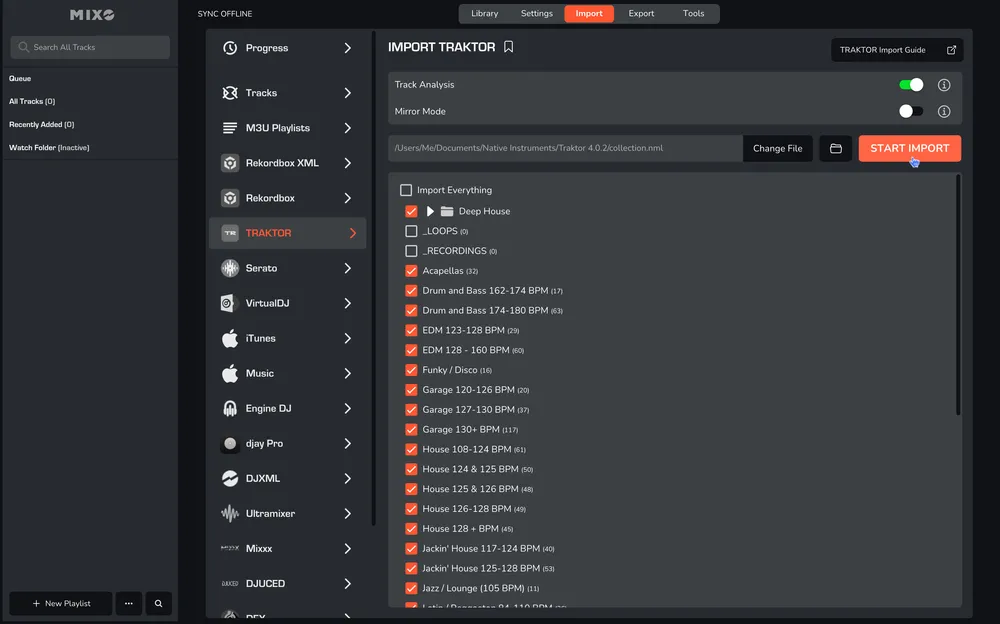
MIXO will import your playlists, tracks, custom metadata, loops, cues, and beatgrids directly from TRAKTOR.
OPTIONS:
Track Analysis - turn off to speed up the import, however, keeping it enabled is recommended to ensure artwork is imported and exporting to DJ software works correctly.
Mirror Mode - when on, your entire MIXO library will be completely replaced by the imported library. By default, MIXO will merge the new import with your existing library.