SERATO TO REKORDBOX
1. Import SERATO crates into MIXO
- Close your SERATO application before import
- In MIXO, navigate to the ‘IMPORT’ tab.
- On the left sidebar, select SERATO.
- MIXO should automatically locate your Serato library. If it does not, use the 'Change File' button to manually select the Serato database file.
- Press the 'START IMPORT' button.
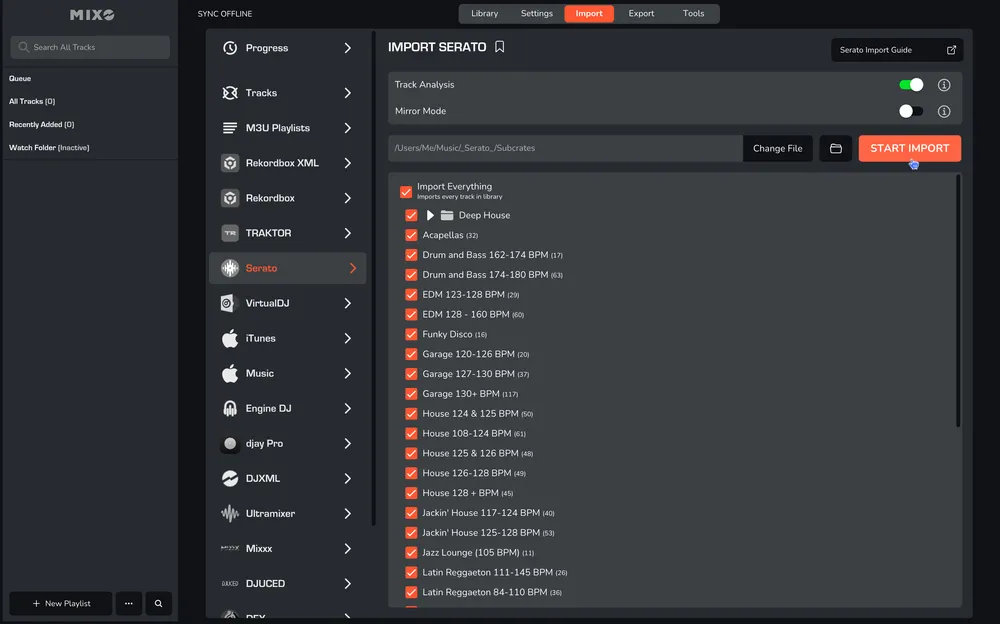
MIXO will import your tracks, cue points, loops, and metadata directly from SERATO.
Additional settings:
- You can optionally turn off 'Track Analysis' at the top of the Import page. Keeping it enabled is recommended, as it gets album artwork, builds waveforms, and analyzes beatgrids for all tracks during the import.
- If you enable 'Mirror Mode', your entire MIXO library will be completely replaced by the imported library. If disabled, MIXO will merge the new import with your existing library.
2. Export playlists to REKORDBOX
- In MIXO, navigate to the ‘EXPORT’ tab.
- On the left sidebar, select Rekordbox.
- MIXO should automatically locate the Master Database for Rekordbox. If it has been changed, use the ‘Change Location’ feature before exporting.
- Select whether to export your entire library or choose individual playlists and press the 'START EXPORT' button.

Done! Open your Rekordbox application.
Additional settings:
- Enable ‘Export MIXO tags to MyTag’ to carry over tags added in MIXO to the Rekordbox ‘MyTag’ setting for intelligent grouping and lists.
- Enable ‘Save MIXO Tags To Comments’ to overwrite the comments field on each track with tags added in MIXO.
- You can enable ‘Copy HotCues To Memory Cues’ to convert Hot Cues added in MIXO into Memory Cues for transfer to Rekordbox.
- You can enable ‘BeatGrid Lock’ to prevent automatic analysis in Rekordbox from resetting the beatgrids.