SERATO TO MIXO
How to import your SERATO library into MIXO
1. Close your SERATO application before import.
2. In MIXO, go to the ‘IMPORT’ tab and click SERATO.
In MIXO v2.7+, Serato's new v4 database will be used by default, regardless of the file path shown. If not found, or when "Compatibility Mode" is turned on, MIXO will fall-back to parsing the old Subcrates folder.
3. Press the 'START IMPORT' button.
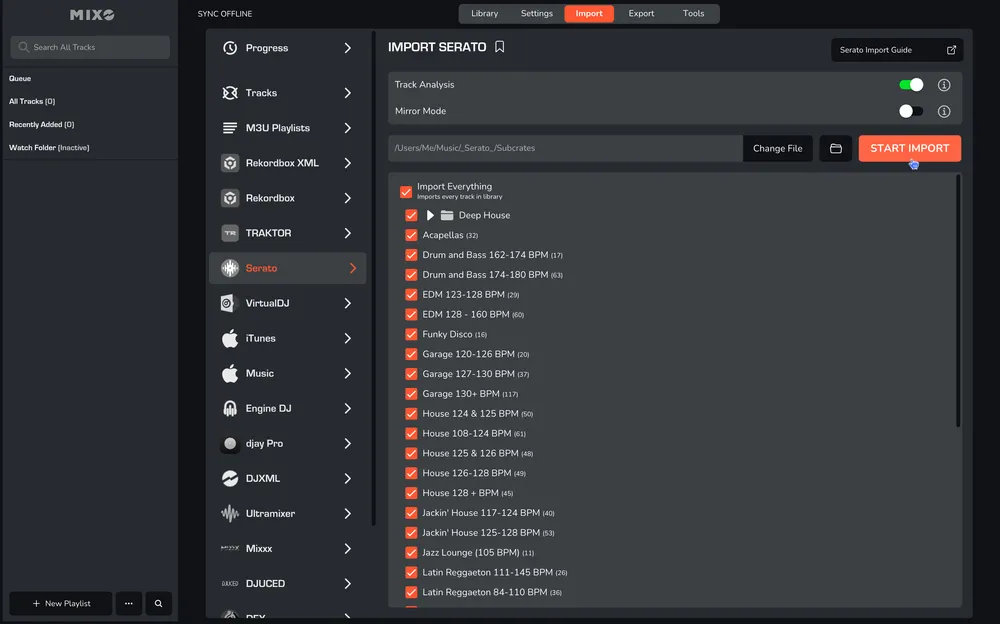
MIXO will import your crates, tracks, metadata directly from Serato's V4 database, then analyse the tracks to import cue points, loops and beatgrids.
PLEASE NOTE: Only active tracks are imported from Serato's v4 database, based on the connections last used in Serato (eg external drives & streaming services). If you use multiple streaming services, start Serato and enable the streaming service in Preferences, then quit and MIXO should find any crates with streaming tracks from that service.
OPTIONS:
Waveform/Grid Analysis - turn off to speed up the import, however, keeping it enabled is recommended to ensure exporting to DJ software works correctly. Analysis is still required to extract artworks, cue points and loops from the tags.
Mirror Mode - when on, your entire MIXO library will be completely replaced by the imported library. By default, MIXO will merge the new import with your existing library.
Compatibility Mode - forces MIXO to import crates from the legacy Subcrates folder as shown in the location path. Should not be required unless you still use Serato v3. Change the location to the correct drive where necessary.