REKORDBOX XML TO MIXO
How to import a Rekordbox XML into MIXO.
Step 1: Export an XML from REKORDBOX
1. Open your Rekordbox application.
2. In the top left menu, navigate to File -> Export Collection in XML format.

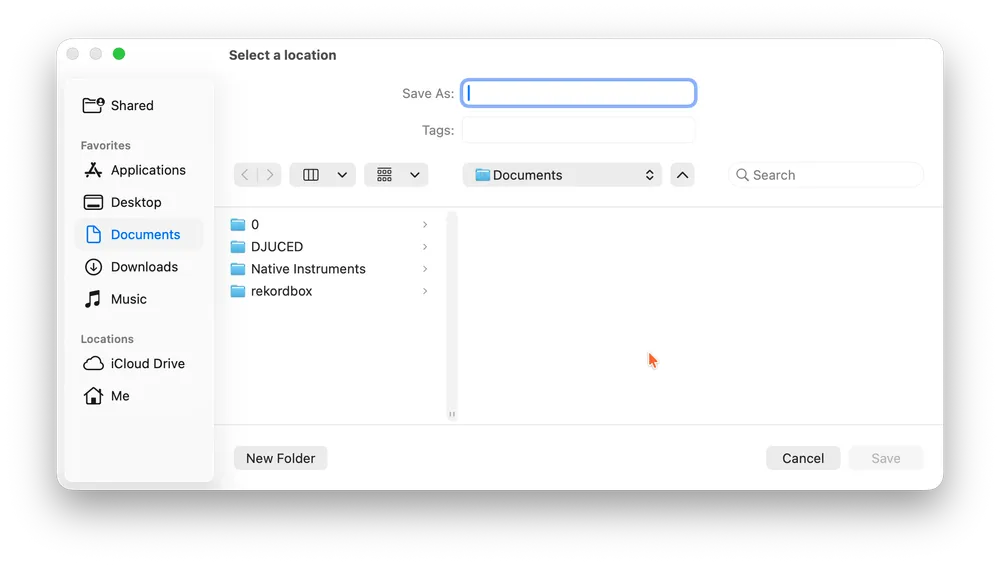
3. Choose a memorable location (e.g., the Documents folder), and click Save.
Step 2: Import the REKORDBOX XML into MIXO
1. In MIXO, go to the ‘IMPORT’ tab and click Rekordbox XML.
2. Click 'Change File' and find the Rekordbox XML file that you just saved.
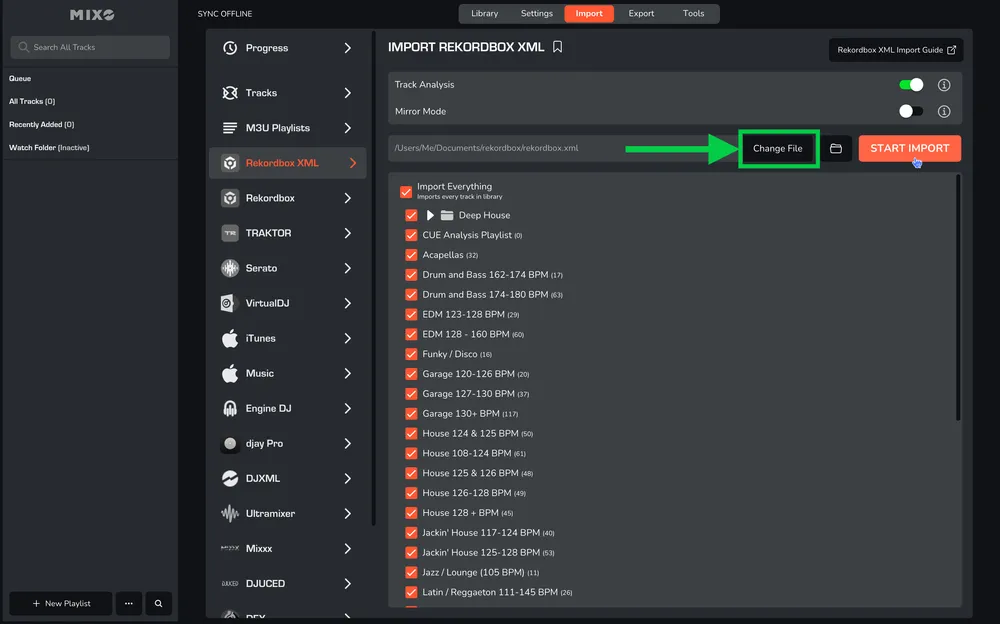
If there is a default XML file already listed, you must change it to your recently exported file, as the default file may be outdated.
3. Press the 'START IMPORT' button. MIXO will import your tracks, custom metadata, loops, cues, memory cues and beatgrid change points from the Rekordbox XML.
OPTIONS:
Track Analysis - turn off to speed up the import, however, keeping it enabled is recommended to ensure artwork is imported and exporting to DJ software works correctly.
Mirror Mode - when on, your entire MIXO library will be completely replaced by the imported library. By default, MIXO will merge the new import with your existing library.