MOVE & RENAME FILES V2
MIXO Move & Rename allows you to organise your library by automatically renaming tracks and moving them into structured folders based on your chosen patterns.
1. Go to the Tools section and select 'Move & Rename' from the side menu.
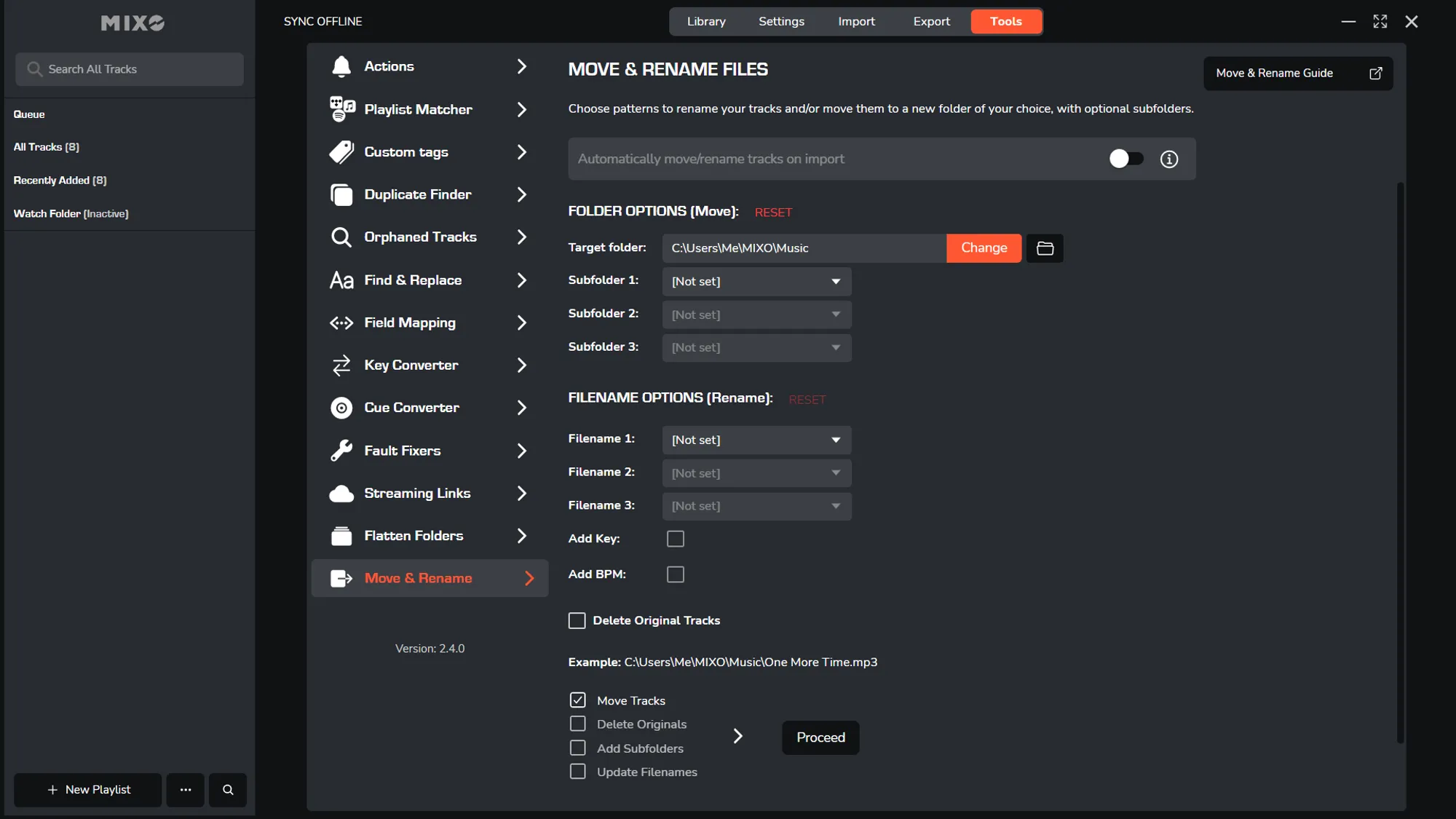
2. Set the Target folder by clicking the 'Change' button to specify where the files will be stored.
3. Choose your folder structure using the Subfolder 1, 2, 3 dropdown lists (e.g. Artist > Album).
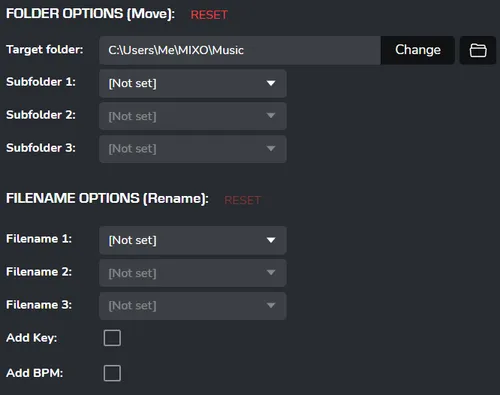
4. Configure the filename format in the FILENAME OPTIONS block, adding Key or BPM if required.
5. Tick the necessary action boxes at the bottom of the screen (e.g. ‘Move Tracks’ or ‘Update Filenames’).
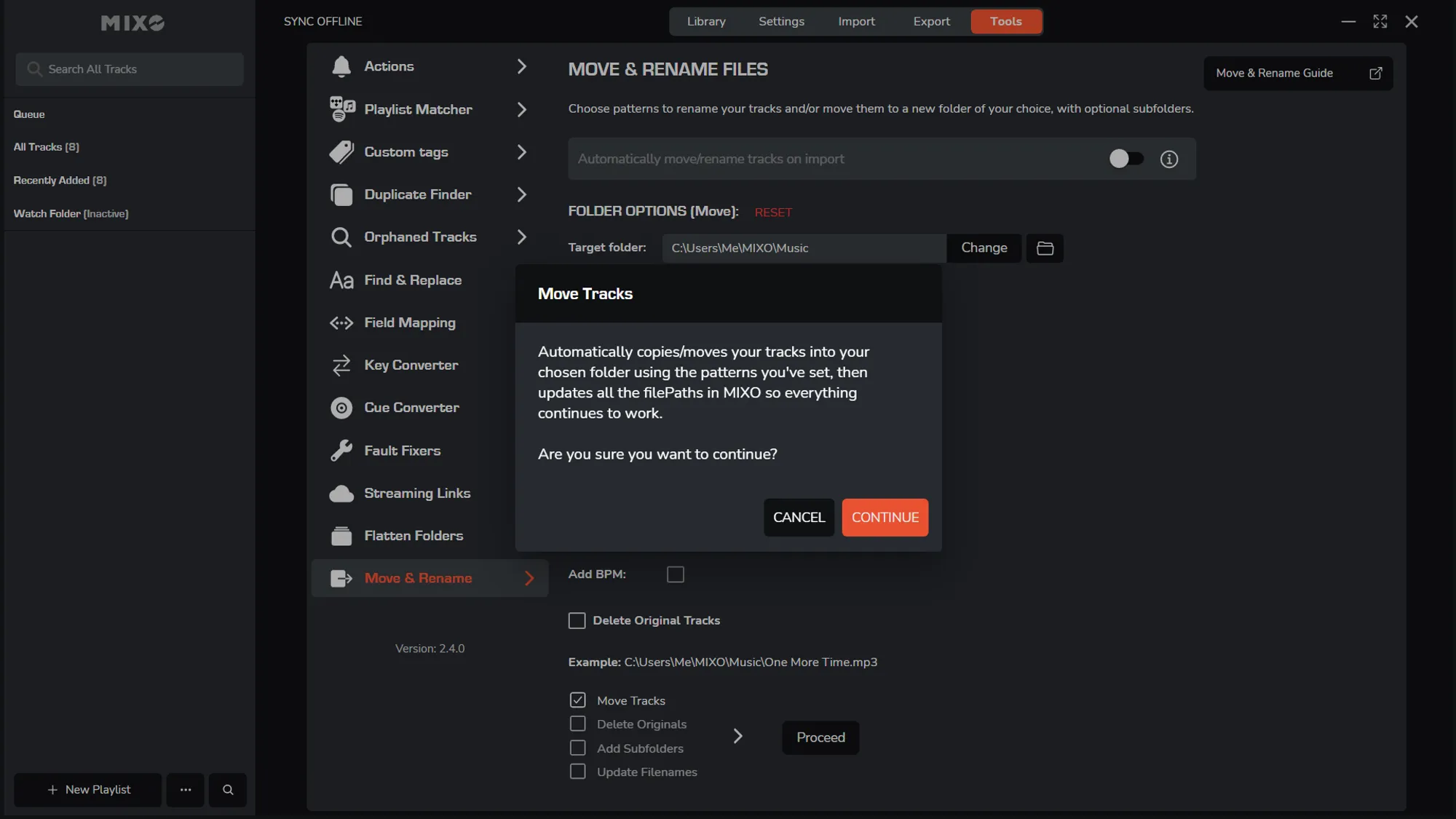
6. Click 'Proceed'.
7. In the 'Move Tracks' confirmation window, click 'CONTINUE'.
Notes:
- Important: After moving files, MIXO automatically updates all internal filePaths, ensuring your library remains functional and tracks are not marked as ‘Missing’.
- Use the 'Automatically move/rename tracks on import' toggle to let MIXO independently organise every new track added to your collection.
- Exercise caution with the 'Delete Original Tracks' option: if enabled, the original files will be removed once they have been successfully copied to the new folder.
- The Example line at the bottom provides a dynamic preview of how the file path will look after the changes are applied.