MIXXX TO ENGINE DJ
1. Exporting your playlists from Mixxx
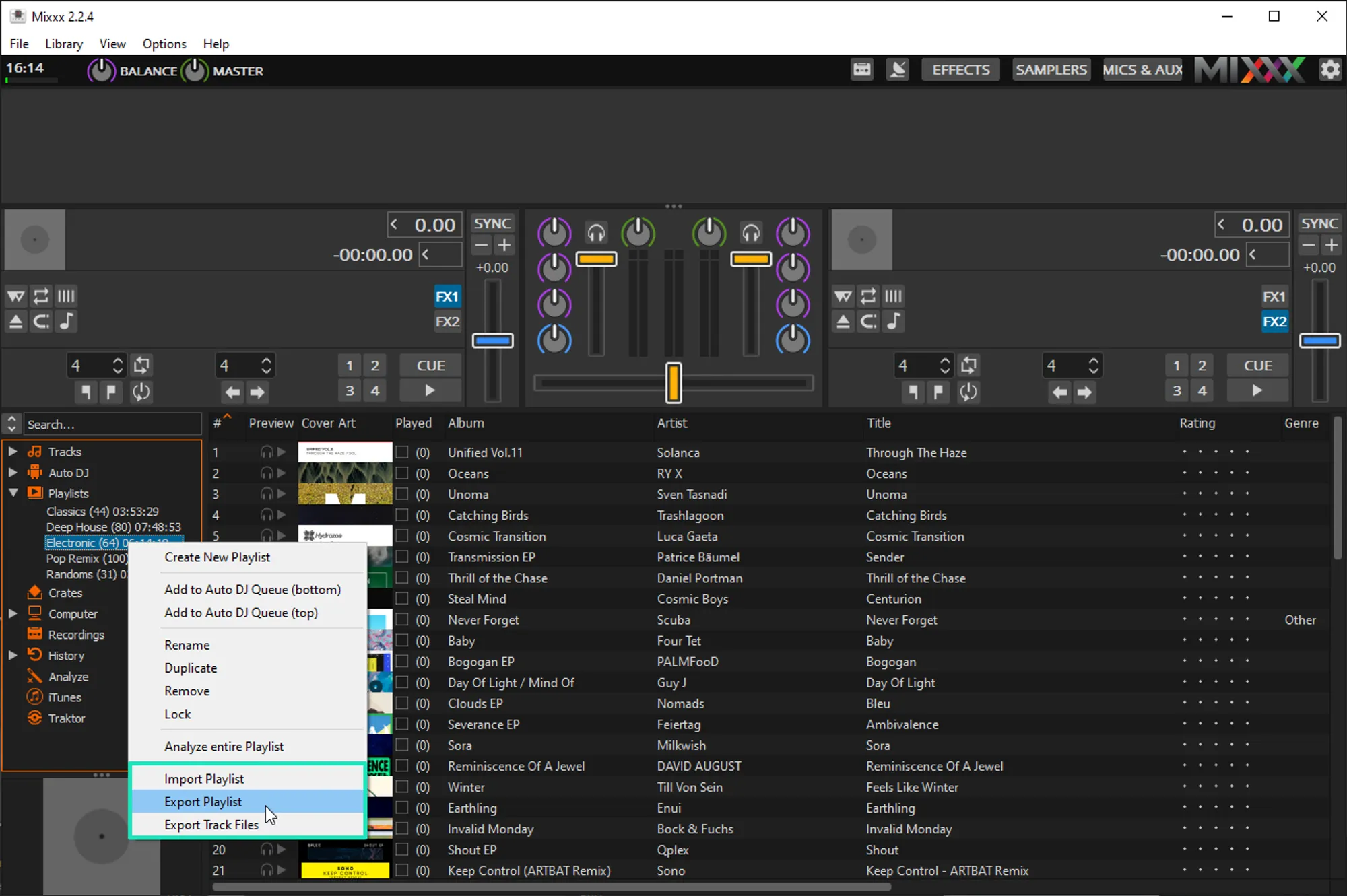
- Open Mixxx and expand the playlists folder
- Right-click the playlist you want to export
- Select Export playlist from the menu
- Choose a destination to export your playlist. Make sure the playlist is exported as an M3U.
2. Importing your Mixxx playlists to MIXO
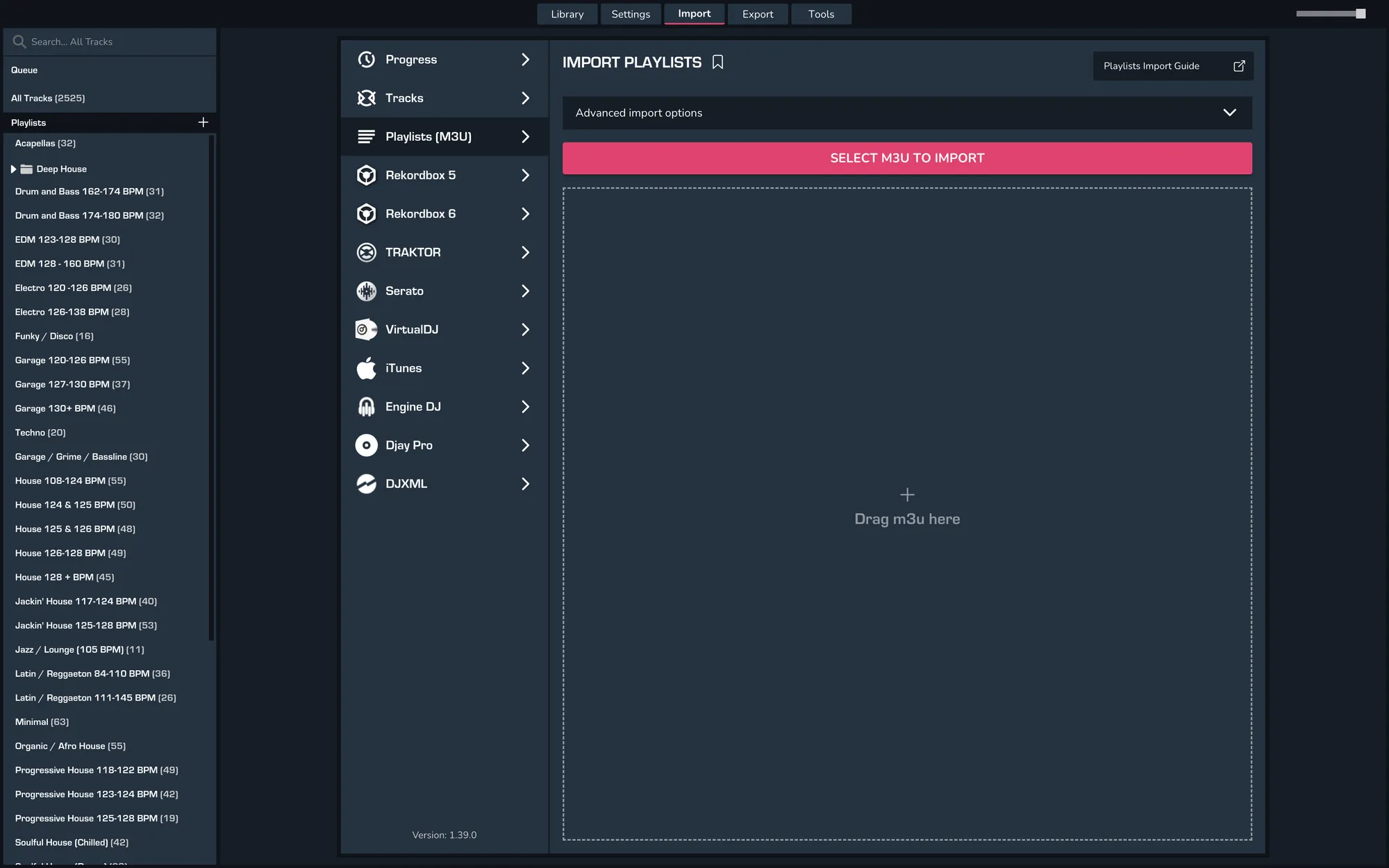
- IMPORT > PLAYLISTS
- Click IMPORT PLAYLISTS
- Select the playlists you exported from Mixxx from the file browser
- Click Open to import the playlists
3. Export your playlists to Engine DJ
- Quit Engine DJ
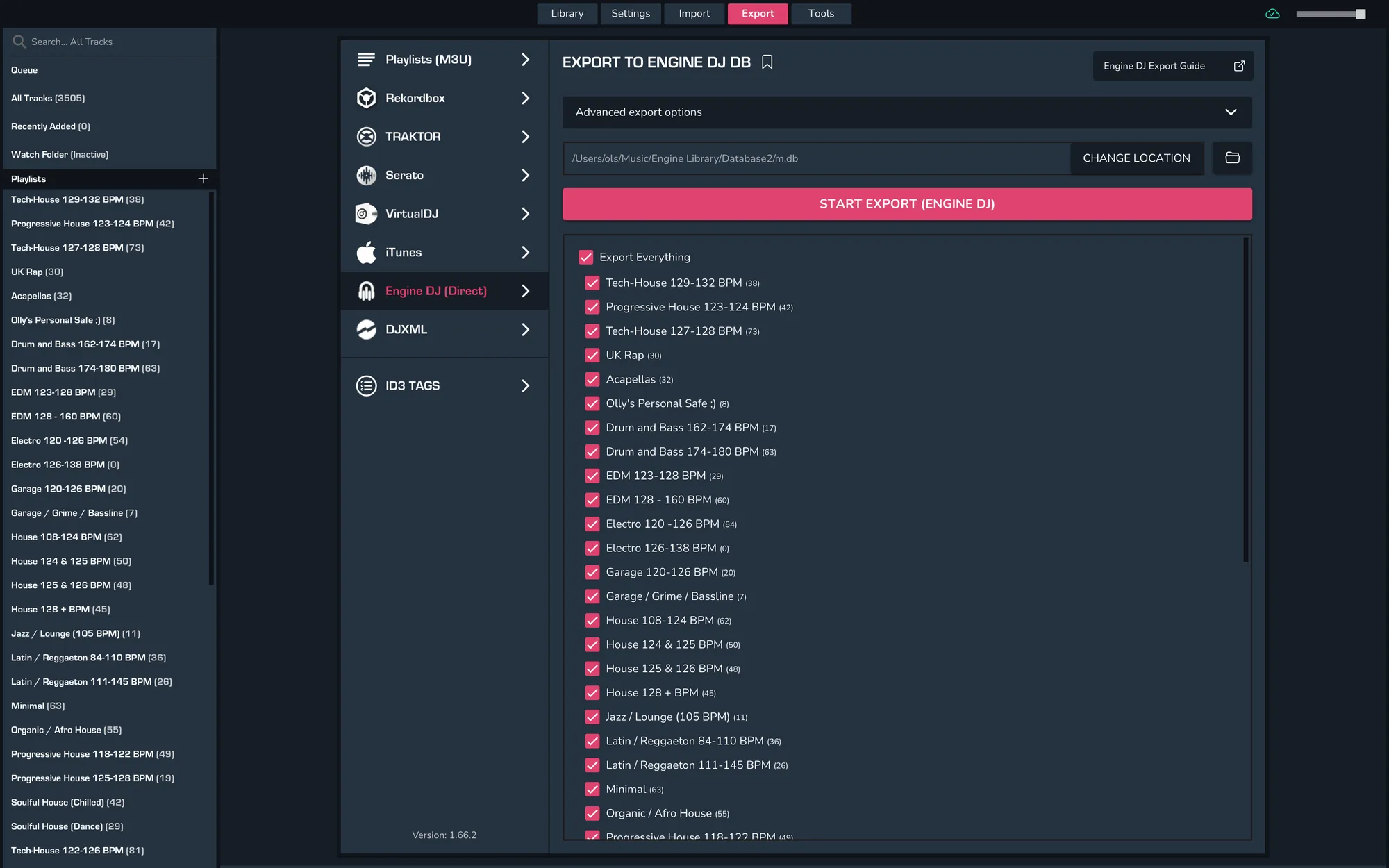
- To export individual playlists or your entire library from MIXO go to EXPORT > Engine DJ.
- If you are saving to an external drive change the export folder location
- Click EXPORT Engine DJ
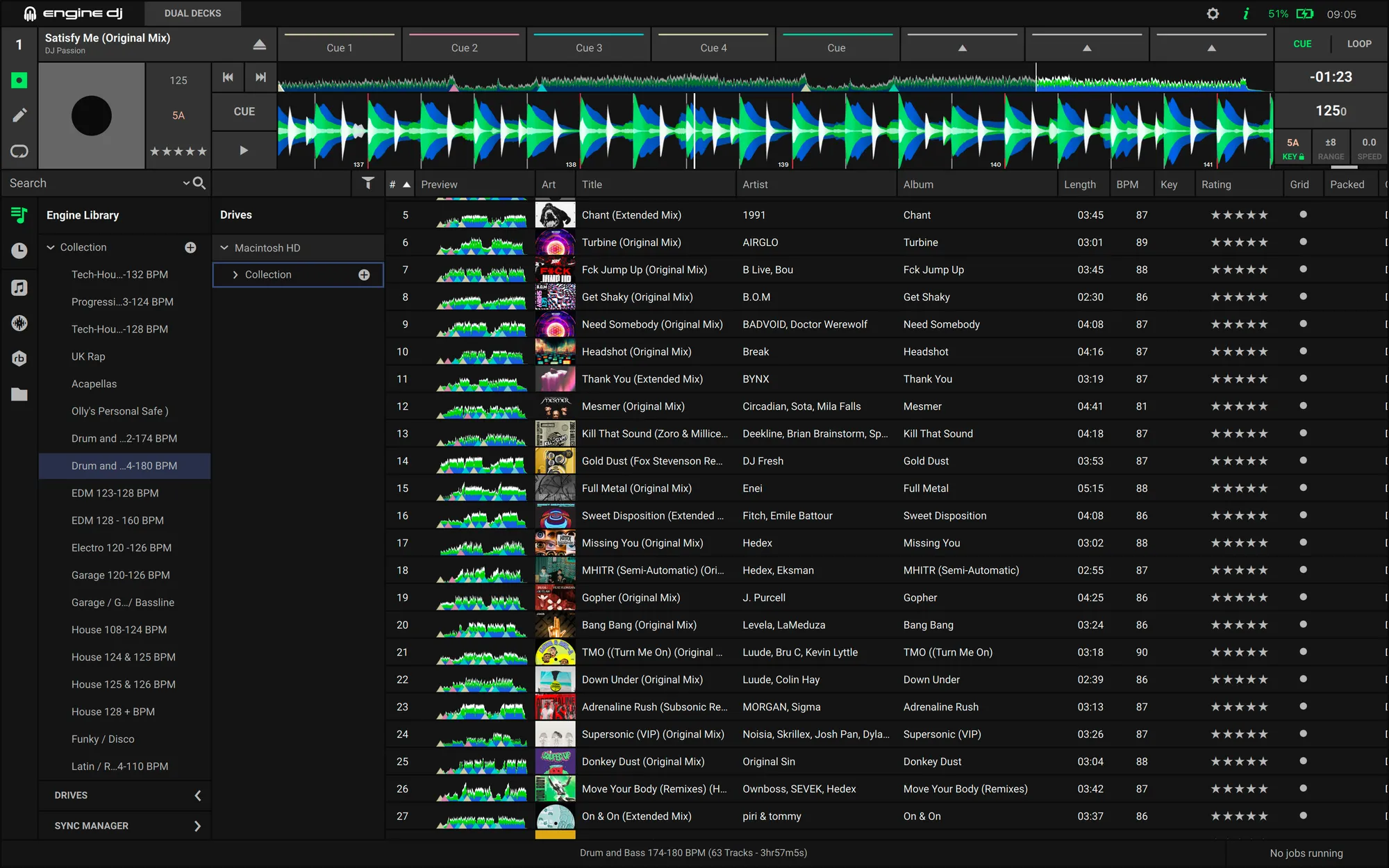
- Open Engine DJ and your library will match your MIXO export
Notes
Backups
MIXO will automatically backup your DJ Libraries every time you export.
It's also a good idea to regularly backup your source library and computer.