MIXO TO VIRTUAL DJ
How to export your MIXO library to VIRTUAL DJ
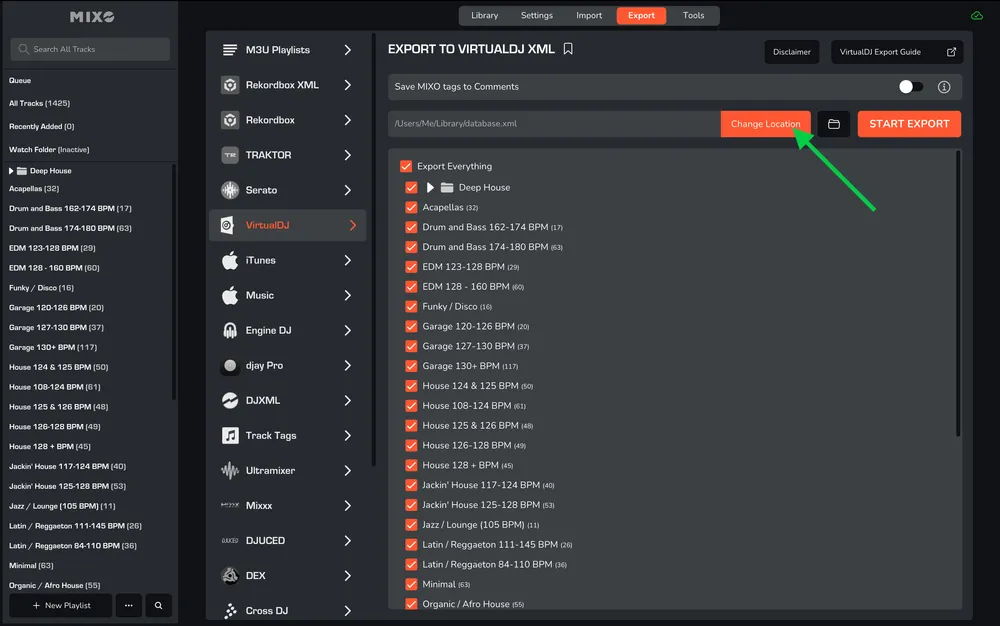
1. In MIXO, go to the ‘EXPORT’ tab and click Virtual DJ.
2. Set the folder location so the exported file can be found by VirtualDJ. Click ‘Change Location’ and set the path:
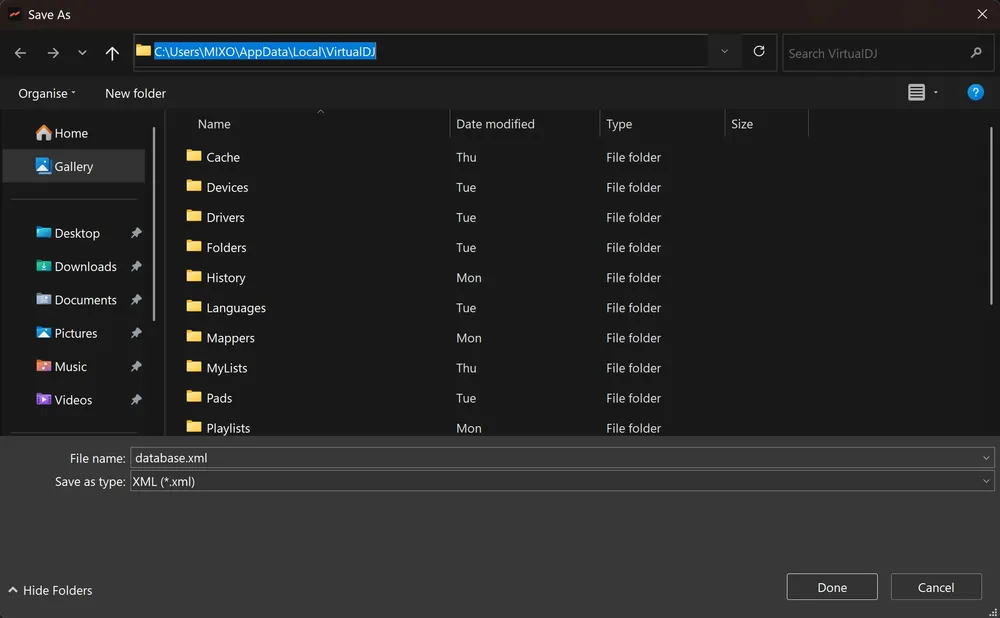
Windows Users:
Select the folder in Users -> [your-user] -> AppData -> Local -> VirtualDJ
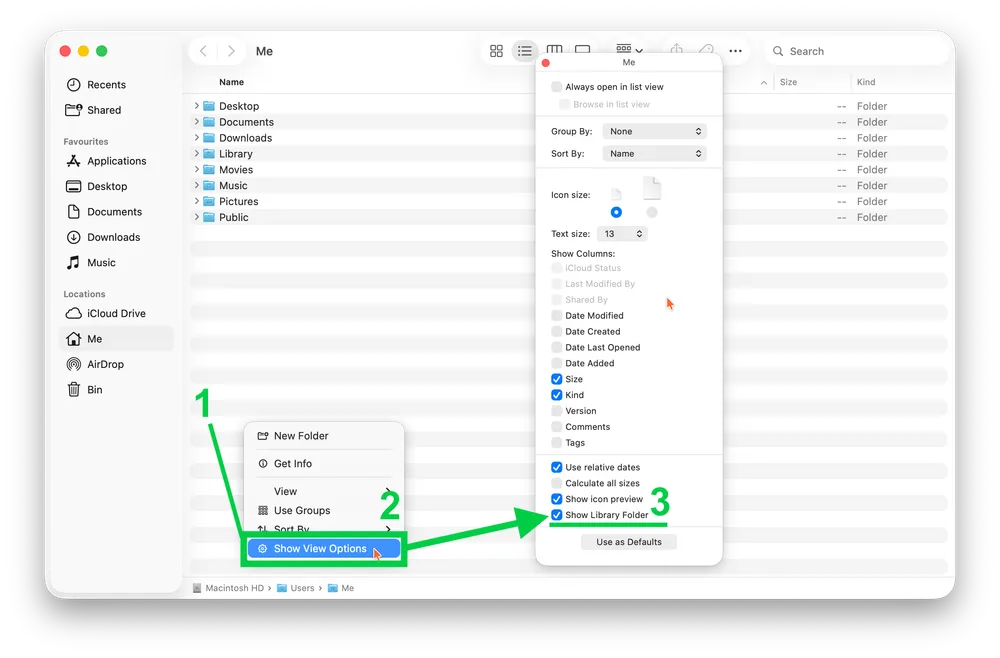
MAC Users:
- First ensure the Library folder is visible: Finder -> Right-click -> ‘Show View Options’ -> tick ‘Show Library Folder’).

3. Select whether to export your entire library or choose individual playlists and press the 'START EXPORT' button.
Done! Open your Virtual DJ application.
OPTIONS:
Save MIXO Tags To Comments - turn on to overwrite the comments field on each track with tags added in MIXO.