MIXO TO REKORDBOX VIA XML
1. Export playlists to REKORDBOX via XML
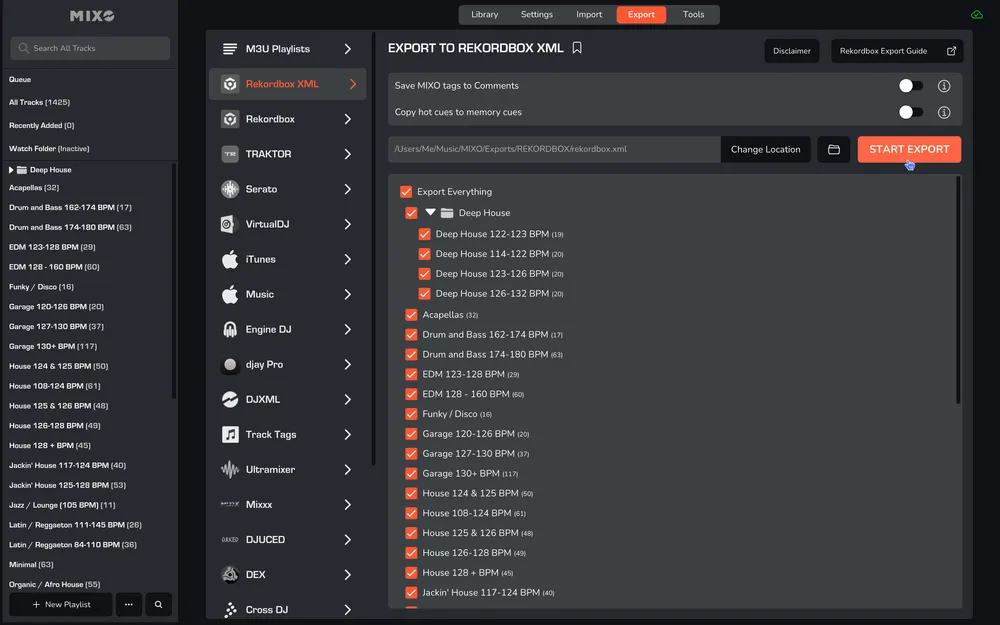
- In MIXO, navigate to the ‘EXPORT’ tab.
- On the left sidebar, select REKORDBOX XML.
- Select whether to export your entire library or choose individual playlists and press the 'START EXPORT' button.
2. Import XML into Rekordbox
- Open your Rekordbox application.
- In the left-hand column, press DISPLAY REKORDBOX XML
- If the XML is not showing, navigate to Settings -> Advanced
- Change the Rekordbox XML Imported library path to: MUSIC -> MIXO -> EXPORTS -> REKORDBOX and select rekordbox.xml.
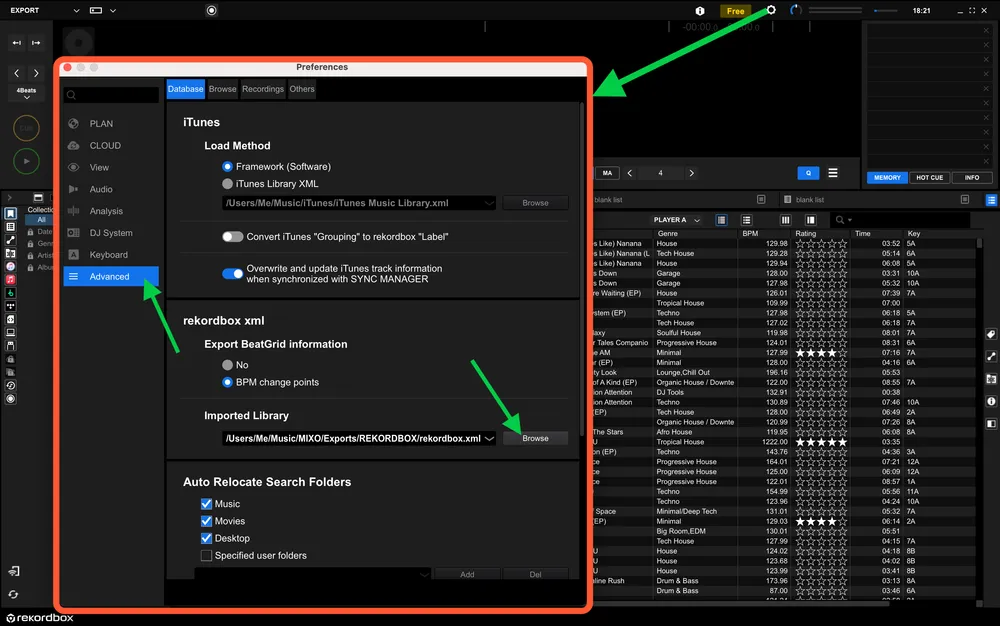
- Restart Rekordbox and refresh the XML - press DISPLAY REKORDBOX XML.
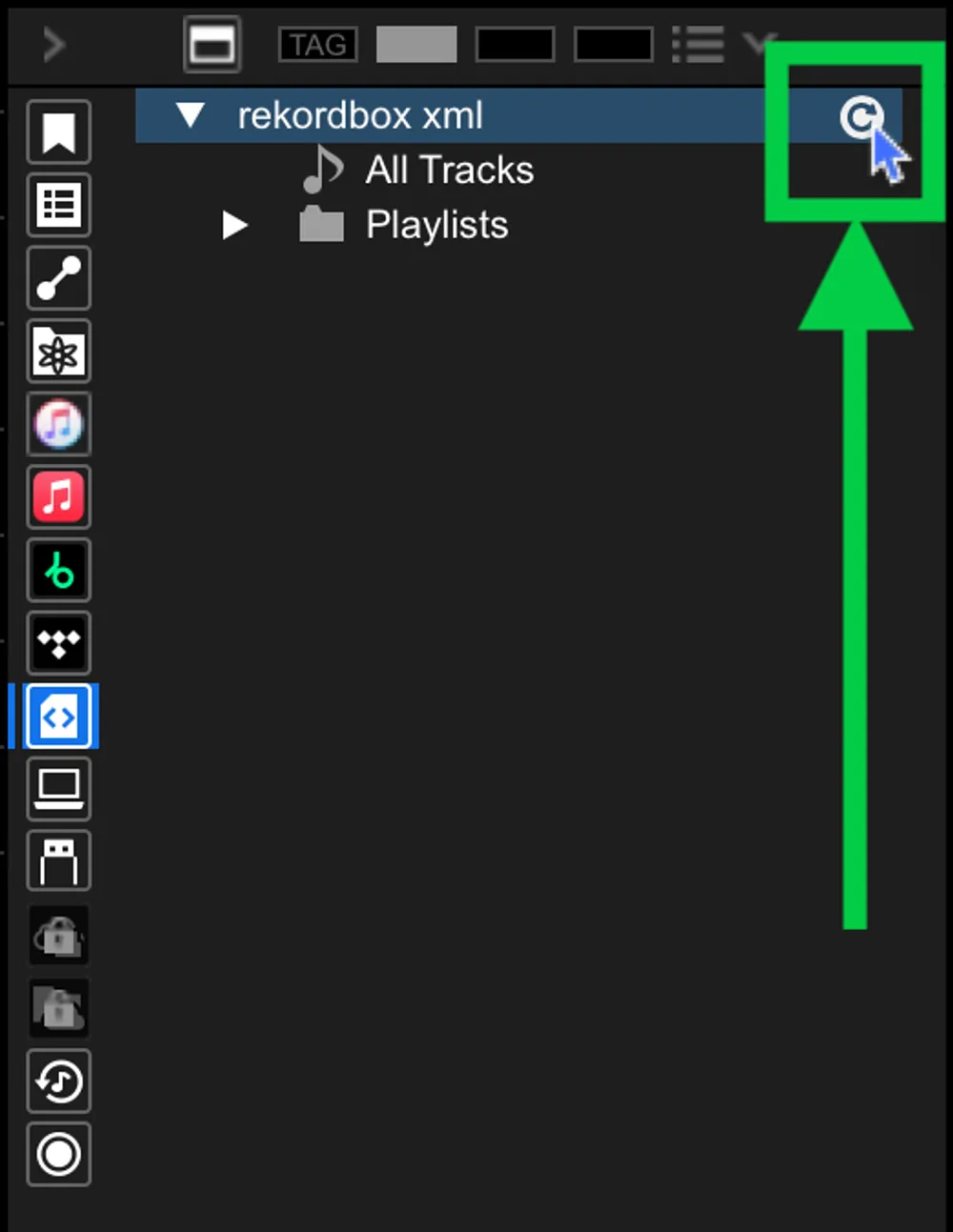
Done! Selected playlists, tracks and metadata from MIXO will be available and ready to use in your Rekordbox library.
Important note: If your Rekordbox collection has existing XML imports, ensure those tracks are dragged into your main Rekordbox library before importing, as the new XML from MIXO will overwrite the existing XML playlists.
Additional settings:
- Enable ‘Save MIXO Tags To Comments’ to overwrite the comments field on each track with tags added in MIXO.
- You can enable ‘Copy HotCues To Memory Cues’ to convert Hot Cues added in MIXO into Memory Cues for transfer to Rekordbox.