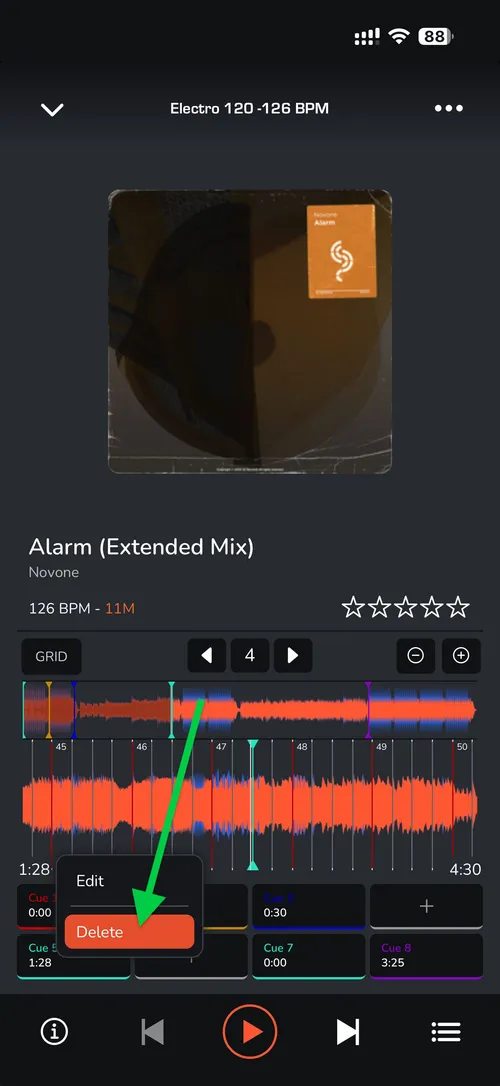
MANAGE CUE POINTS ON IOS & ANDROID
Preparing your tracks on the go is easy with MIXO. Once you have selected a track, you can manage your cue points directly from the mobile interface.
Accessing the Cue Menu
1. Open the Player: at the bottom of the screen tap the playing track to enter the full 'Player' view.
2. In this view, you will see the track details at the top, followed by the waveform, the cue point section, and the player transport functions at the bottom.
Managing Your Cues
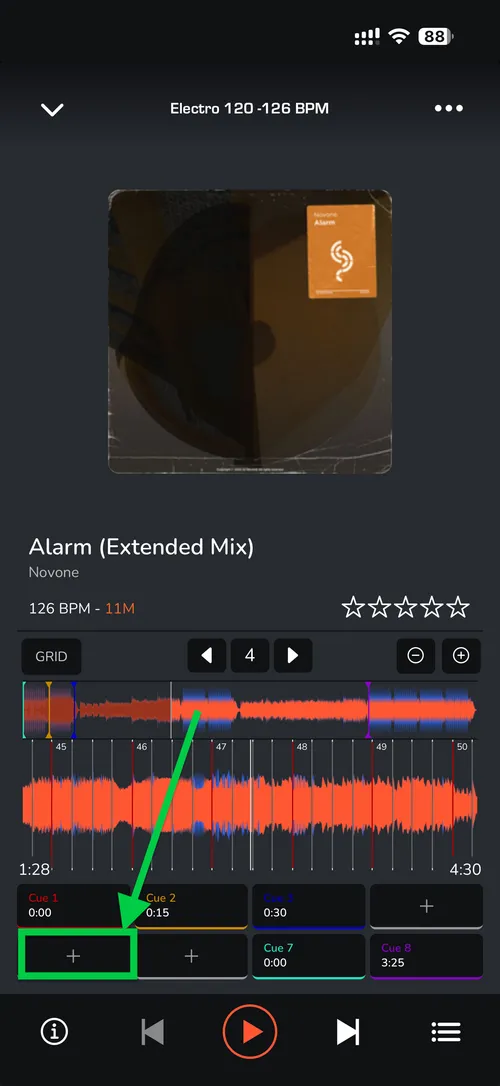
- To Add a Cue: Seek through the waveform to your desired position. Once the playhead is set, tap the '+' button.
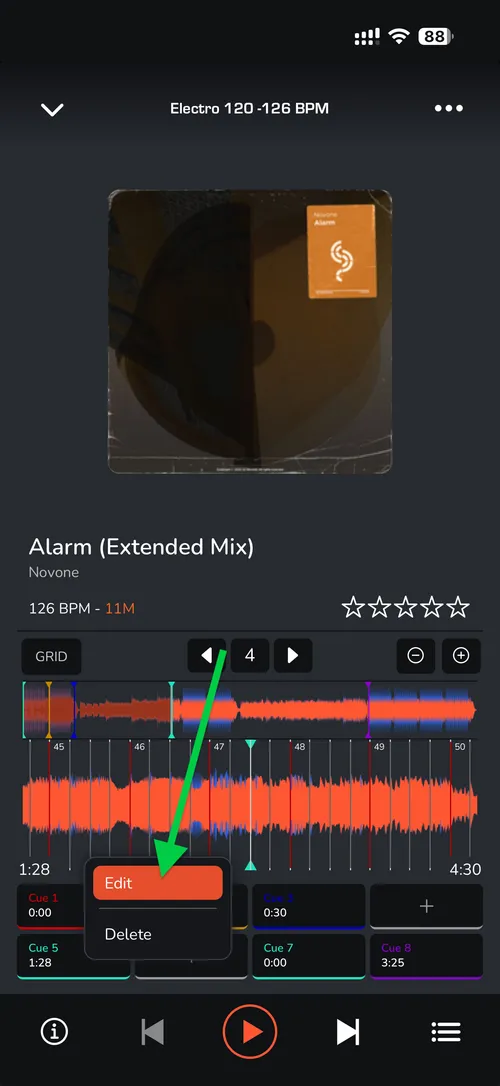
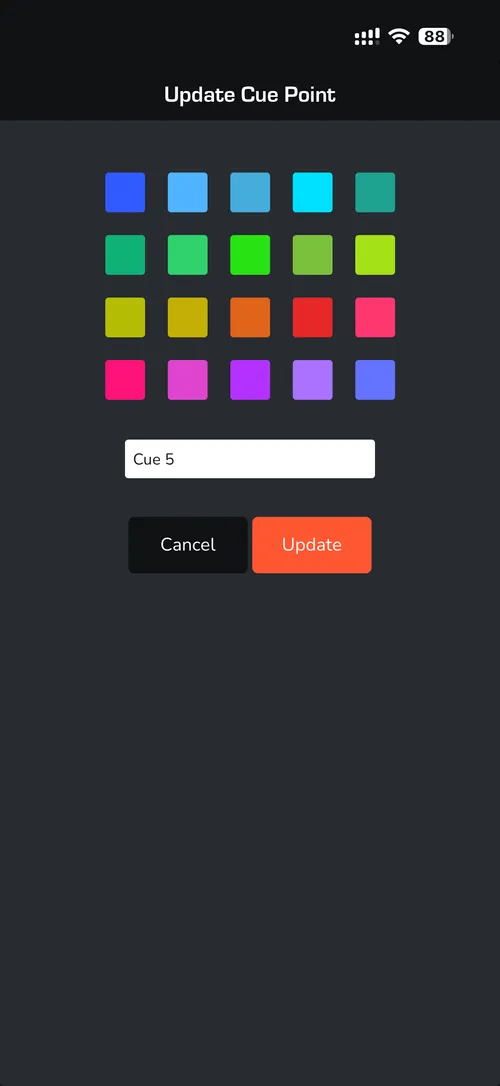
- To Edit a Cue: tap and hold an existing cue button and select 'Edit' to update the label.
- To Delete a Cue: tap and hold the cue button you wish to remove and select 'Delete'.