MANAGE CUE POINTS IN MIXO
You can add, edit, or delete cue points directly from the track player at the top of the interface.
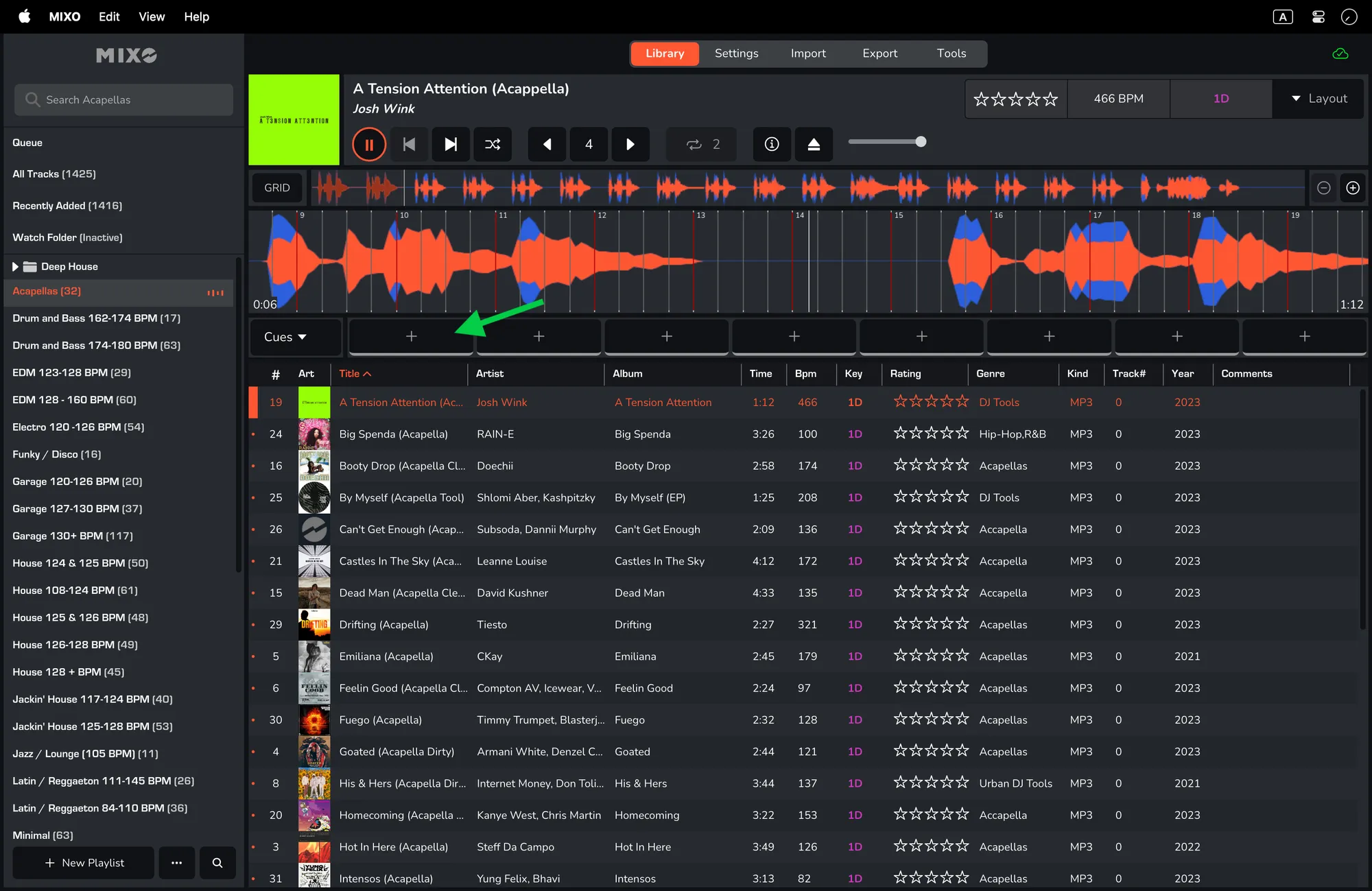
1. Click a track so that it shows in the player at the top.
2. To add a new cue point, click on one of the 8 buttons underneath the waveform. This will be added at the point at which the cursor on the waveform is located.
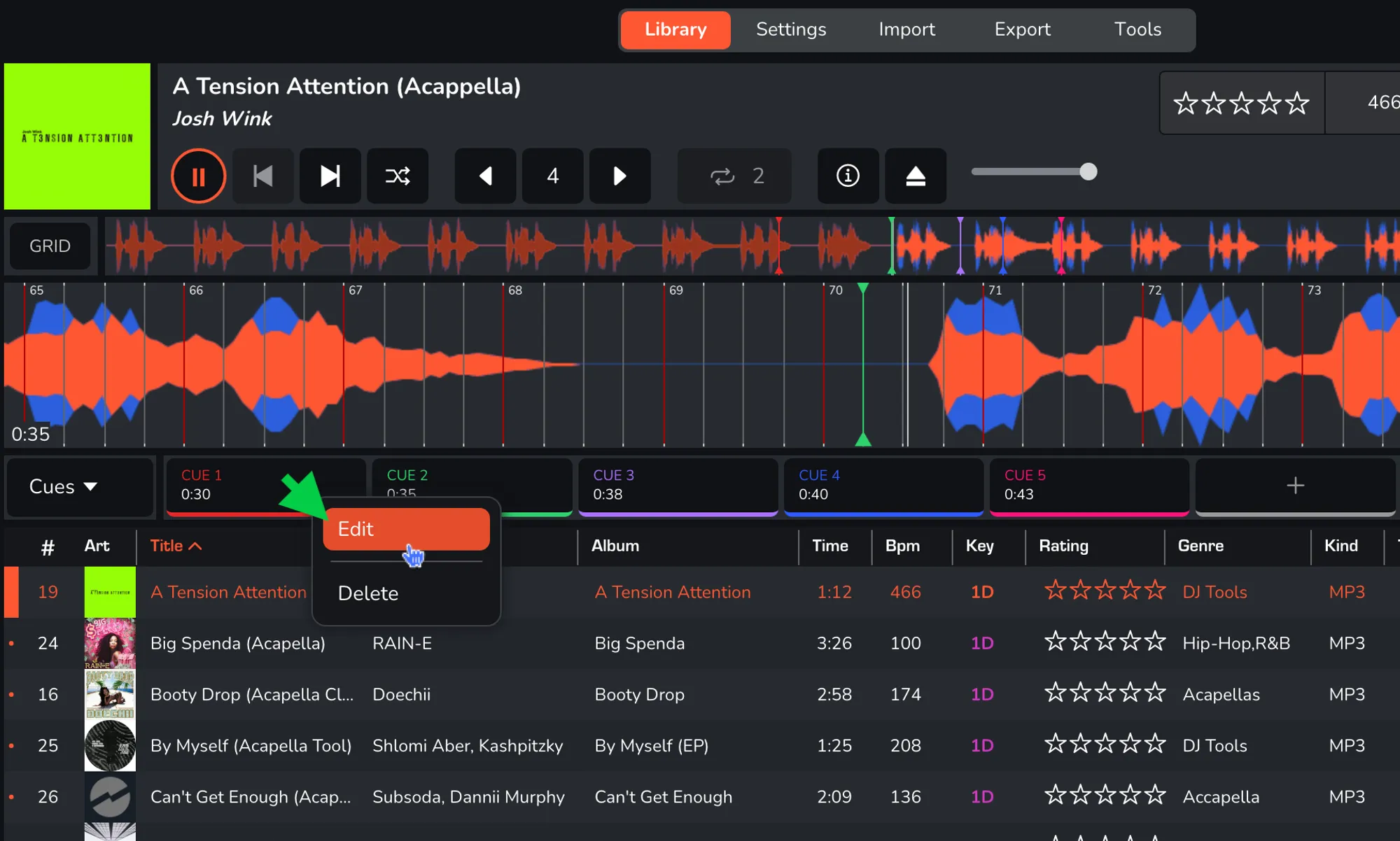
3. To edit a cue point, right-click an existing cue point and press 'EDIT'. Here you can rename the cue point and change the colour.
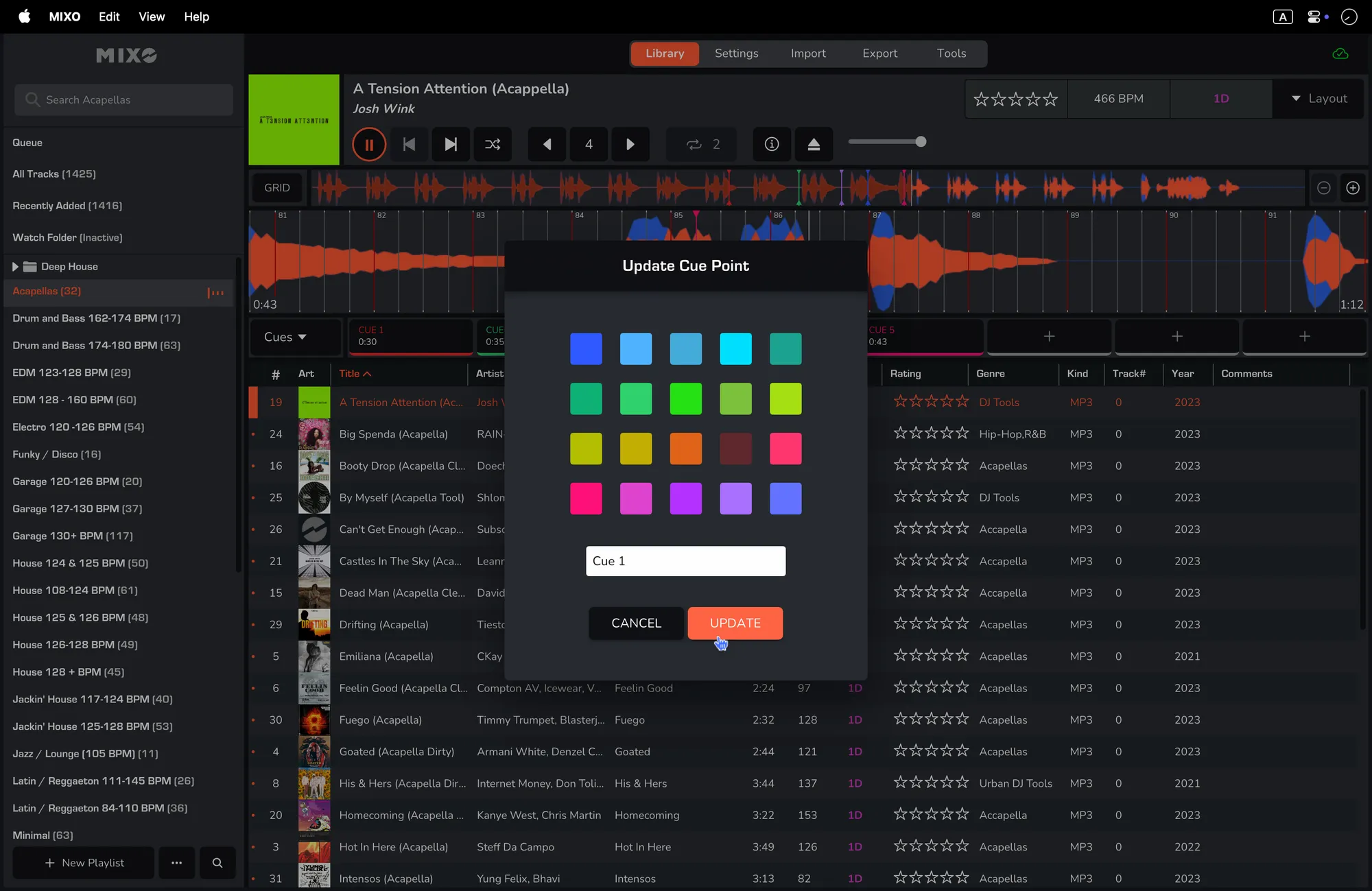
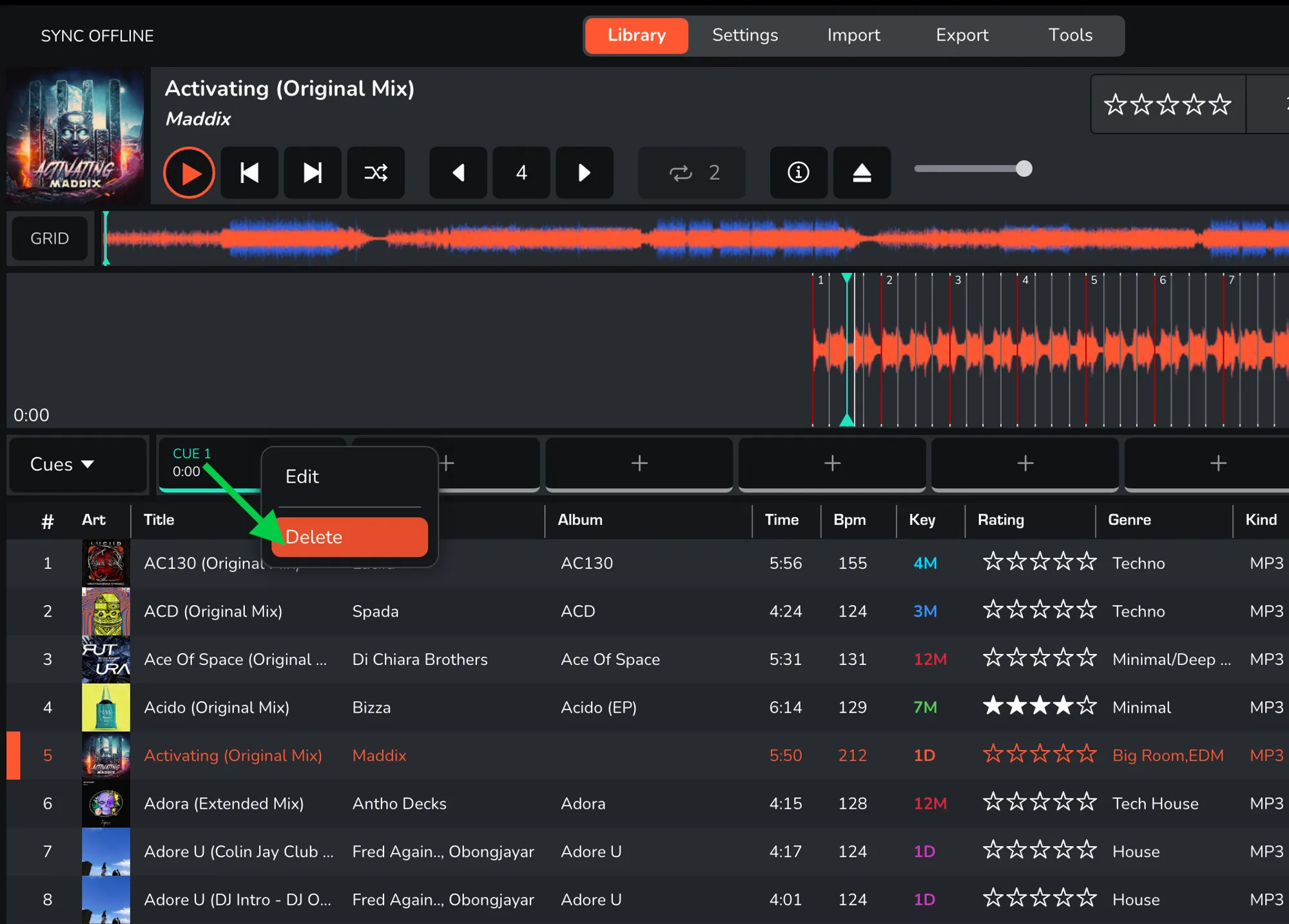
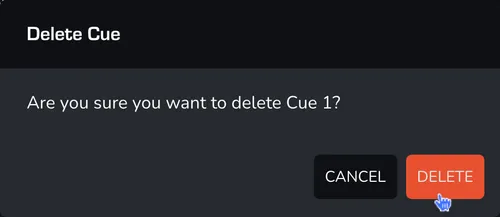
4. To delete a cue point, right-click an existing cue point and press 'DELETE'. Confirm that you are sure and the cue point will be deleted.