MAGIX DIGITAL DJ 2 TO REKORDBOX
1. Exporting your playlists from Magix Digital DJ 2
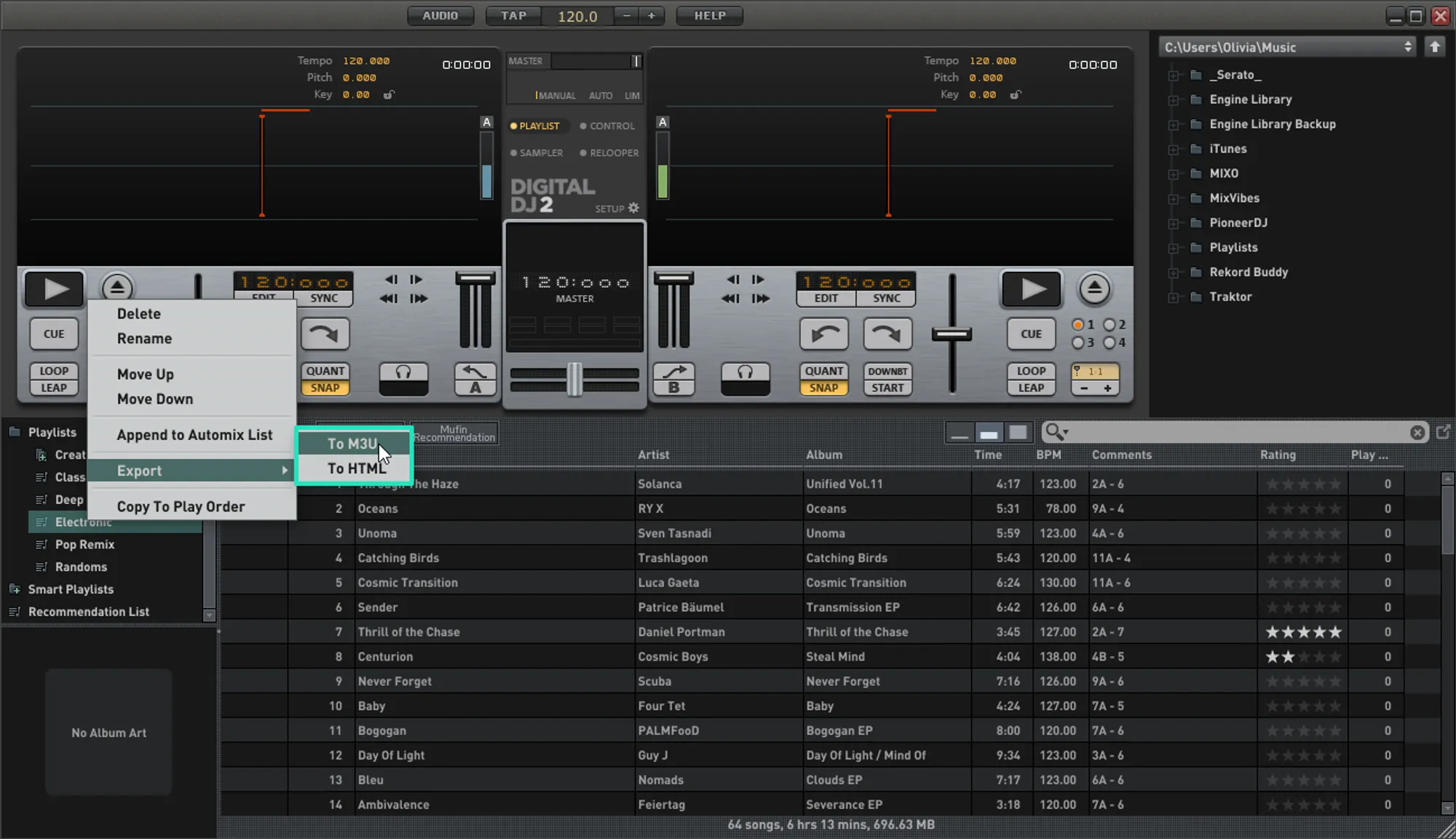
- Open Digital DJ and open the playlists folder
- Right-click the playlist you want to export
- Select Export > To M3U from the menu
- Choose a destination to export your playlist
Follow these steps for each playlist you want to import into MIXO
2. Importing your Magix Digital DJ 2 playlists to MIXO
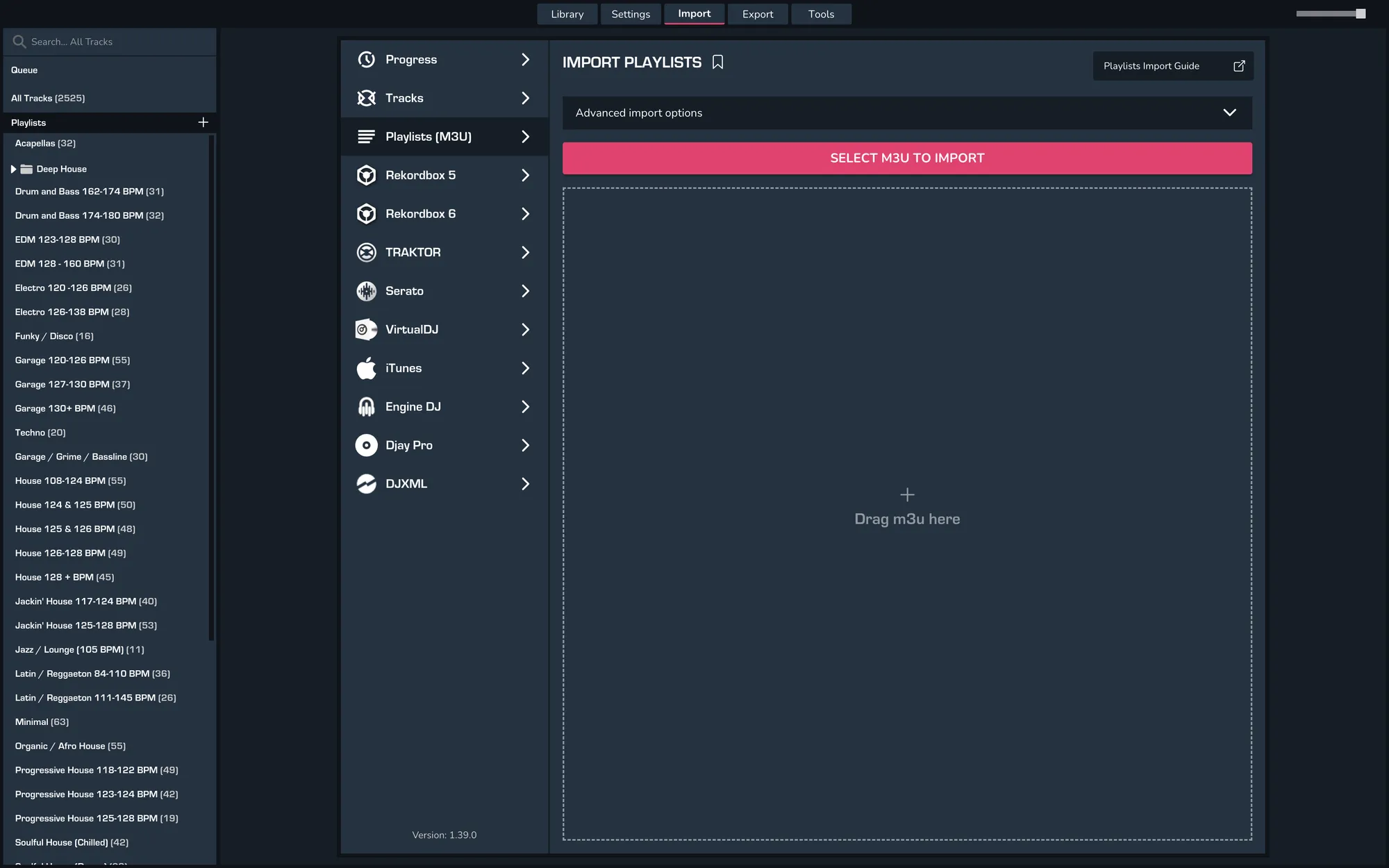
- IMPORT > PLAYLISTS
- Click IMPORT PLAYLISTS
- Select the playlists you exported from Digital DJ from the file browser
- Click Open to import the playlists
3. Exporting Collections & Playlists from MIXO:
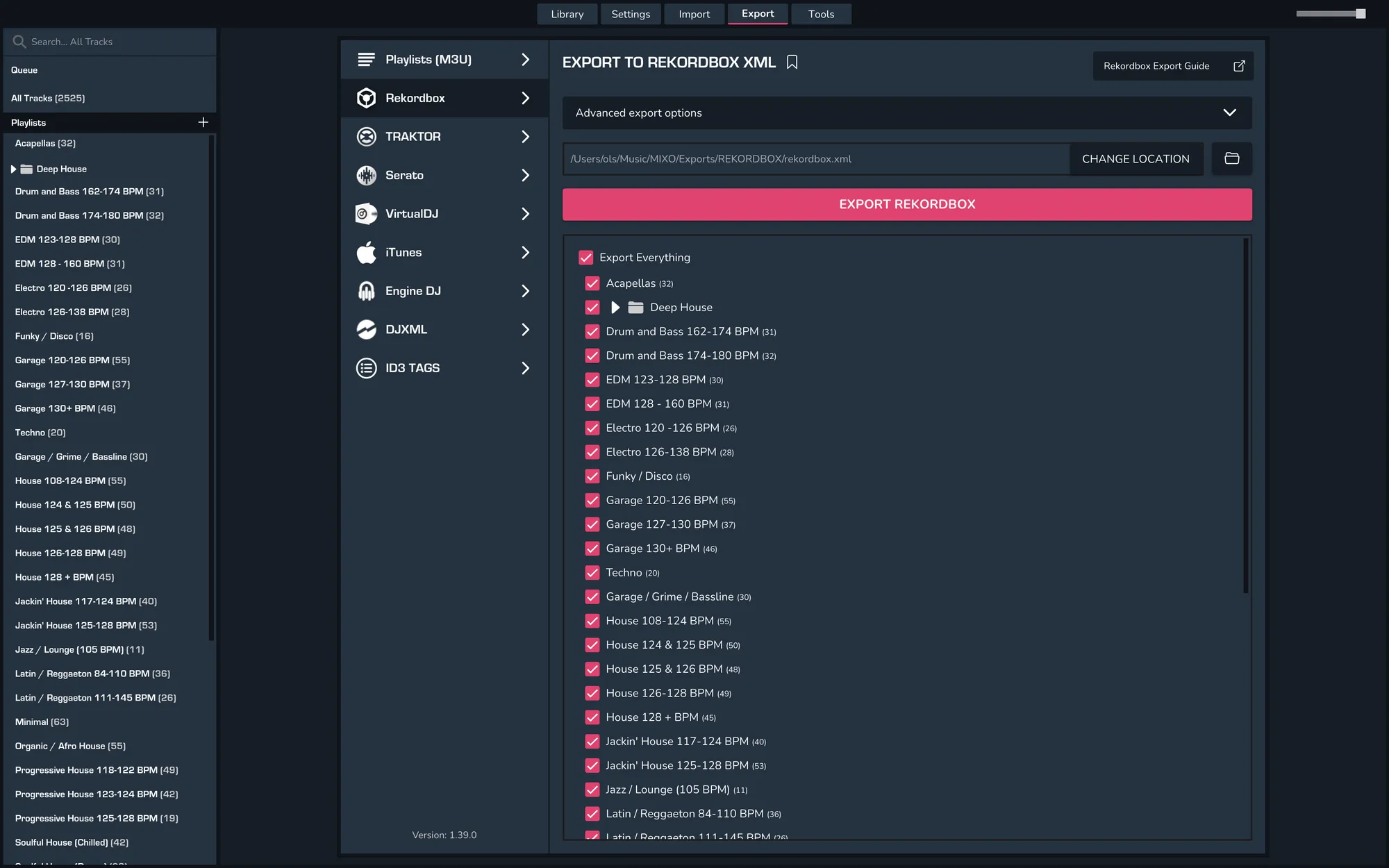
- EXPORT > REKORDBOX
- Below you will need to confirm which playlists should be exported or if the whole library should be exported.
- Click EXPORT
- By default your files are exported to ..\Music\MIXO\Exports\REKORDBOX
4. Import your rekordbox.xml file to Rekordbox
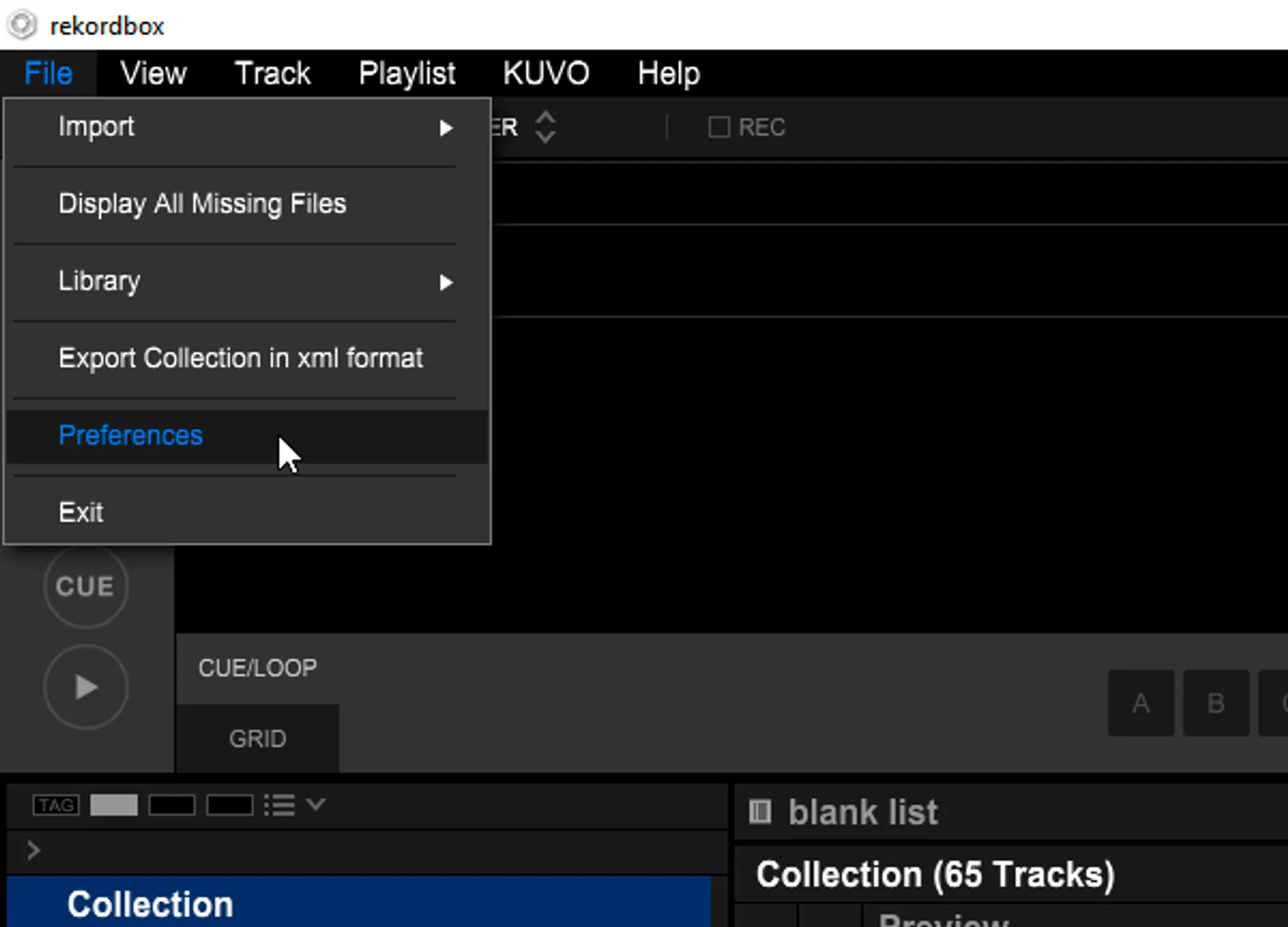
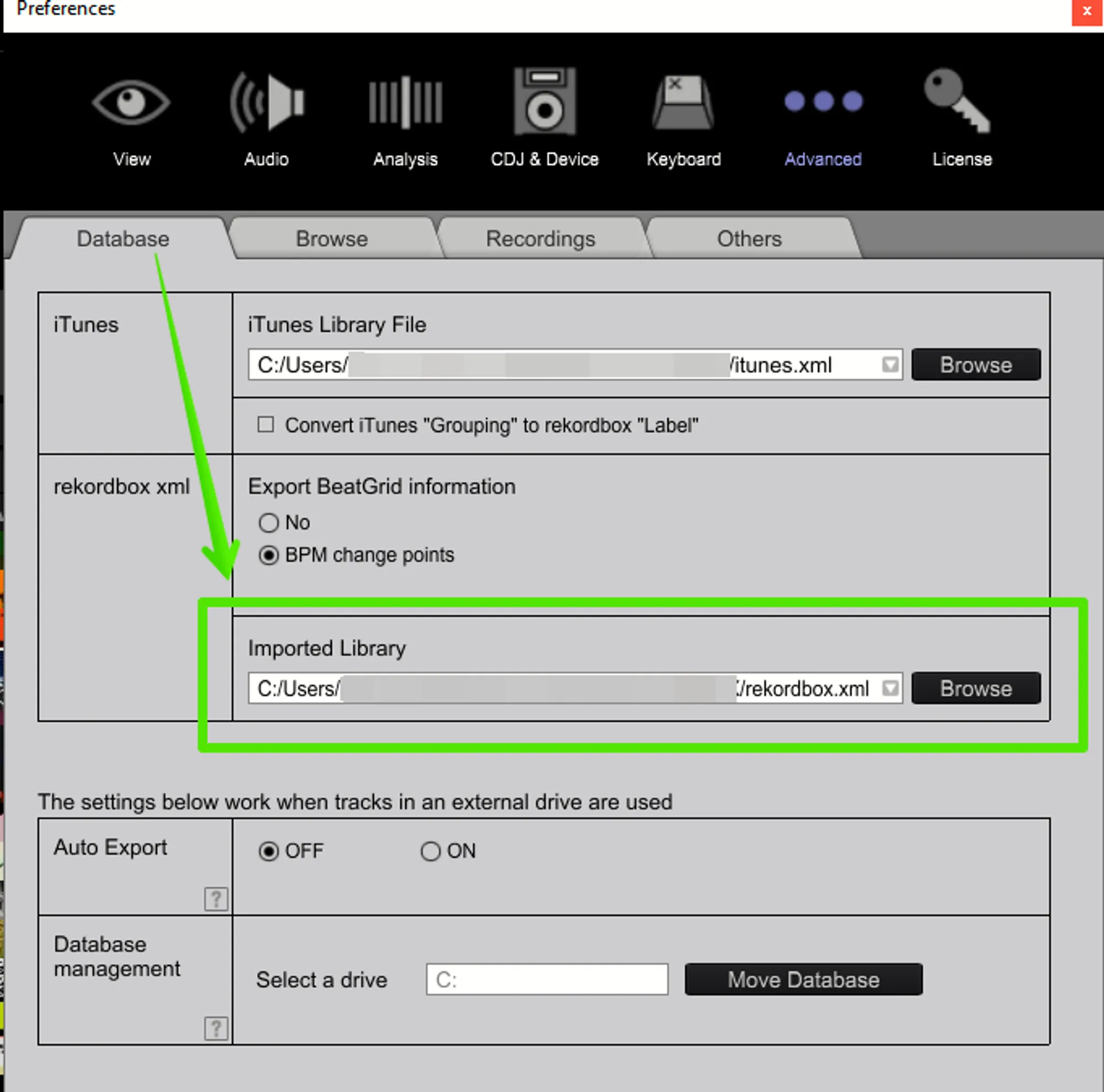
- Open Rekordbox and go to File > Preferences
- Under the Database tab in the rekordbox xml box, change the Imported Library path to be that of the Rekordbox.xml file MIXO exported in the last step
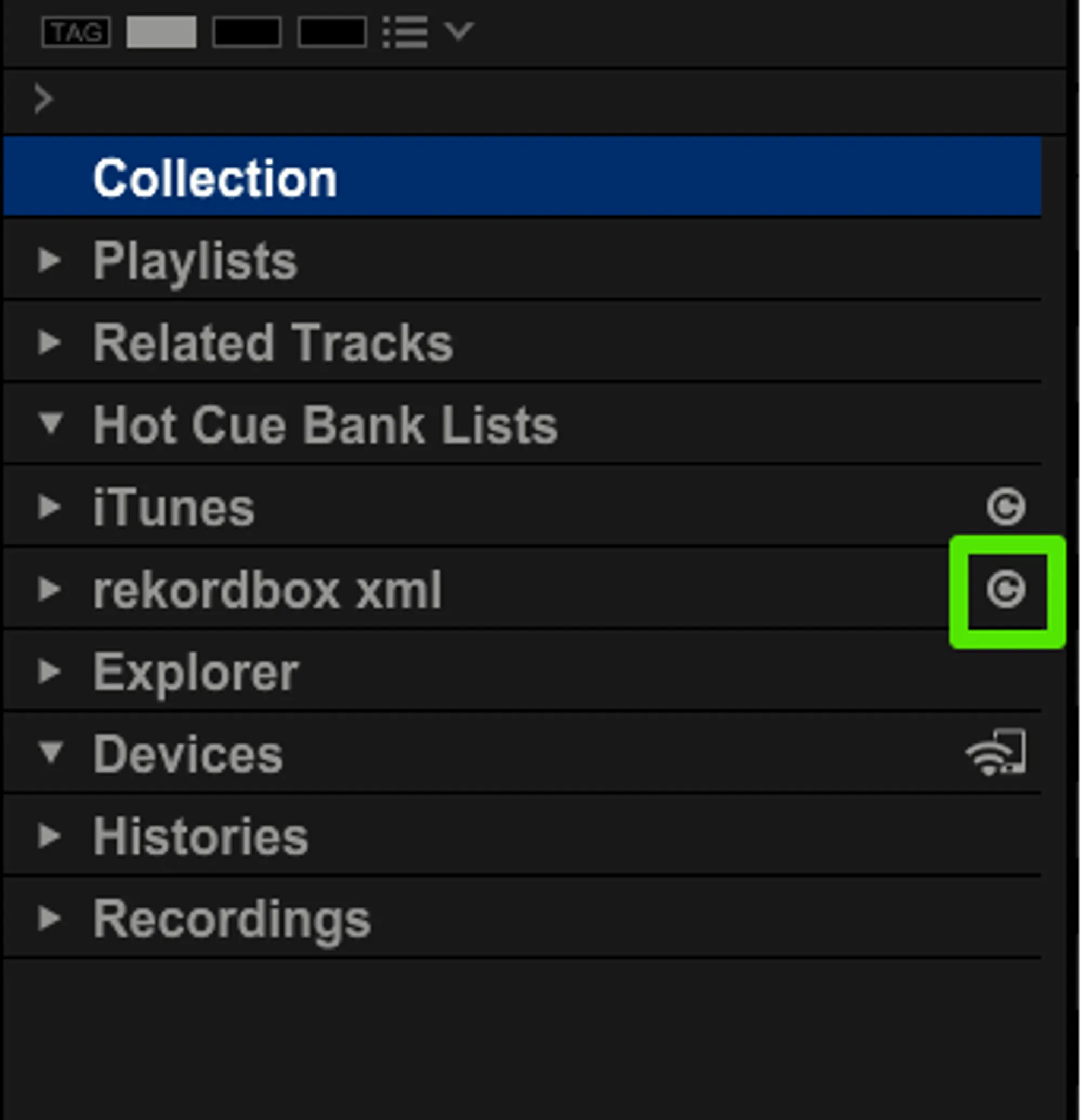
- In the tree view, click the refresh icon next to rekordbox xml
Notes
You may need to restart Rekordbox for the XML to show in the sidebar
MIXO does not import beat grids & cue points from Magix Digital DJ 2.
Backups
MIXO will automatically backup your DJ Libraries every time you export.
It's also a good idea to regularly backup your source library and computer.