M3U PLAYLISTS TO APPLE MUSIC
1. Import M3U Playlists into MIXO
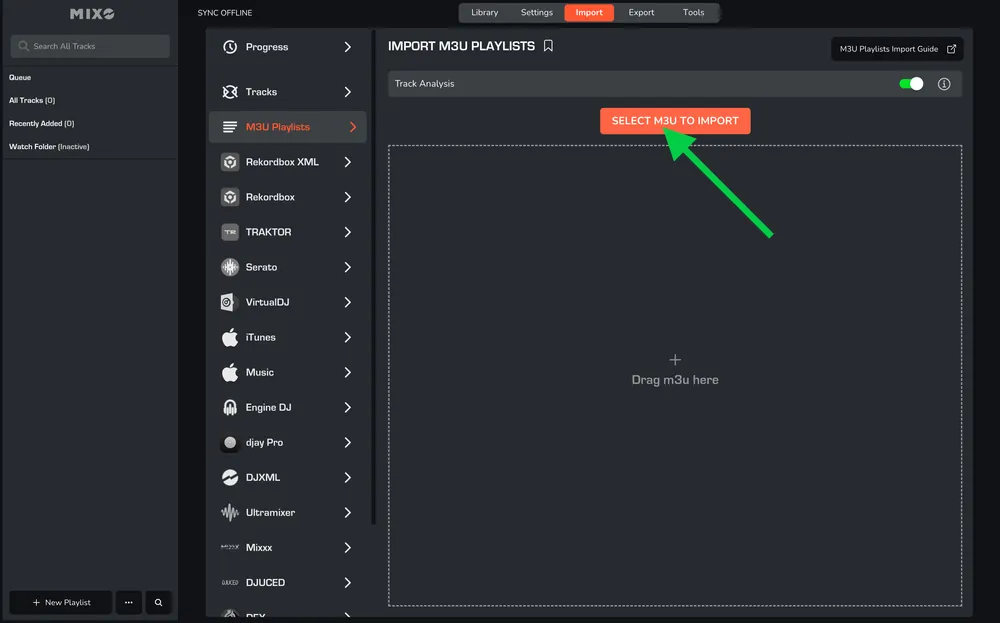
- In MIXO, navigate to the ‘IMPORT’ tab.
- On the left sidebar, select M3U PLAYLISTS.
- Click the 'SELECT M3U TO IMPORT' button.
- Browse to the folder where your M3U playlist files are saved, and select one or multiple playlists to import.
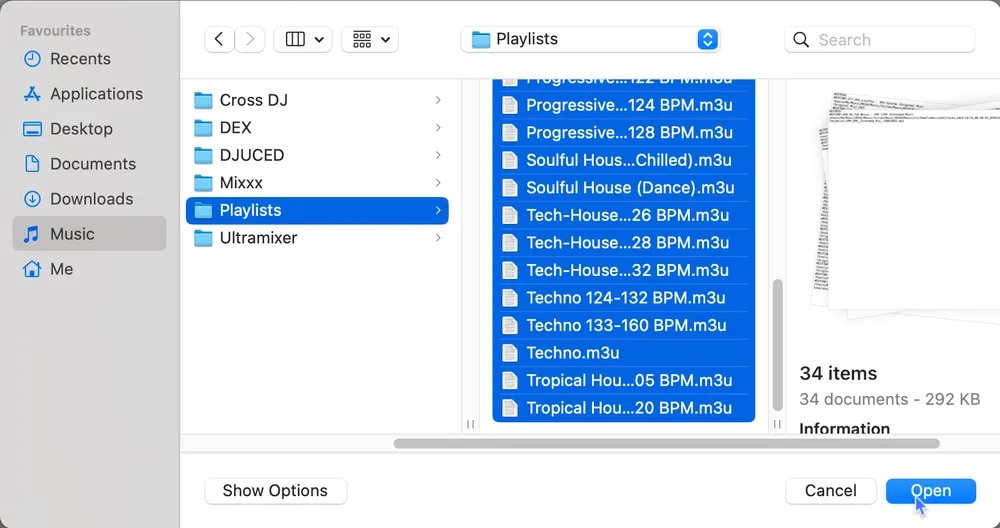
MIXO will import your playlists and tracks based on the M3U files, and analyze the tracks (if analysis is enabled).

Additional setting: You can optionally turn off 'Track Analysis' at the top of the Import page. Keeping it enabled is recommended, as it gets album artwork, builds waveforms, and analyzes beatgrids for all tracks during the import.
2. Export playlists from MIXO to Apple Music
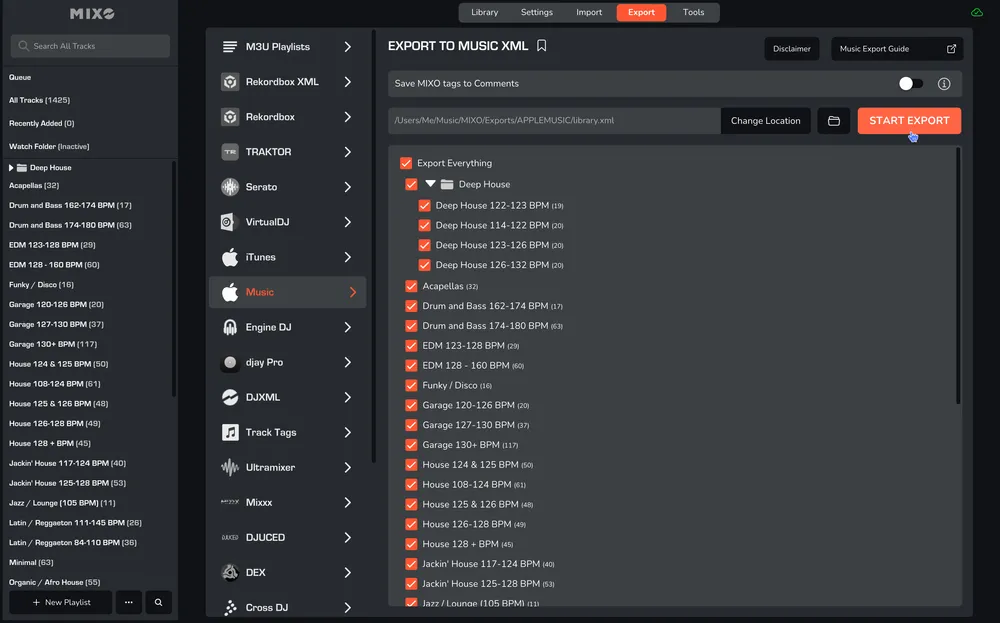
- In MIXO, navigate to the ‘EXPORT’ tab.
- On the left sidebar, select Apple Music.
- Select whether to export your entire library or choose individual playlists and press ‘START EXPORT’ button.
3. Import playlists to Apple Music
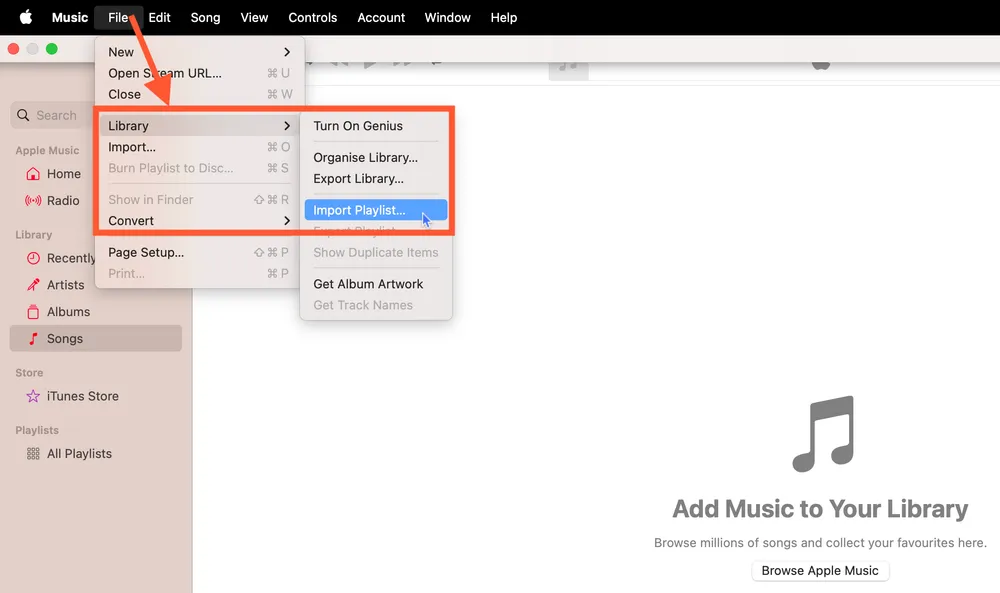
- Open your Apple Music application.
- In the top left menu, navigate to File -> Library -> Import Playlist…
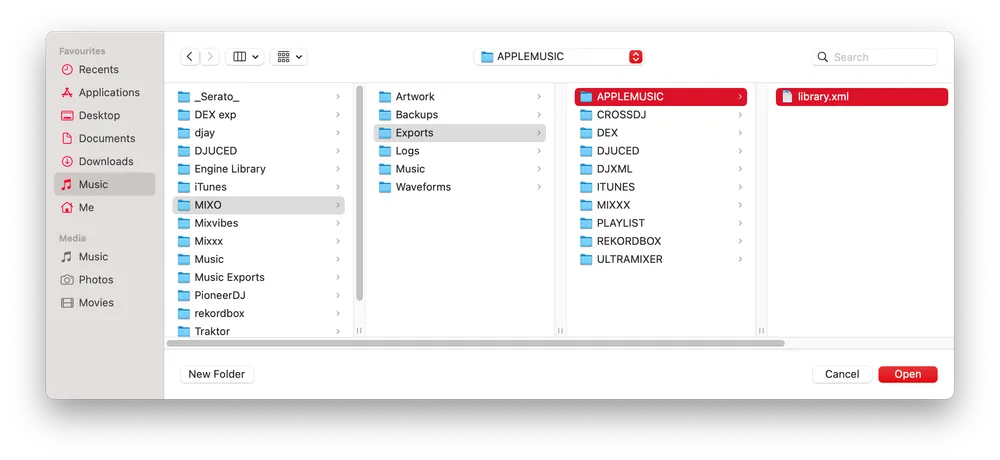
- Browse to the folder MUSIC -> MIXO -> EXPORTS -> APPLEMUSIC.
- Select the XML file that was just exported from MIXO.
Done! Apple Music will import the XML file, and your playlists, tracks, and metadata from MIXO will be available and ready to play in your Apple Music library.
Note: Cue Points & Beat Grid information is not supported in Apple Music app.
Additional setting: You can enable ‘Save MIXO Tags To Comments’ to overwrite the comments field on each track with tags added in MIXO.