ITUNES TO SERATO V2
1. Export playlists from iTunes
- Open your iTunes App
- In the top menu bar, navigate to File -> Library -> Export Library...
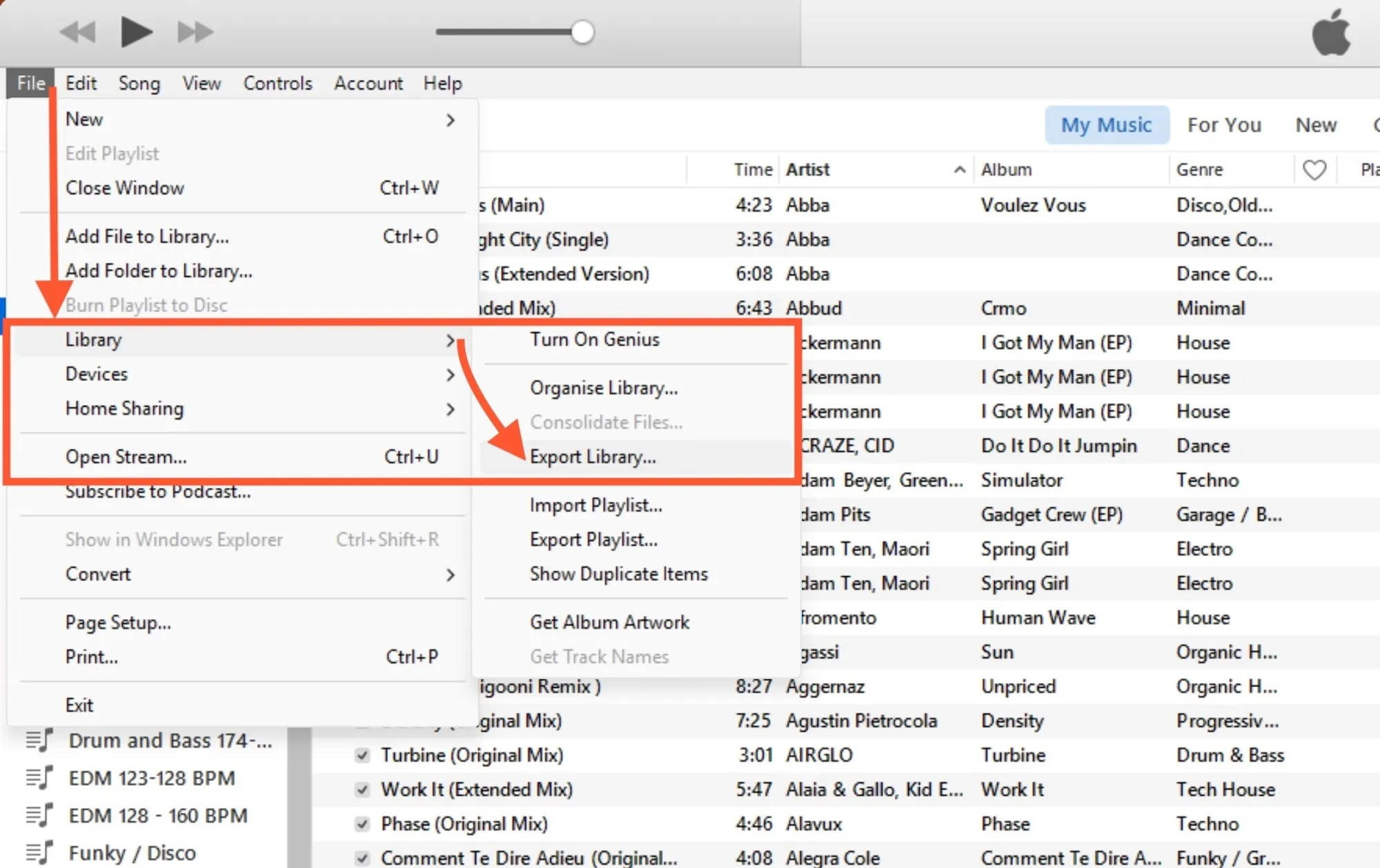
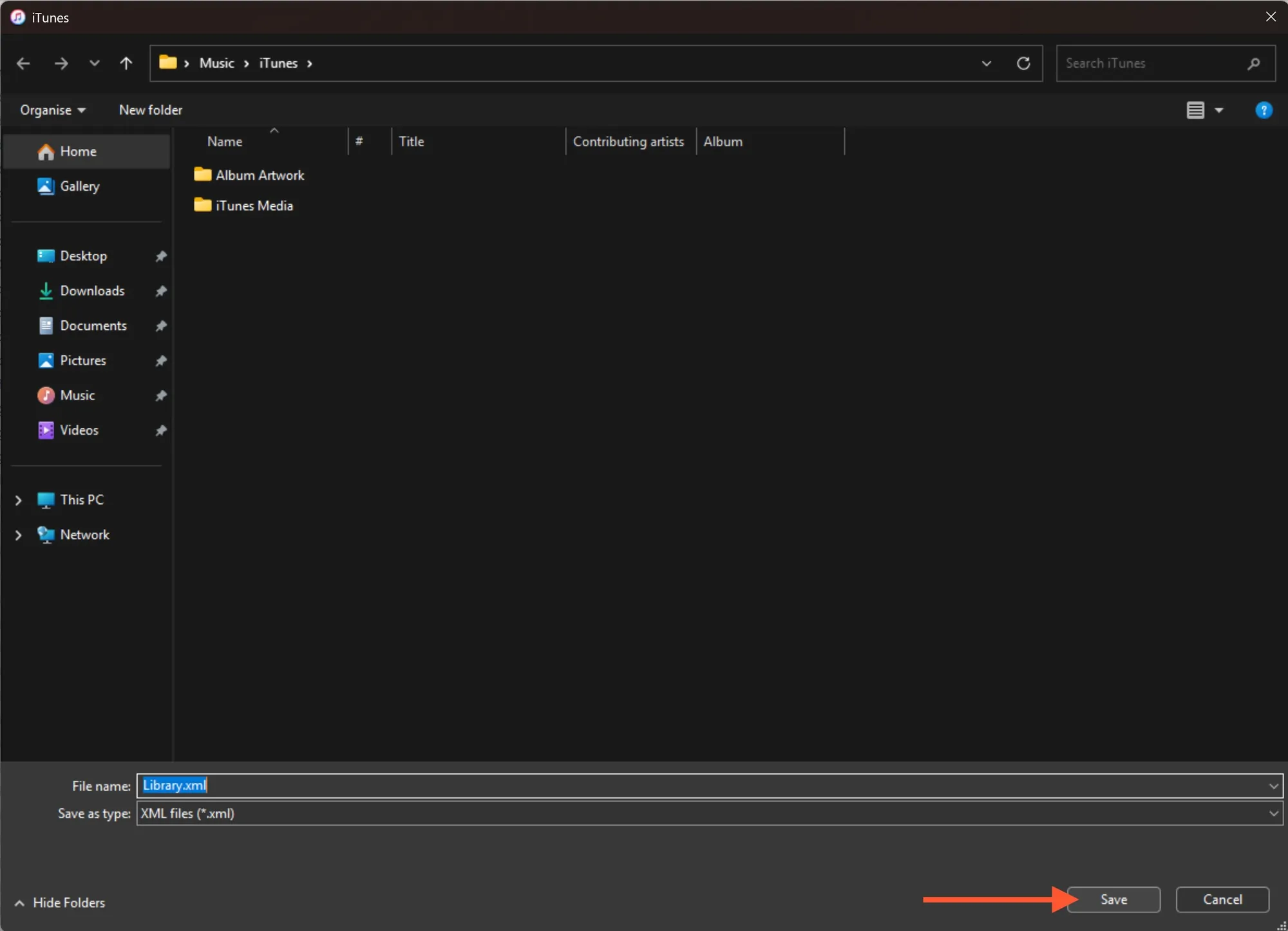
A window will open asking you to save the file. Choose a memorable location for the file. The file will be saved as an XML file (e.g., Library.xml).
- Click Save to create the exported file.
If you only want to export a single playlist, select the playlist first, then navigate to File -> Library -> Export Playlist... and ensure the file format is set to XML.
2. Import iTunes playlists into MIXO
- In MIXO, navigate to the ‘IMPORT’ tab.
- On the left sidebar, select iTunes.
- If MIXO doesn’t find the XML file automatically, look for the file selection area and click the 'Change File' button.
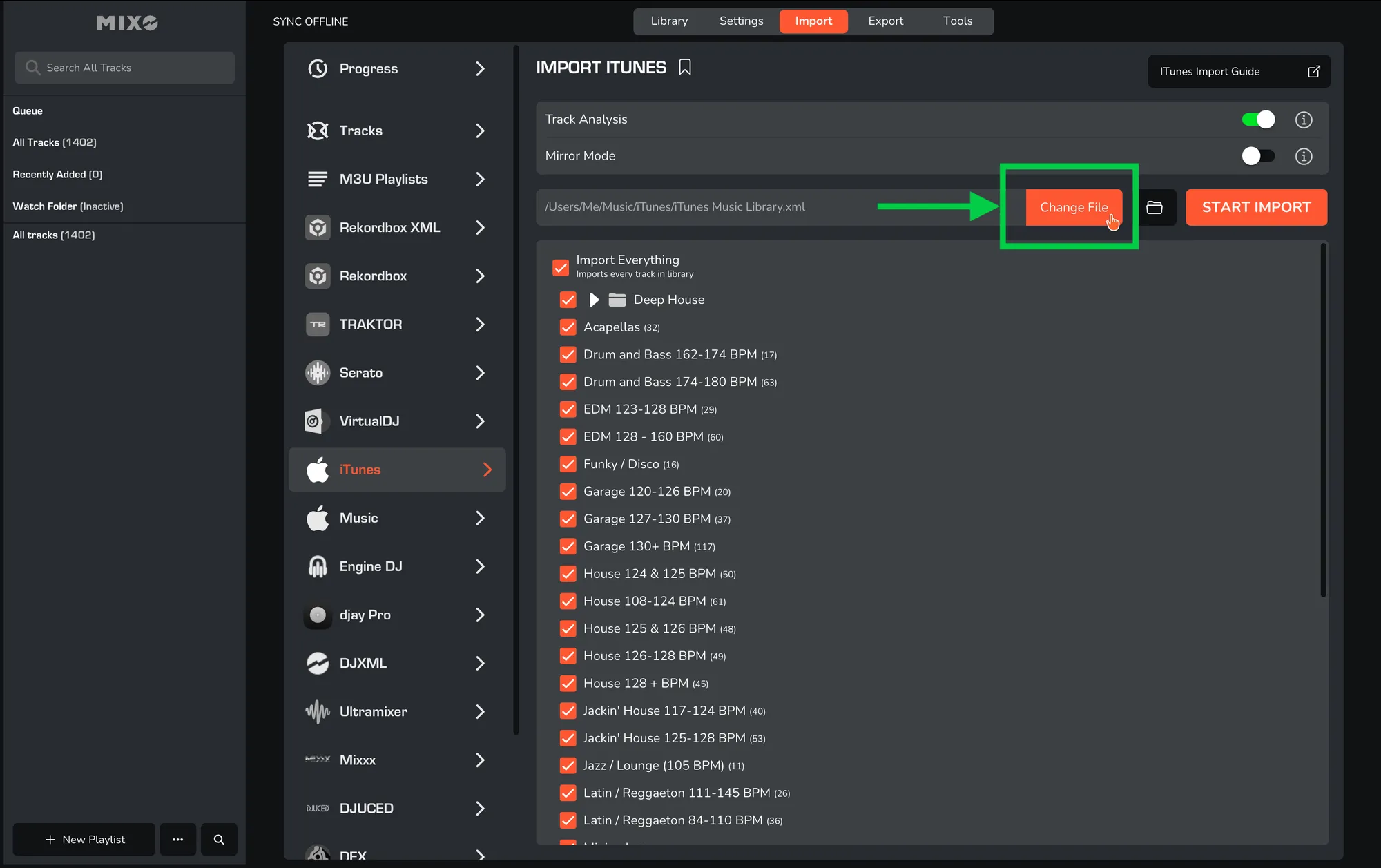
- Browse to the location where you saved the XML file (from “Export from iTunes” Part) and select it.
- Press the 'Start Import' button.
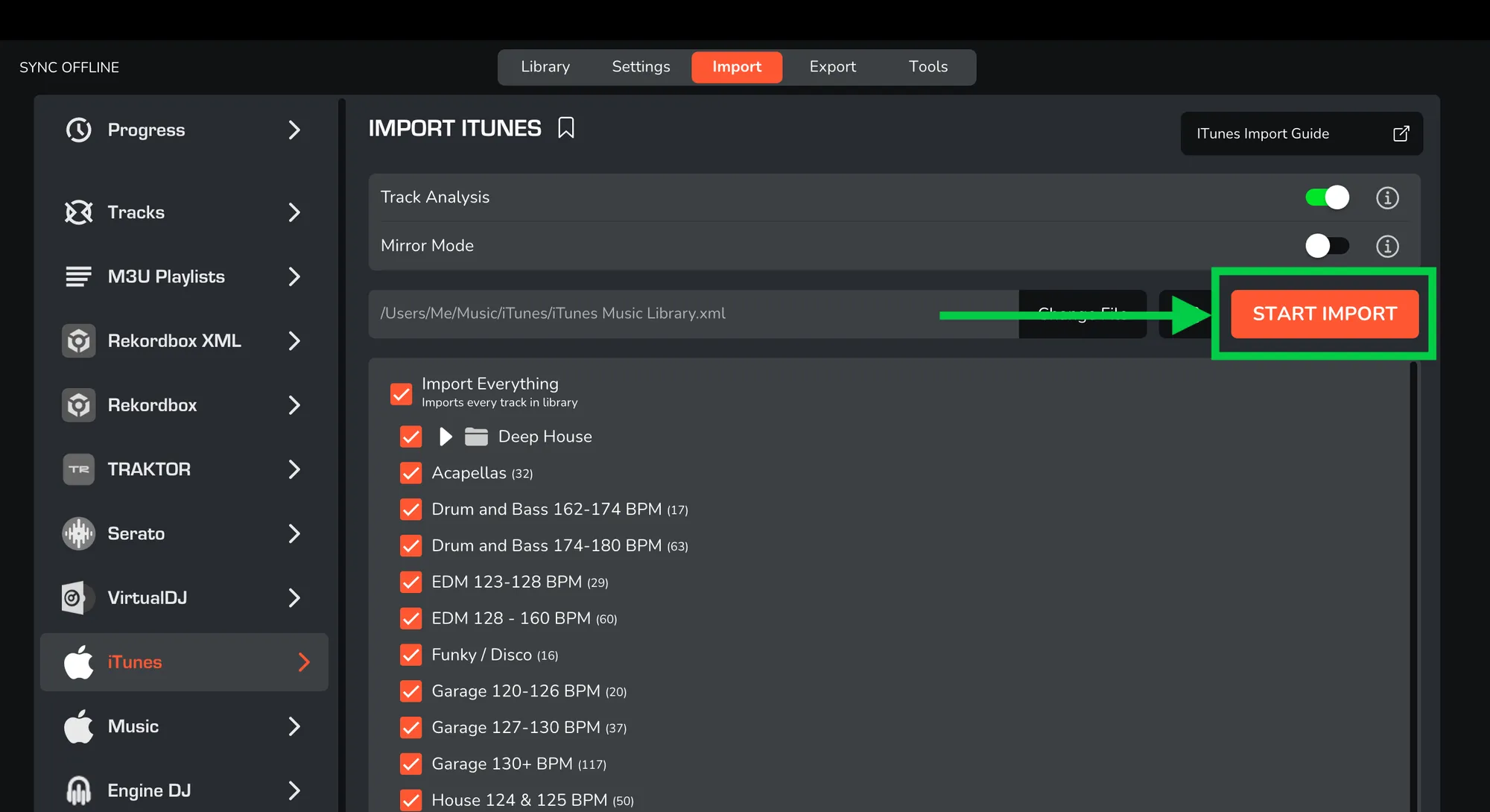
MIXO will analyze the XML file, automatically update any existing tracks and playlists, and import anything that is new to your library.
Additional settings:
- You can optionally turn off 'Track Analysis' at the top of the Import page. Keeping it enabled is recommended, as it gets album artwork, builds waveforms, and analyzes beatgrids for all tracks during the import.
- If you enable 'Mirror Mode', your entire MIXO library will be completely replaced by the imported library. If disabled, MIXO will merge the new import with your existing library.
3. Export playlists to SERATO
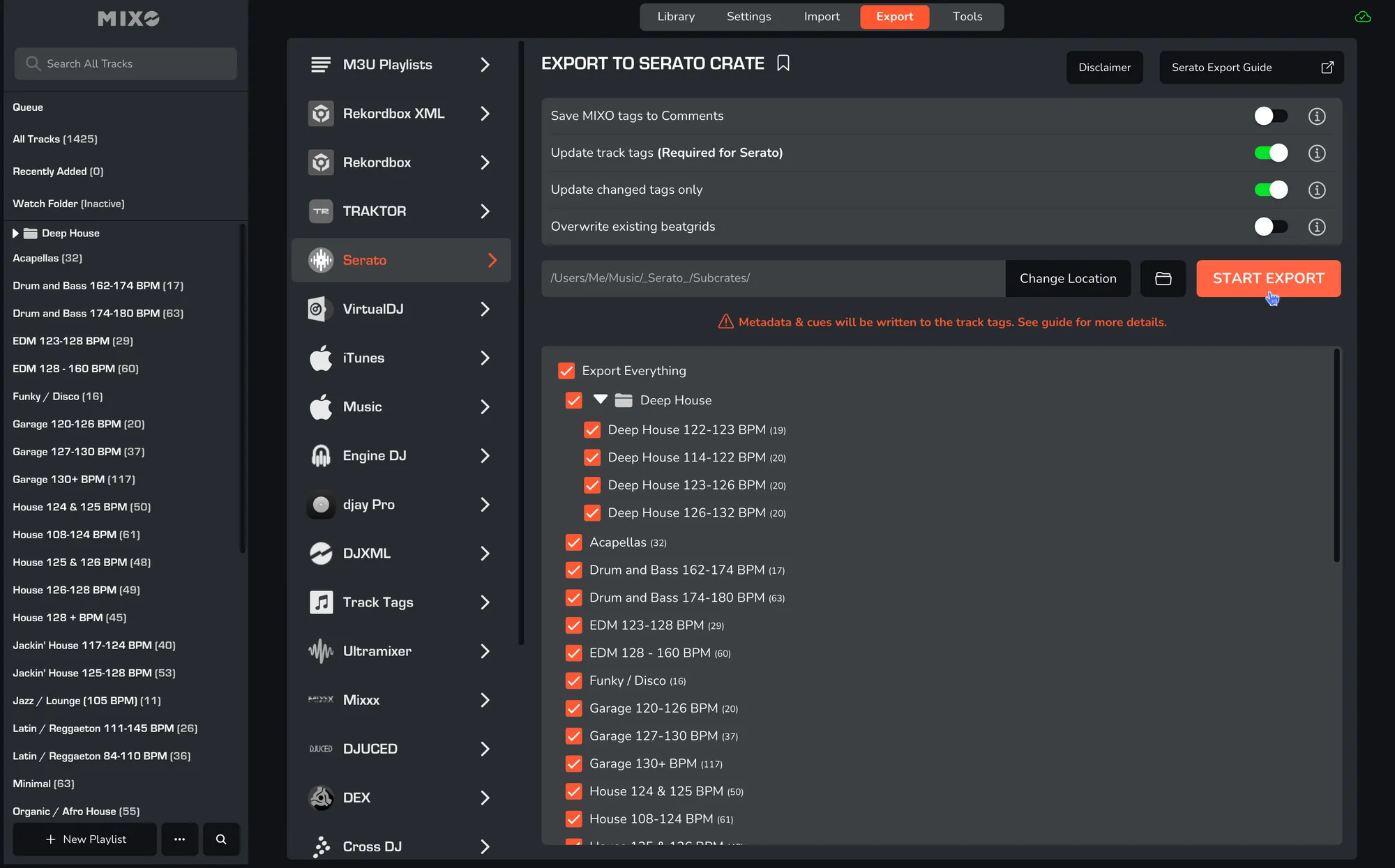
- In MIXO, navigate to the ‘EXPORT’ tab.
- On the left sidebar, select SERATO.
- MIXO should automatically locate the directory Serato creates. If it has been changed, use the ‘Change Location’ feature before exporting.
- Select whether to export your entire library or choose individual playlists and press the 'START EXPORT' button.
Done! Open your SERATO application.
Additional settings:
- Enable ‘Save MIXO Tags To Comments’ to overwrite the comments field on each track with tags added in MIXO.
- ‘Update Track Tags’ setting must be enabled so on export, MIXO has permission to update the track data to work within Serato.
- You can enable ‘Update Changed Tags Only’ to only rewrite tags on tracks you have edited within MIXO. Disabling this setting will cause MIXO to rewrite tags for all tracks.
- You can enable the ‘Overwrite existing Serato beatgrids’ setting. Keeping it off will keep the beat grid data as is, however if you enable this setting, MIXO will overwrite existing Serato beat grids on export.