HOW TO IMPORT TRACKS INTO MIXO
1: In MIXO, open the Import menu.
2: Click the import button to select a Folder of tracks to import (including all subfolders within it), or drag/drop tracks into window. You can also drag/drop folders. Drag/drop also works on All Tracks and playlists, either in the track lists or in the side bar items.
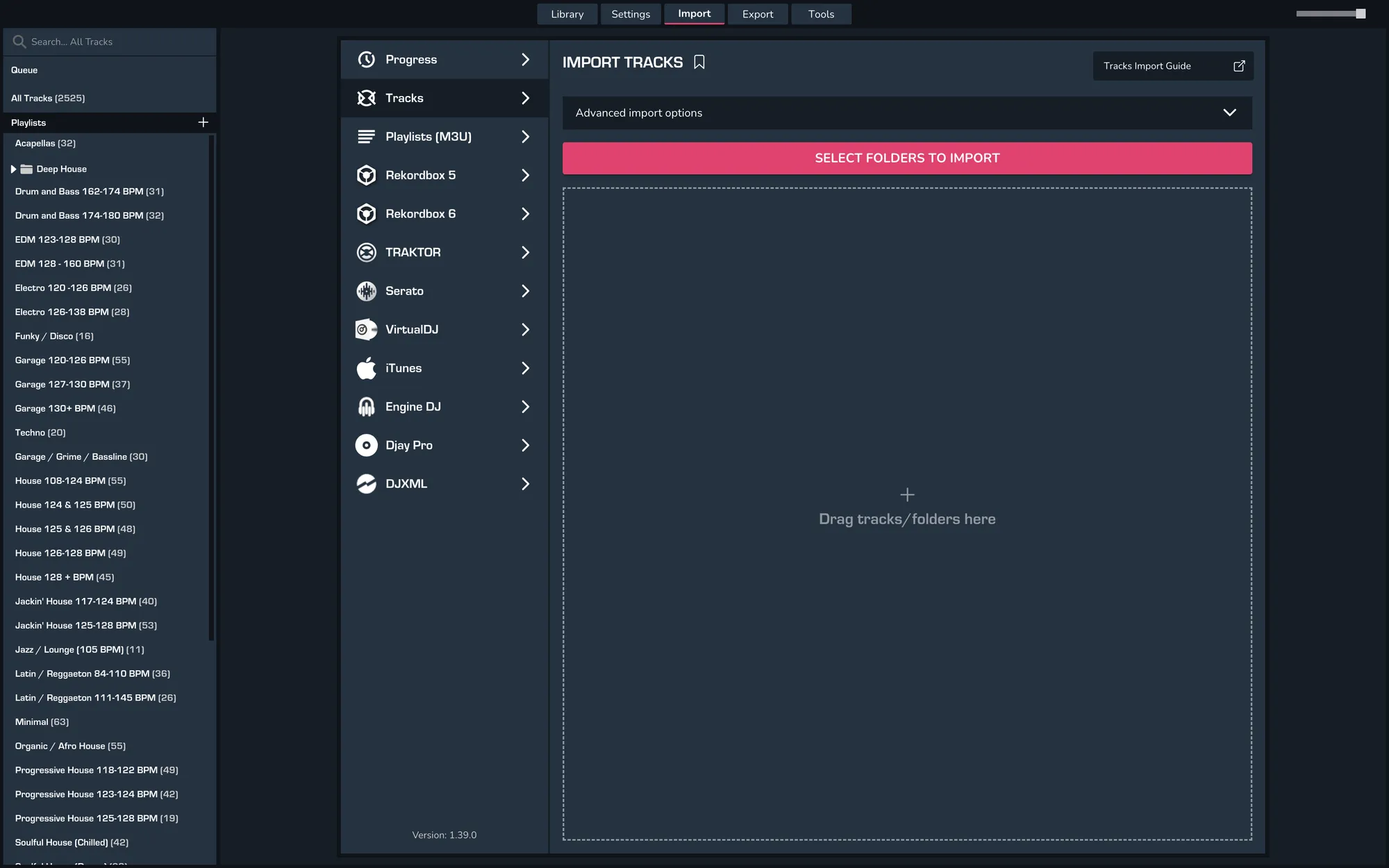
3. Once selected for import, MIXO will change to the Progress view where you can see a detailed report of the import status.

4. When the Import, Analysis and Upload (if synced to your cloud) procedures are complete, a pop-up will appear confirming that 'All tracks were uploaded and synced'. To view your newly imported tracks, click 'All Tracks' in the Library Tree on the left.
