HOW TO ADD, EDIT & DELETE CUE POINTS ON DESKTOP
Once a track has been selected, the 'Player' view will be expanded above the list of tracks.
- At the top right of this view is the track metadata, top left the track details and artwork, followed by the waveform and the cue points underneath.
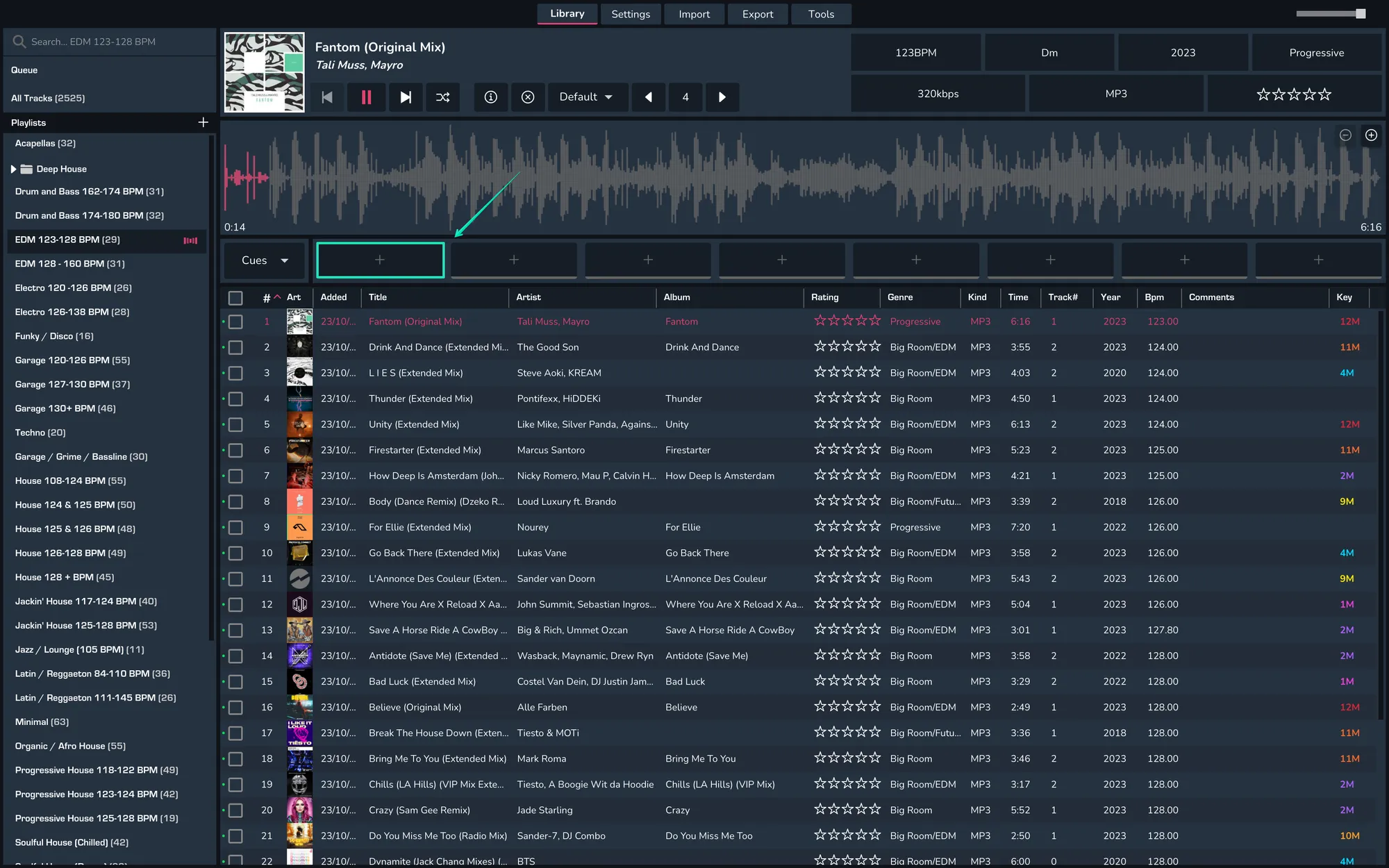
- To Add a cue, seek through the waveform to the desired point and click one of the '+' button underneath the waveform.
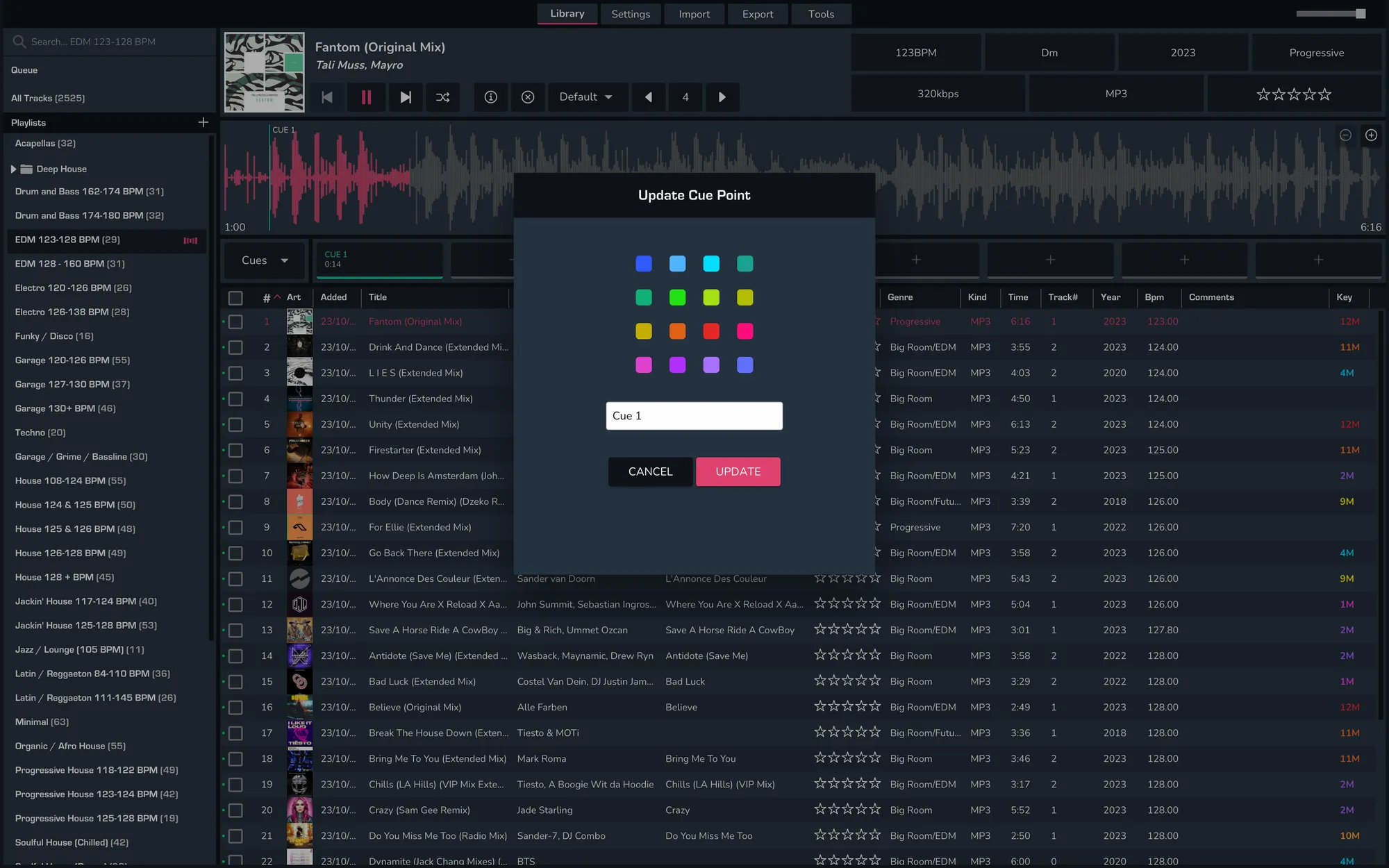
- To Edit a cue, right-click the cue and select 'Edit'. This will allow you to change the colour and the name of the cue.
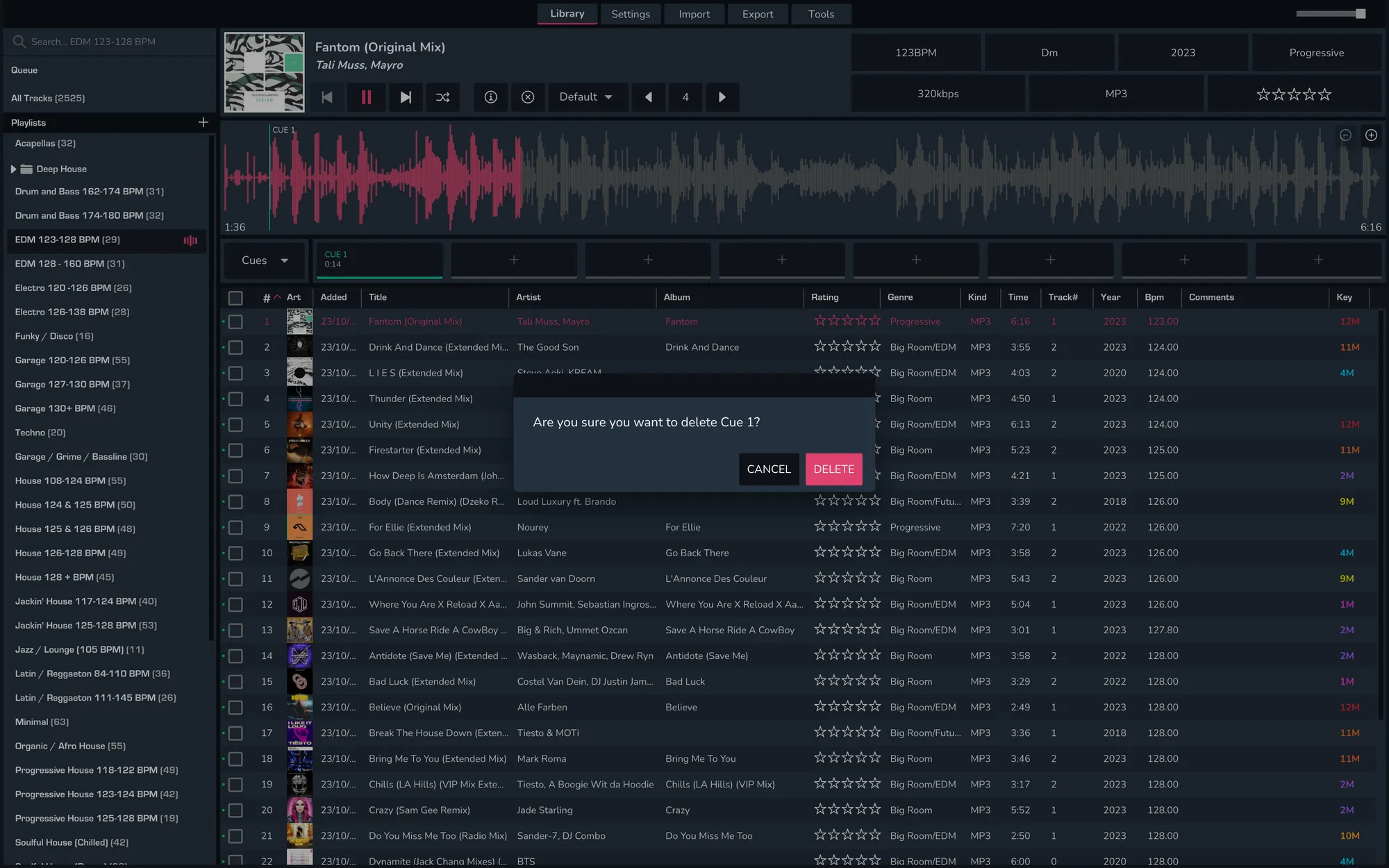
 4.To Delete a cue, right-click the cue and select 'Delete'.