GETTING STARTED WITH MIXO
For a video version of this guide, watch here
- Download the desktop app from download page
- Connect your cloud storage or select desktop only.
You can always connect cloud storage later if you choose to only use desktop.
Setup a Free 15 GB Google Drive account here: Google Signup
Setup a Free 2 GB Dropbox account here: Dropbox Signup
Setup a Free 5 GB OneDrive account here: OneDrive Signup
Guide to linking Google Drive
Guide to linking Dropbox
Cloud storage pricing
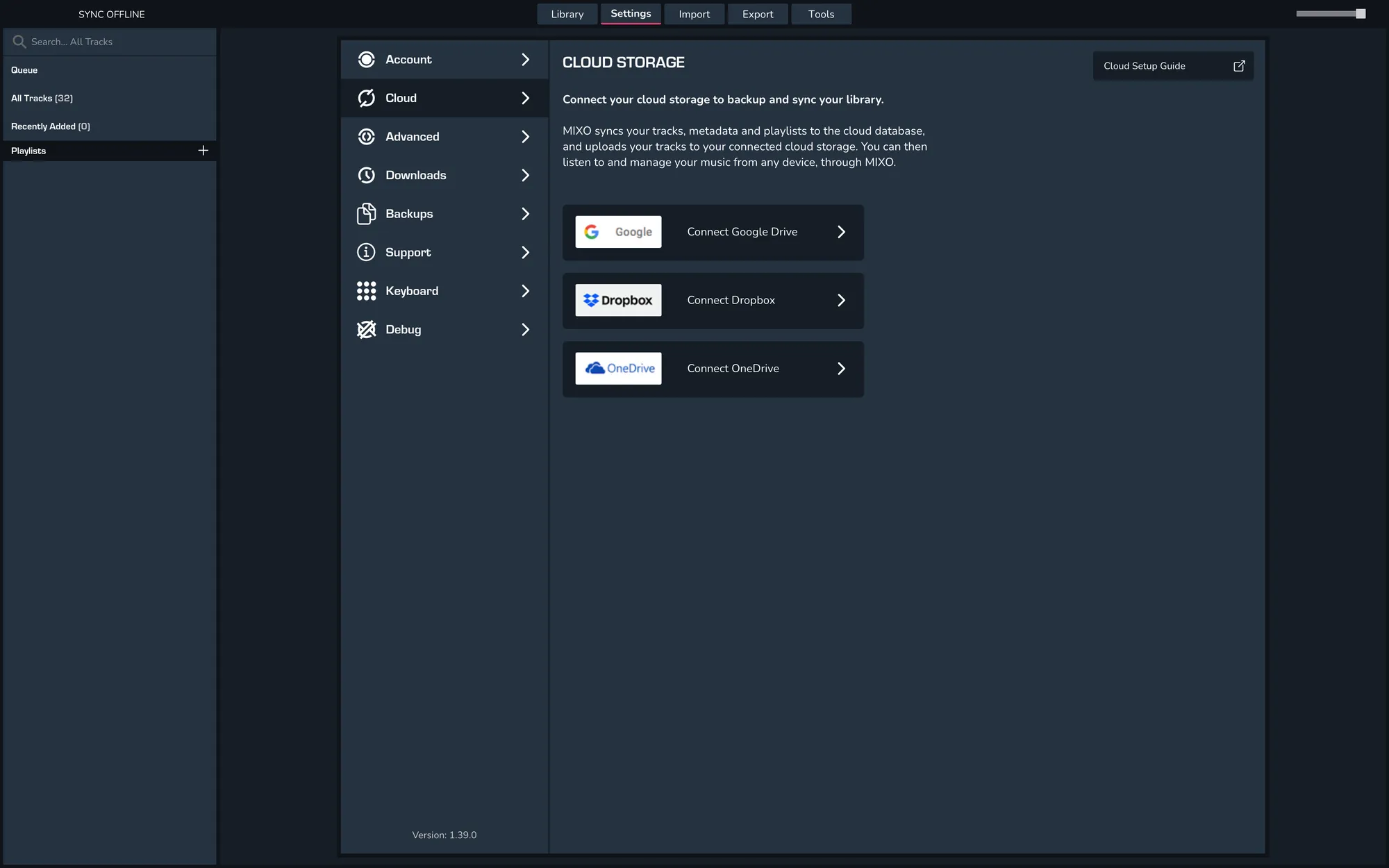
- Once you've connected your cloud storage, import your tracks.
We recommend importing a small number of single tracks to start with.
Then, once Traktor, Rekordbox, Serato, Virtual DJ everything works, you can import multiple playlists from Traktor, Rekordbox, Serato, Virtual DJ, or iTunes.
Once you've imported tracks, the Import view will show the progress of the tracks being imported.
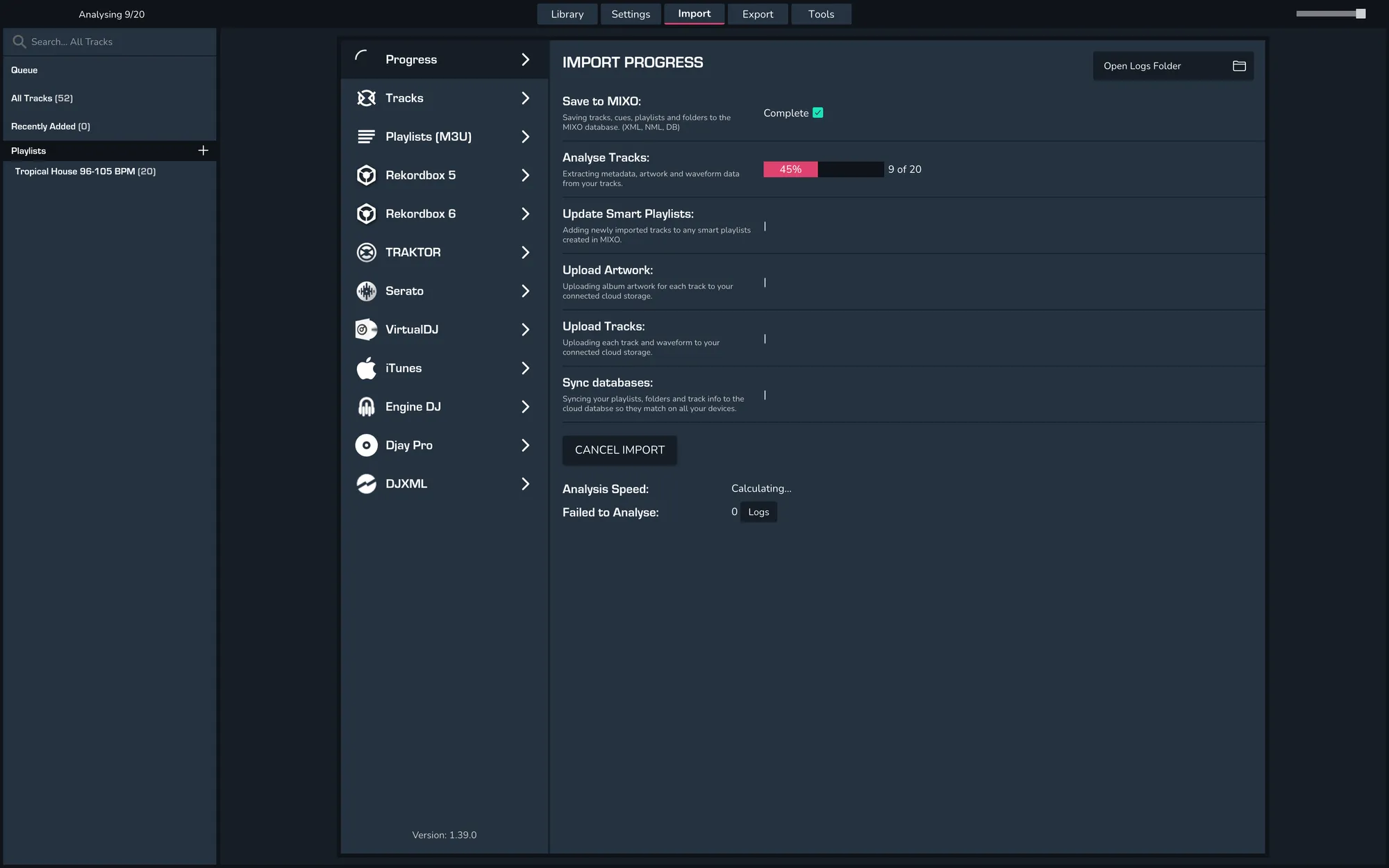
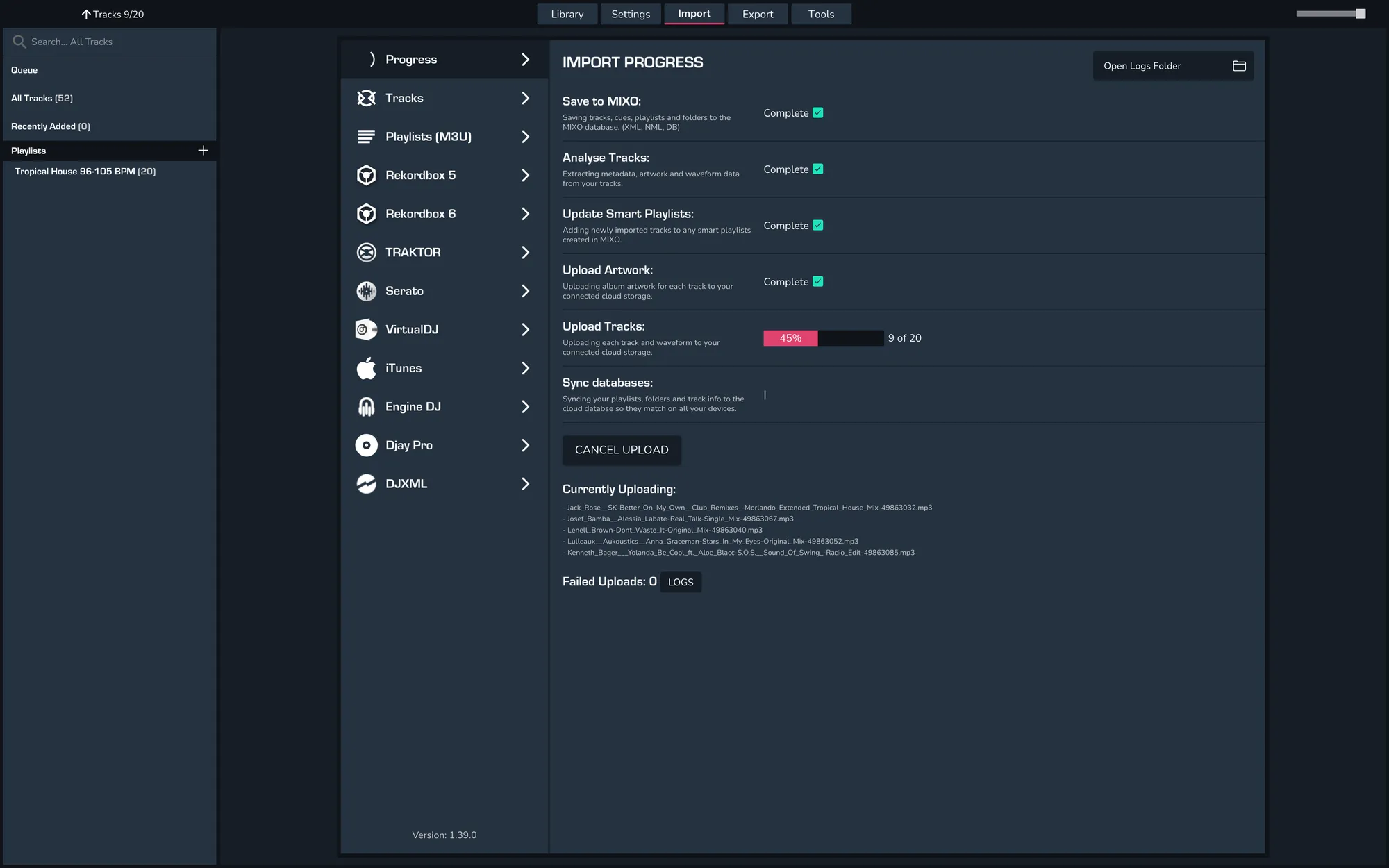
After MIXO has finished analyzing your imported tracks, it will upload them to your connected cloud storage.
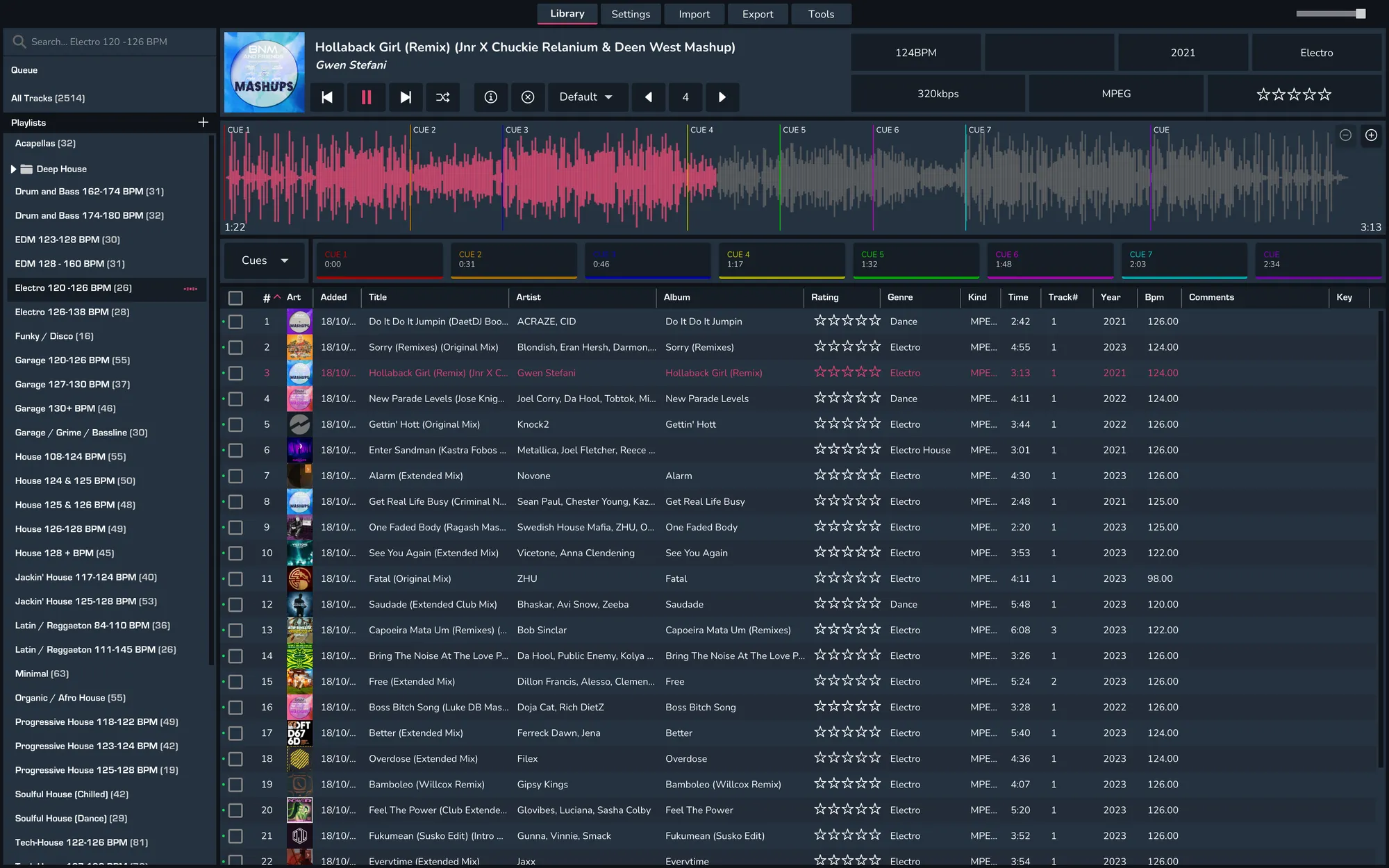
- Once the import process is completed, you can view your library by going to All Tracks.
- Download MIXO Mobile App from download page or search for MIXO DJ in the App & Play stores.
- Login to MIXO on your phone.
After a few seconds, your tracks and playlists will sync to your phone (or longer if you have a big library).
The first time you sync another device will start your 7-day trial for MIXO:GOLD which allows you to sync your library across multiple devices.

To upgrade to MIXO:GOLD during or after your trial, click the upgrade button from the bar at the top of your screen.
Then click 'Upgrade to MIXO:GOLD'.
See more information on our pricing page.
