ENGINE DJ TO REKORDBOX
1. Importing your Engine DJ playlists to MIXO
- Make sure Engine DJ is closed
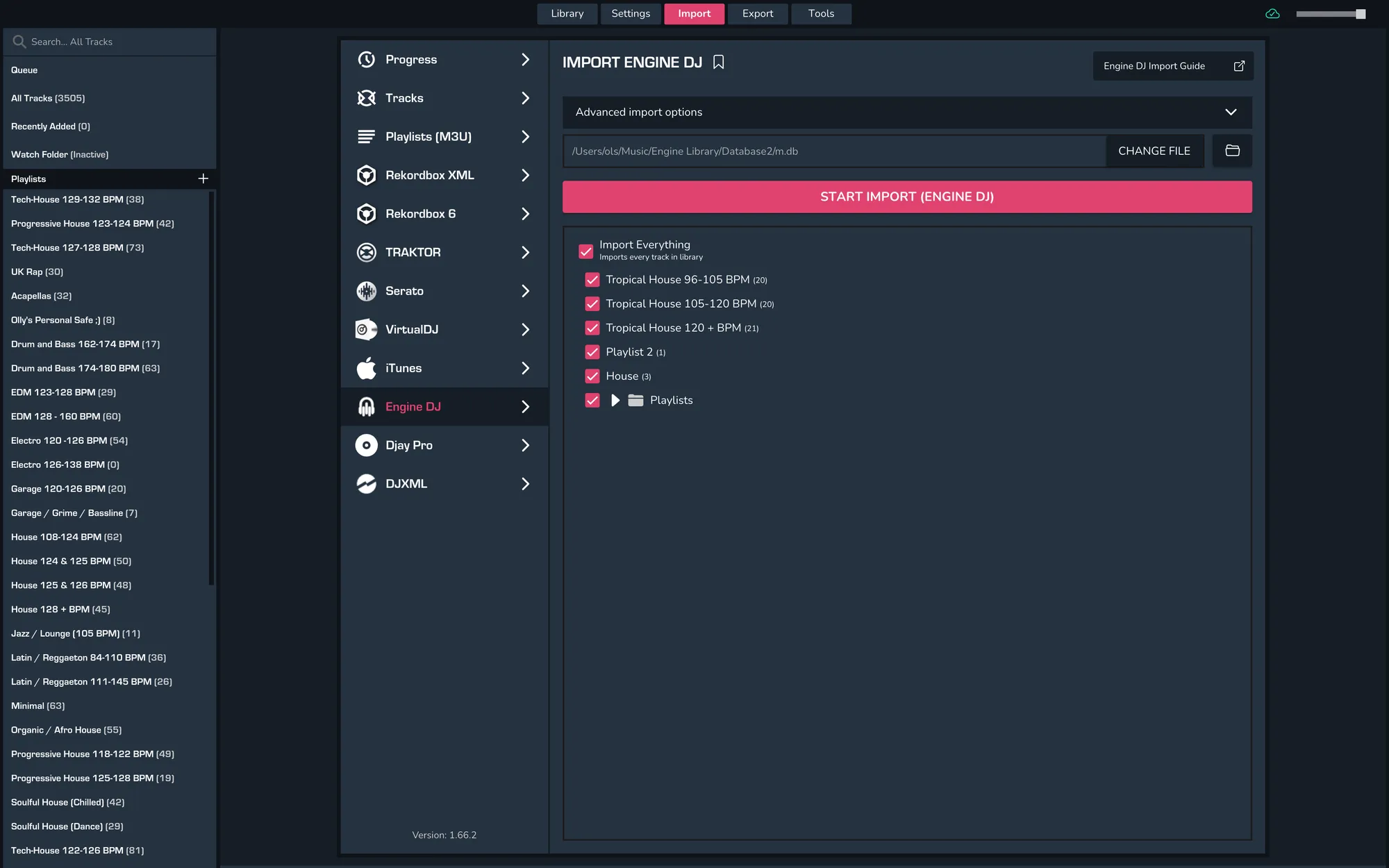
- Import > Engine DJ
- Wait for the page to parse, then select your playlists and click ‘Import Engine DJ’.
- When re-importing from Engine DJ, MIXO will check each file to see when it was last updated and only re-analyses tracks if they have been updated more recently than the existing track in MIXO
- Existing playlist and playlist tracks are also updated automatically, so any changes to playlists are reflected in MIXO.
2. Exporting Collections & Playlists from MIXO:
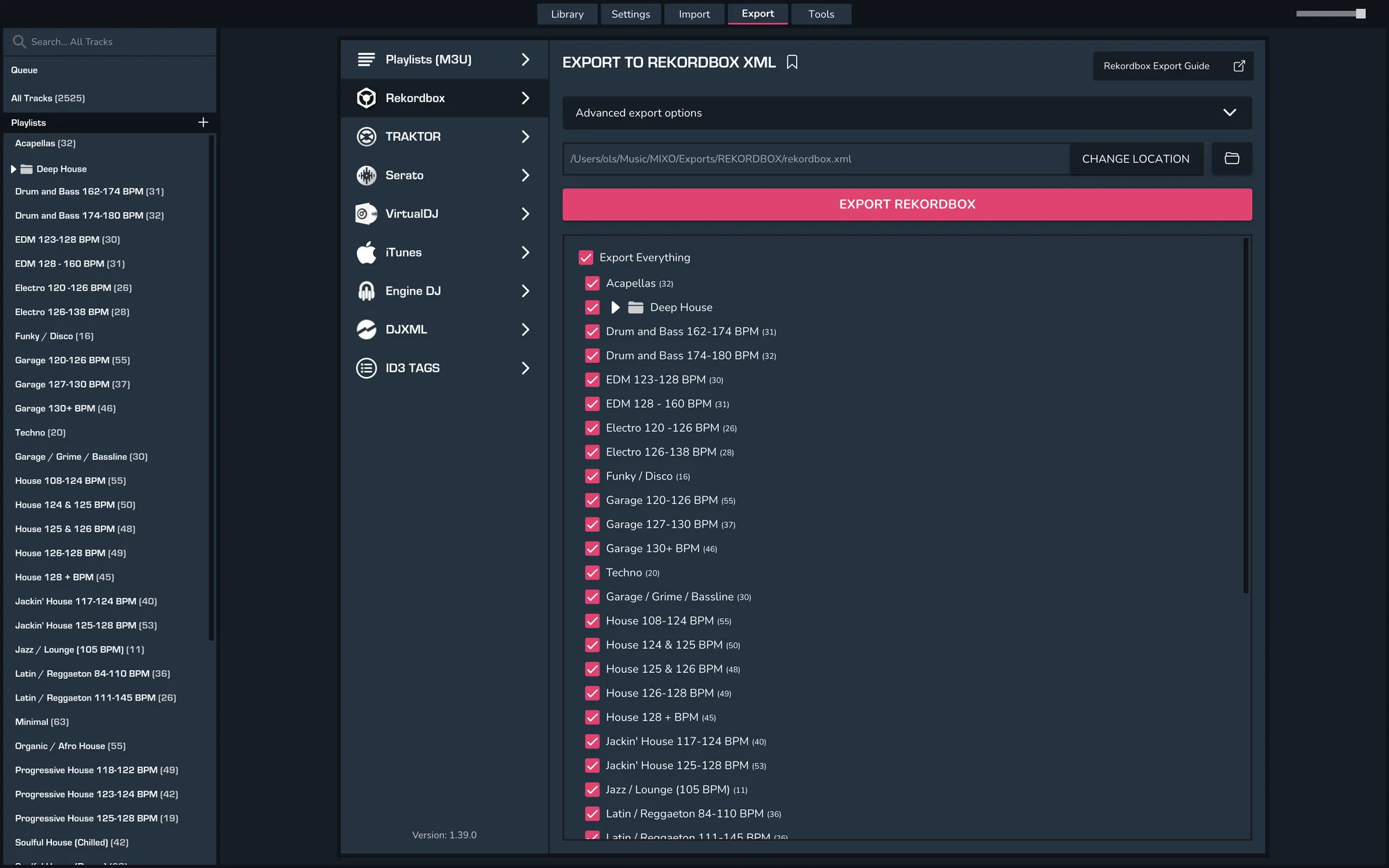
- EXPORT > REKORDBOX
- Below you will need to confirm which playlists should be exported or if the whole library should be exported.
- Click EXPORT
- By default your files are exported to ..\Music\MIXO\Exports\REKORDBOX
3. Import your rekordbox.xml file to Rekordbox
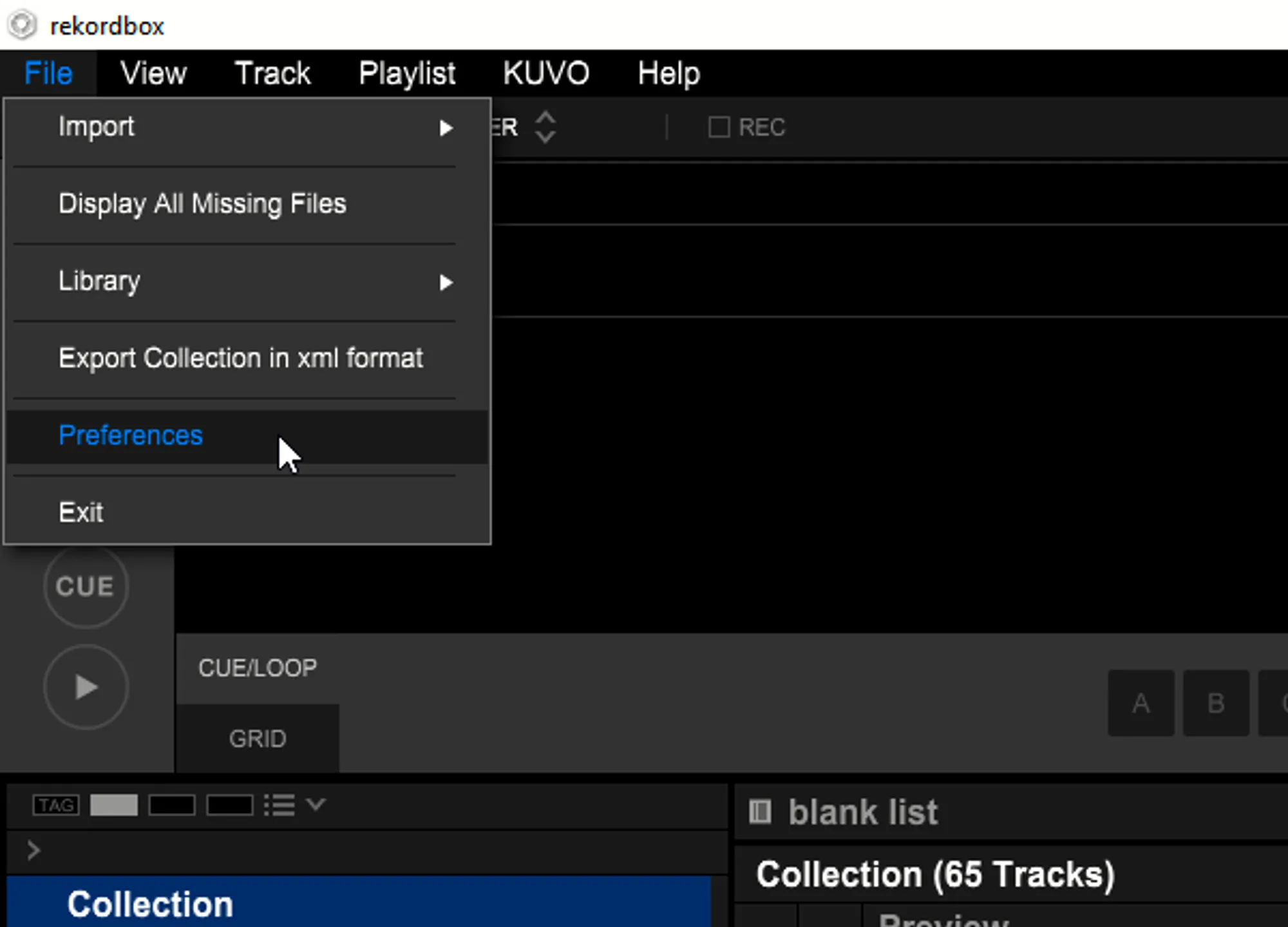
- Open Rekordbox and go to File > Preferences
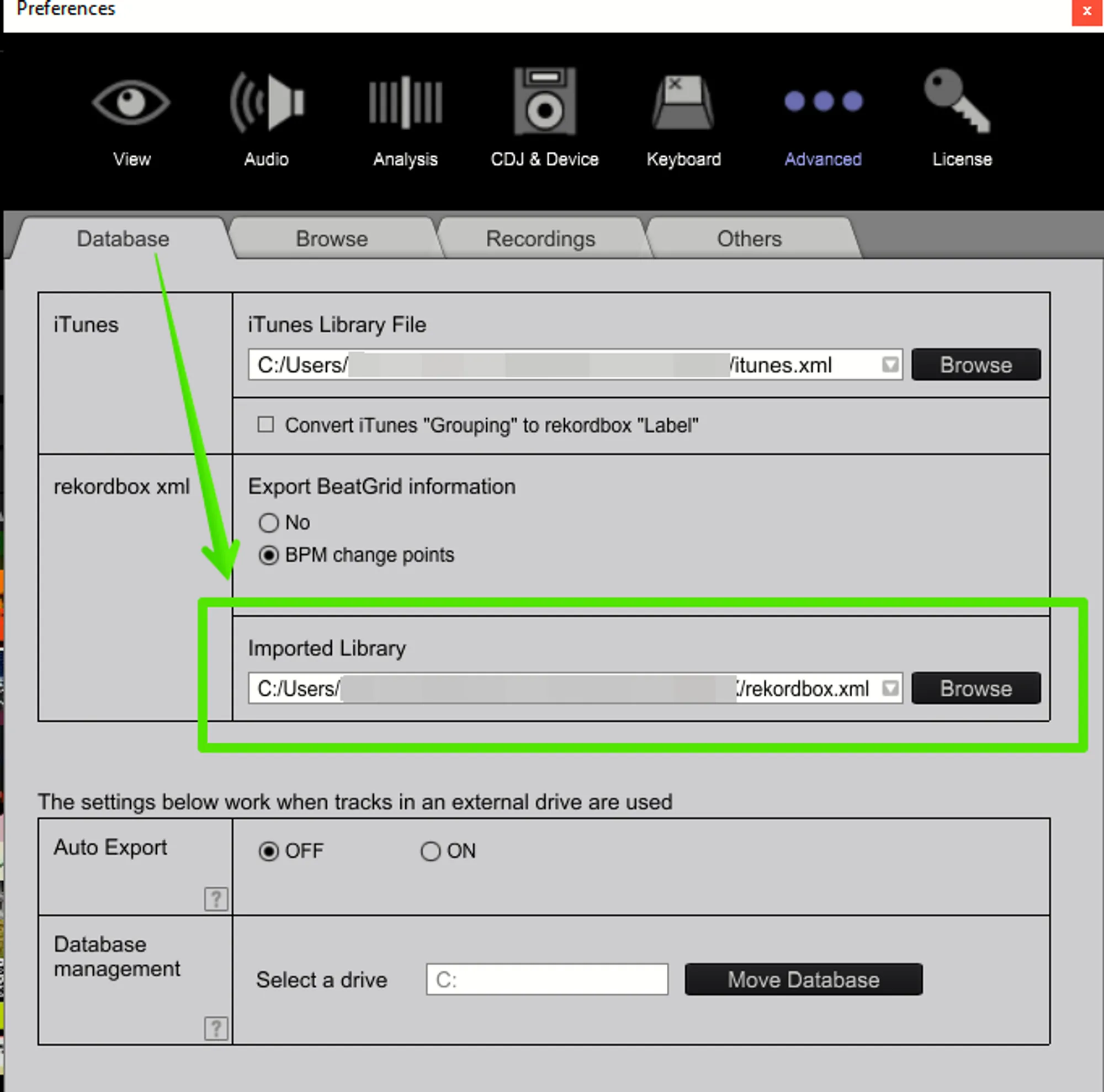
- Under the Database tab in the rekordbox xml box, change the Imported Library path to be that of the Rekordbox.xml file MIXO exported in the last step
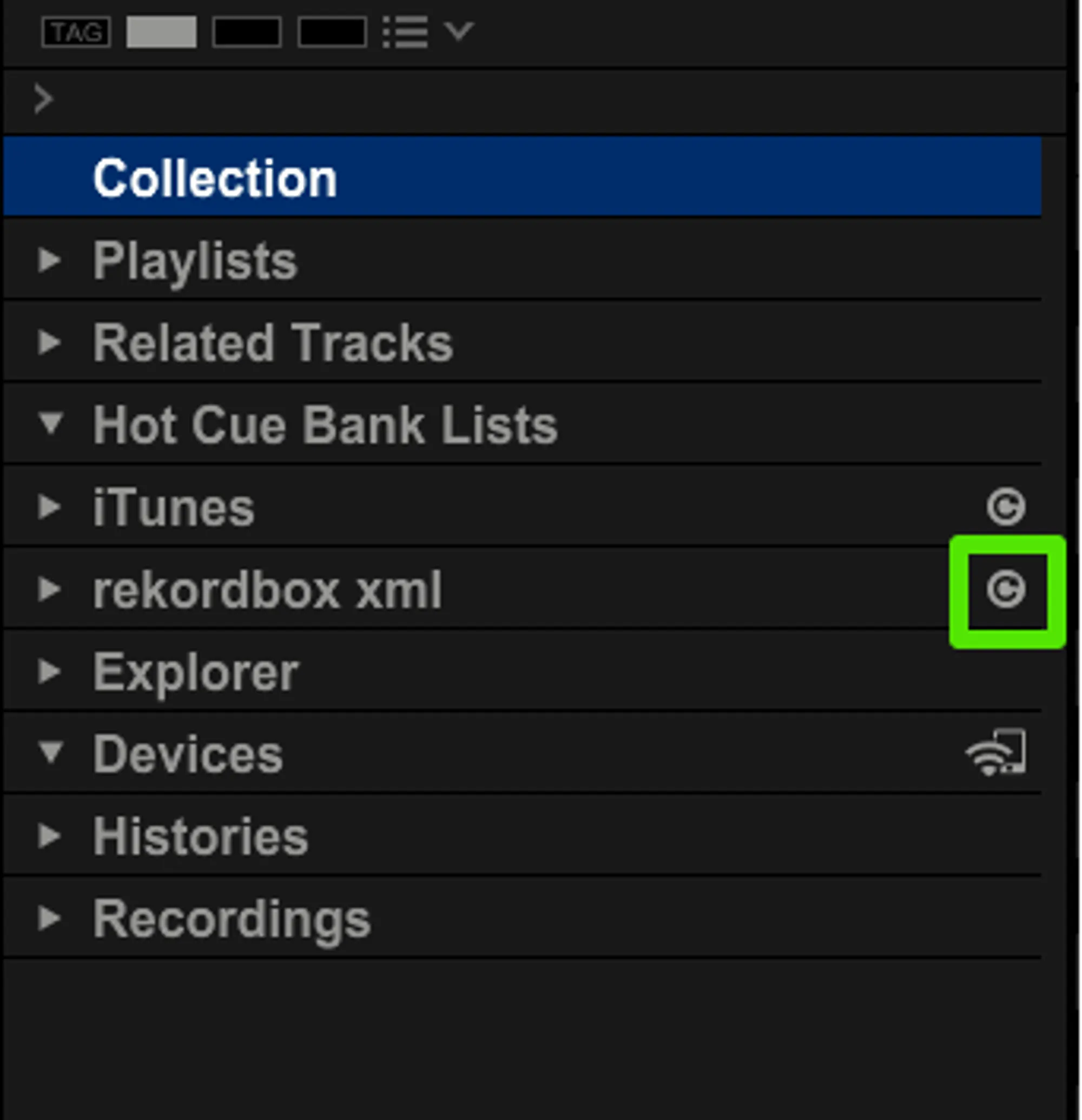
- In the tree view, click the refresh icon next to rekordbox xml
Notes
You may need to restart Rekordbox for the XML to show in the sidebar
Backups
MIXO will automatically backup your DJ Libraries every time you export.
It's also a good idea to regularly backup your source library and computer.