DEX 3 TO ENGINE DJ
1. Exporting your playlists from DEX 3
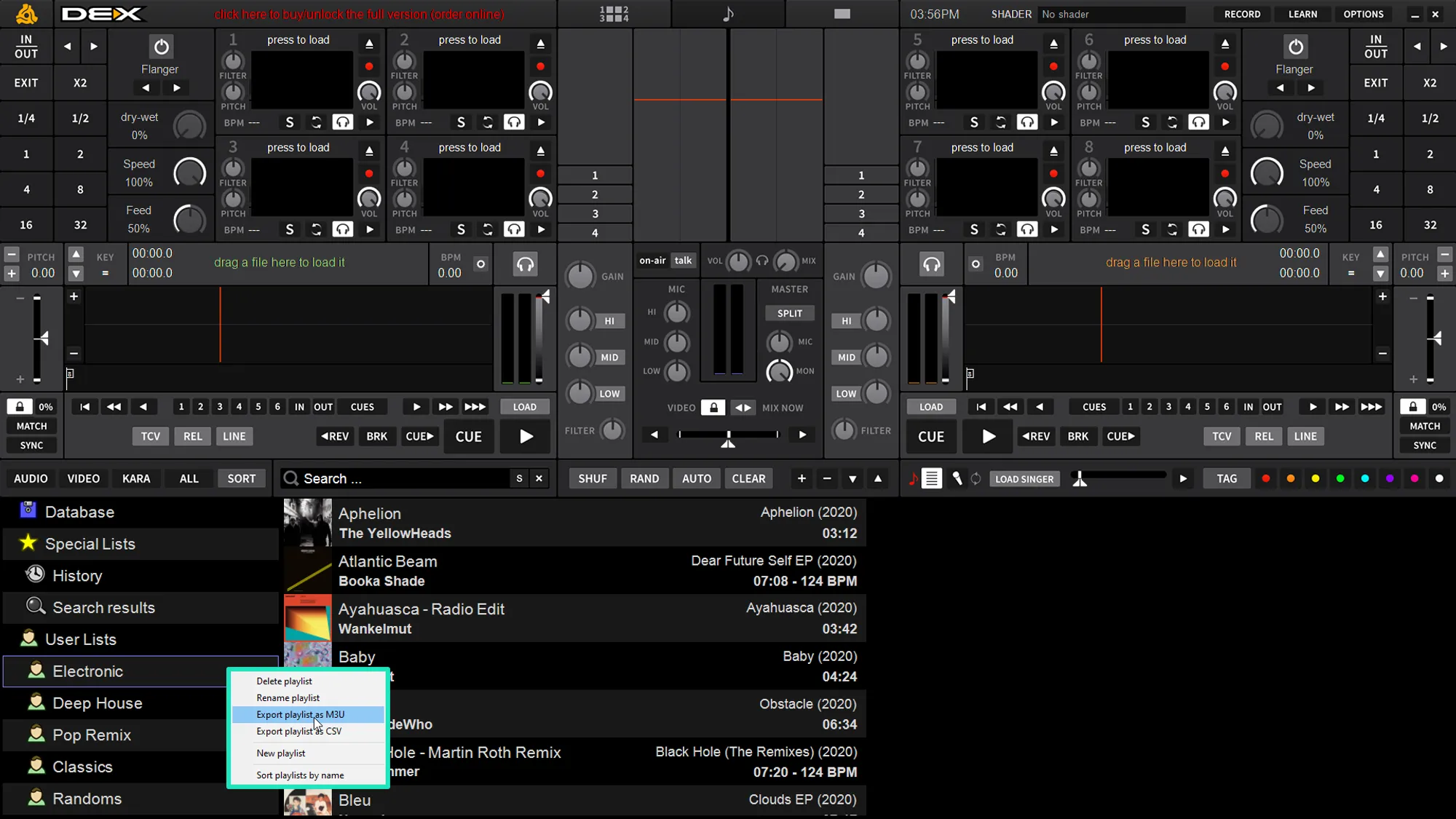
- Open DEX 3 and right-click the playlist you want to export
- Select Export playlist as M3U from the menu
- Choose a destination to export your playlist
Follow these steps for each playlist you want to import into MIXO
2. Importing your DEX 3 playlists to MIXO
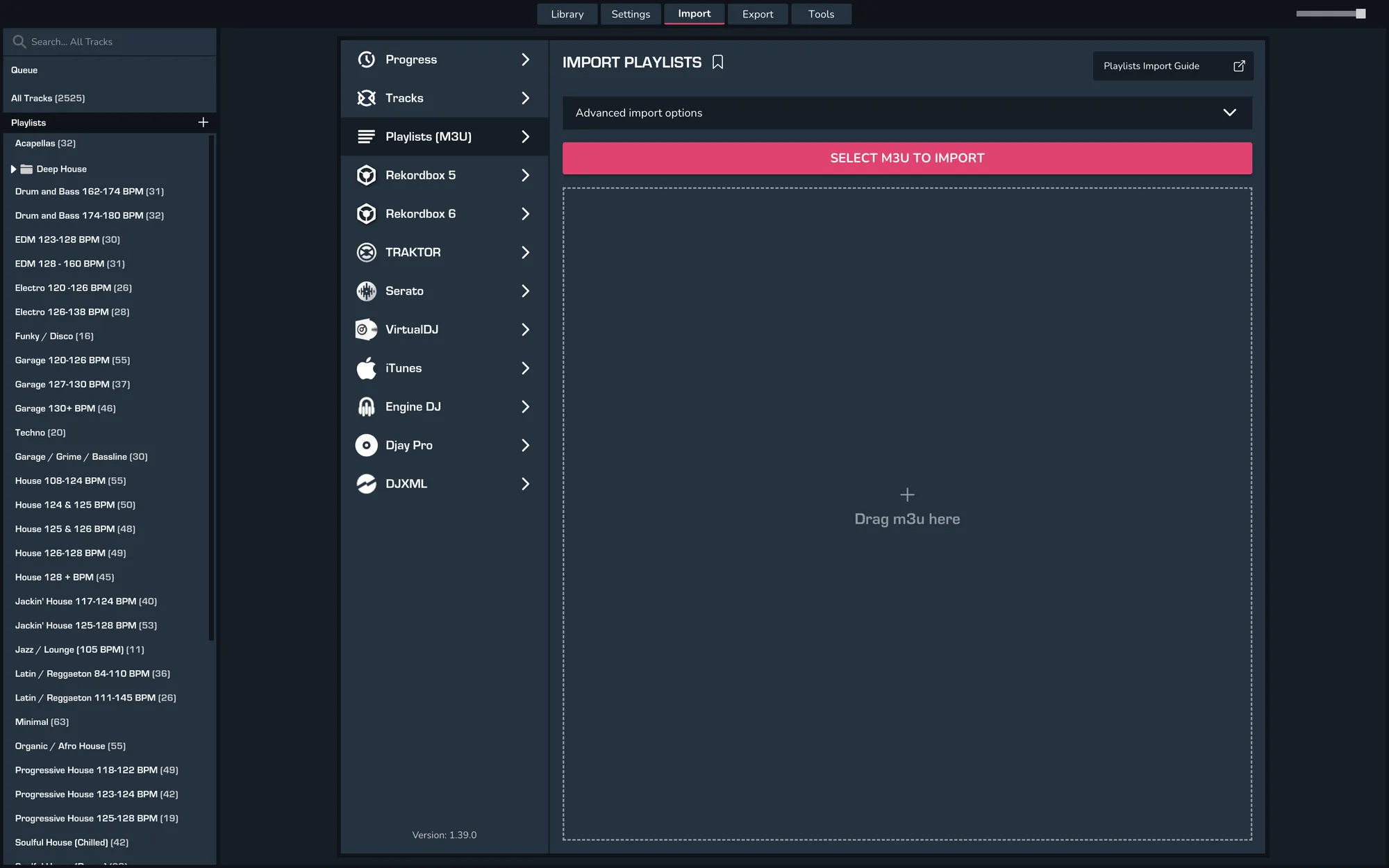
- IMPORT > PLAYLISTS
- Click IMPORT PLAYLIST
- Select the playlists you exported from DEX 3 from the file browser
- Click Open to import the playlists
3. Export your playlists to Engine DJ
- Quit Engine DJ
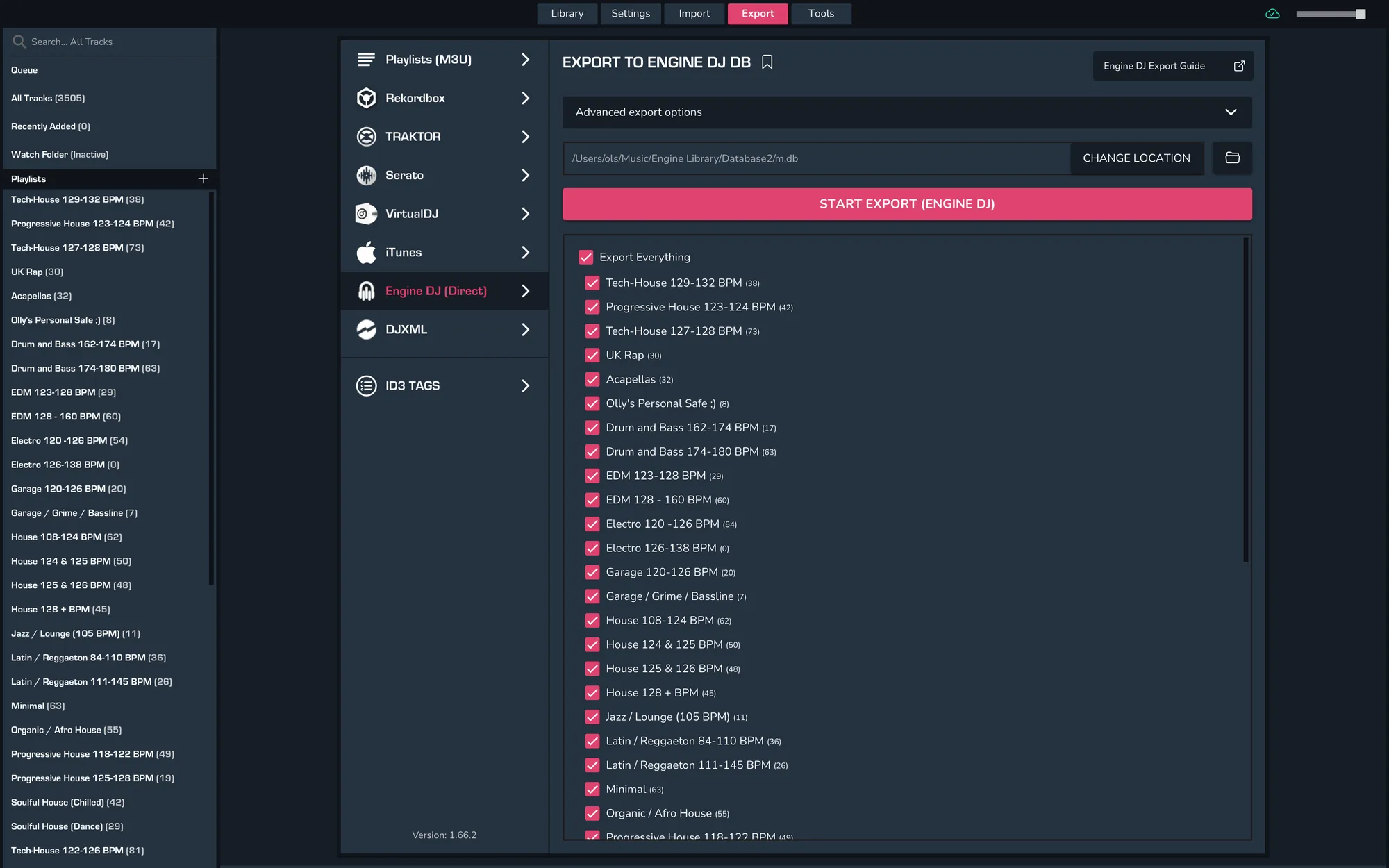
- To export individual playlists or your entire library from MIXO go to EXPORT > Engine DJ.
- If you are saving to an external drive change the export folder location
- Click EXPORT Engine DJ
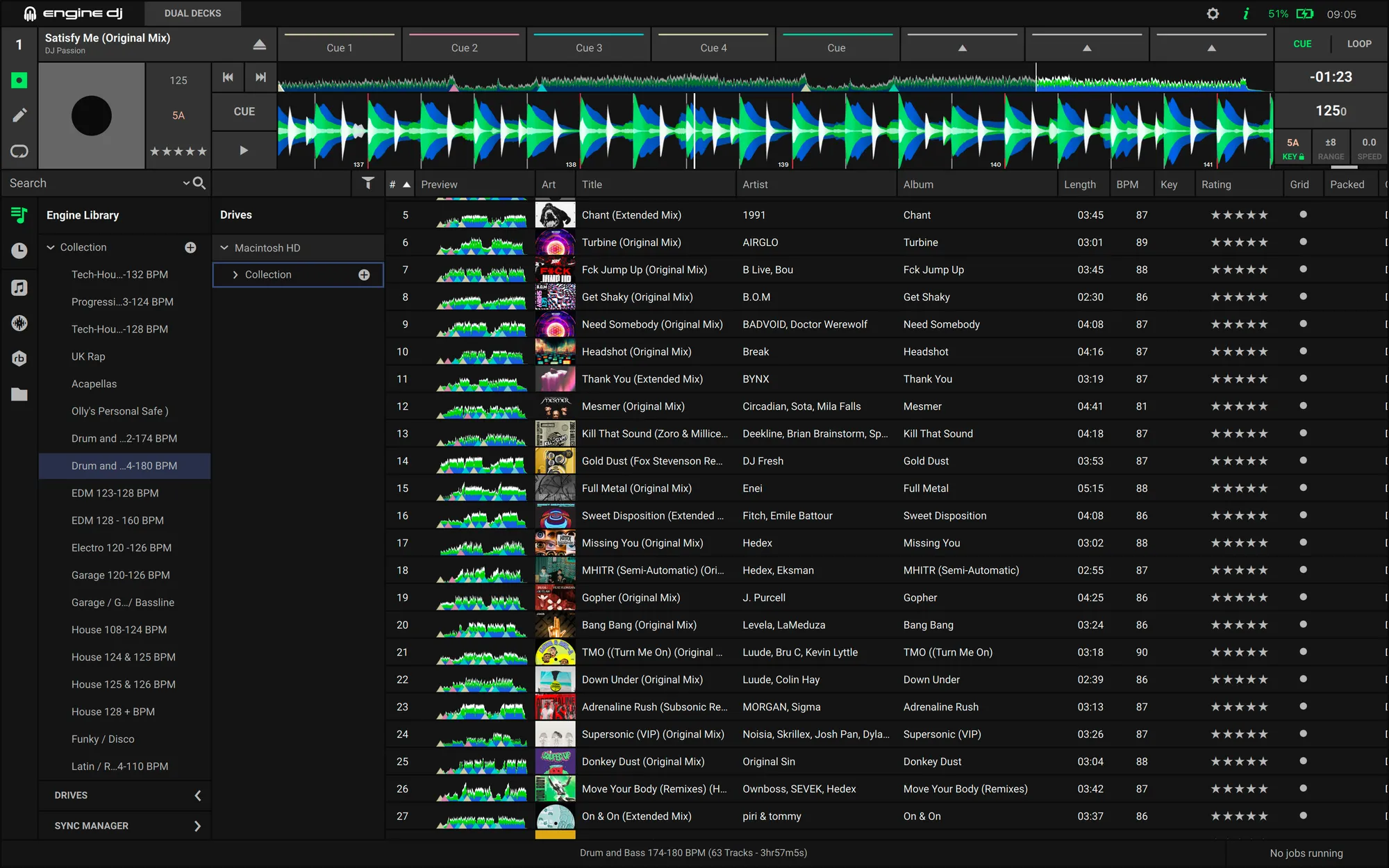
- Open Engine DJ and your library will match your MIXO export
Notes
M3U Exports do not contain cuepoints or beatgrid data so MIXO is not able to import these from DEX 3 at the moment.
Backups
MIXO will automatically backup your DJ Libraries every time you export.
It's also a good idea to regularly backup your source library and computer.