CUSTOM TAGS
You can create new custom tags and apply them to tracks in your MIXO library.
1. How to Create a Custom Tag
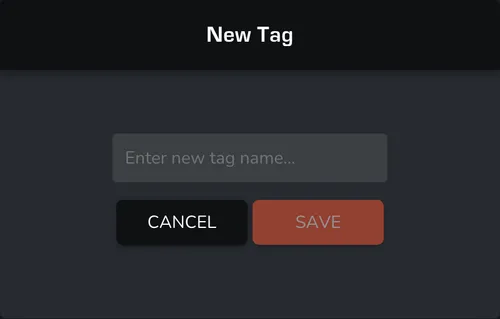
- Head to MIXO -> Tools -> Custom tags -> 'NEW TAG'.

- Once you've selected 'NEW TAG', type in your chosen custom tag.
- Select 'SAVE'.
2. How to apply a custom tag
- Right-click on a track and select 'ADD TAGS TO TRACK'.
- From here you can apply your new custom tag.
