CROSS DJ TO VIRTUALDJ
1. Exporting your playlists from Cross DJ
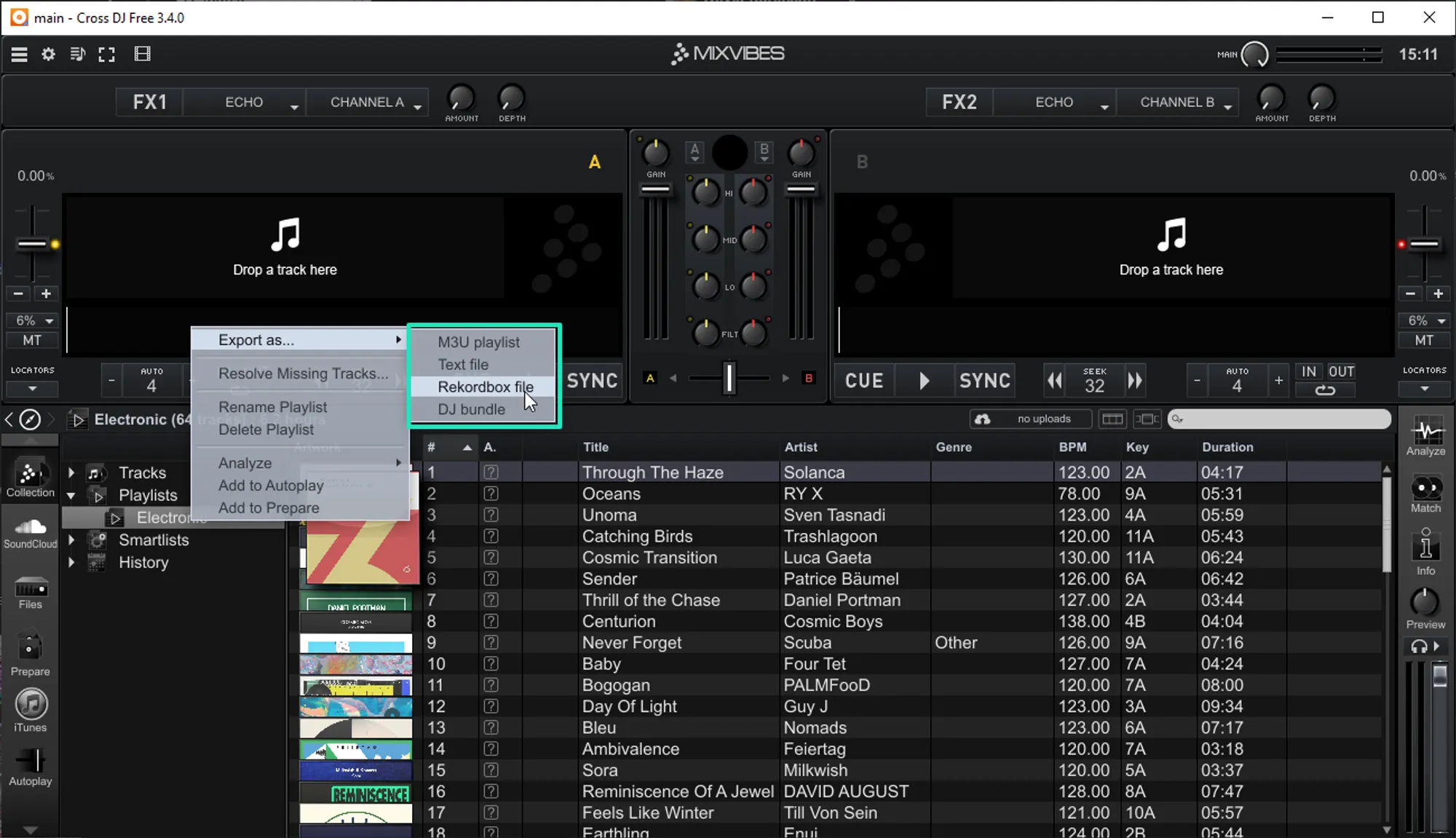
- Open Cross DJ and open the playlists section in the Collection tab
- Right-click on the playlist that you want to export
- Select Export as... > Rekordbox file
- Choose a destination to export the playlist
Follow these steps for all the playlists you want to import into MIXO
2. Importing your Cross DJ playlists to MIXO
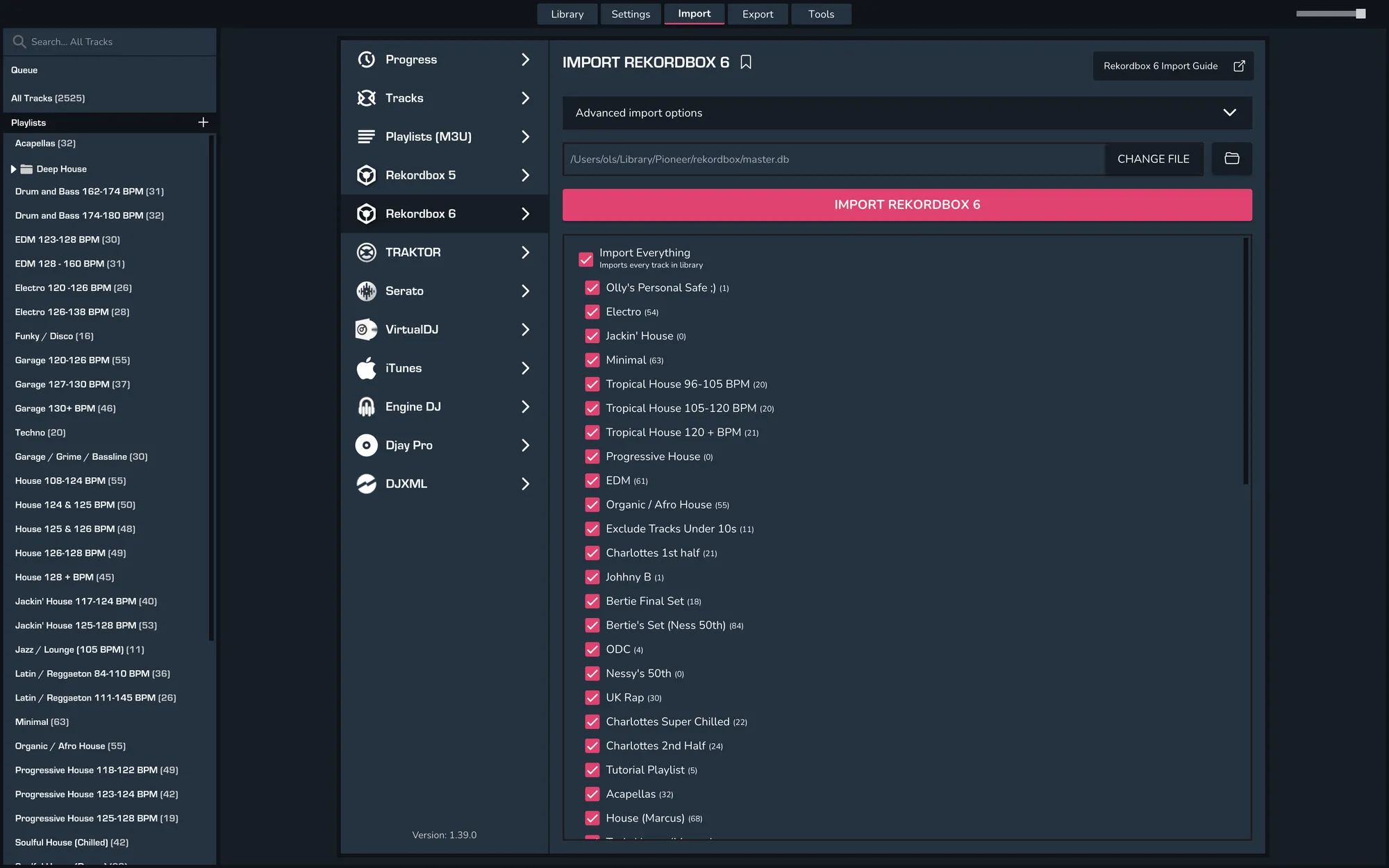
- IMPORT > REKORDBOX
- Click Change File and select the playlist you exported from Cross DJ
- Click IMPORT REKORDBOX
3. Exporting your collection & playlists from MIXO
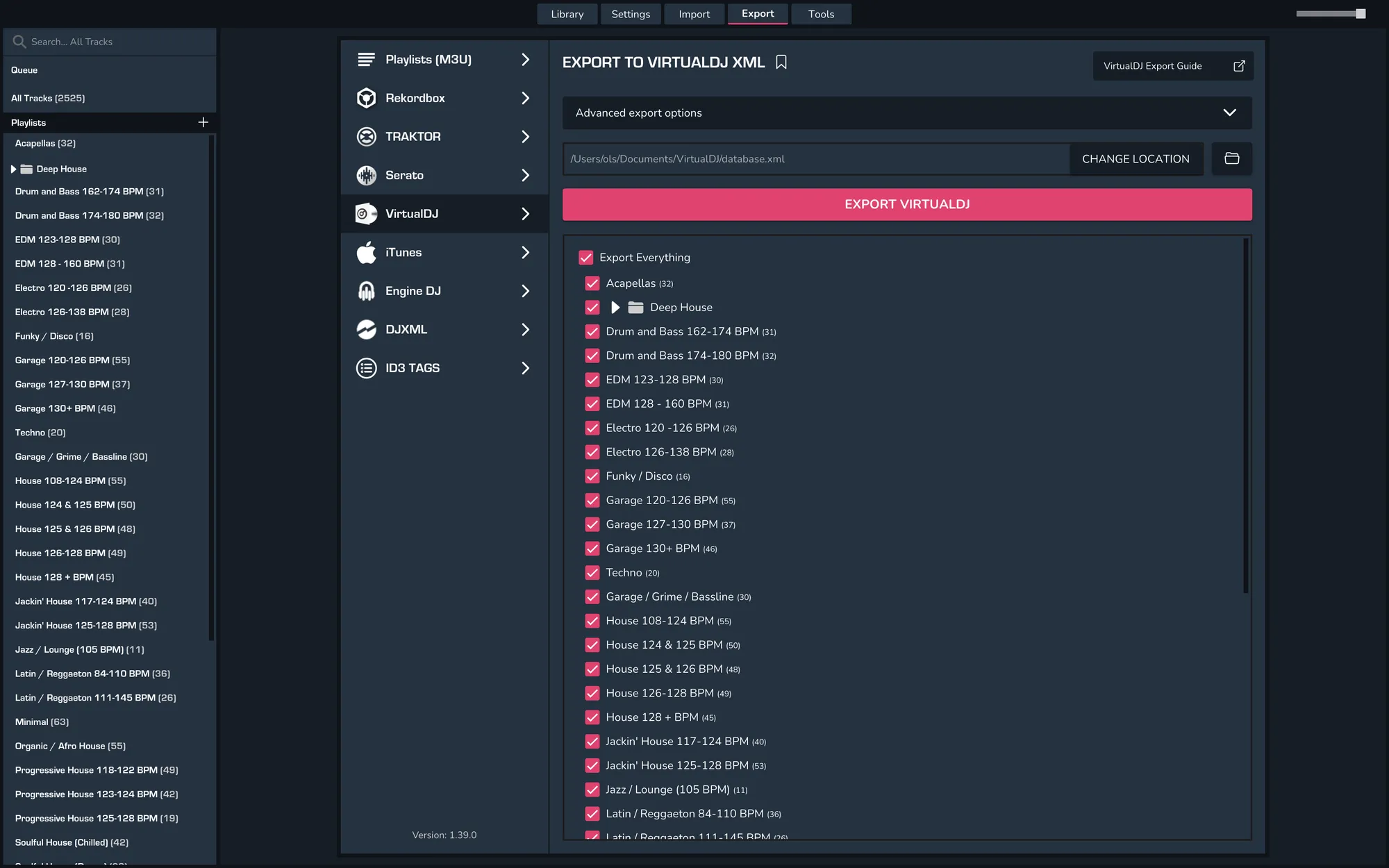
- EXPORT > VIRTUALDJ
- Below you will need to confirm which playlists should be exported or if the whole library should be exported.
- Click EXPORT
- By default your files are exported to ..\Music\MIXO\Exports\VIRTUALDJ
4. Import your collection into VirtualDJ
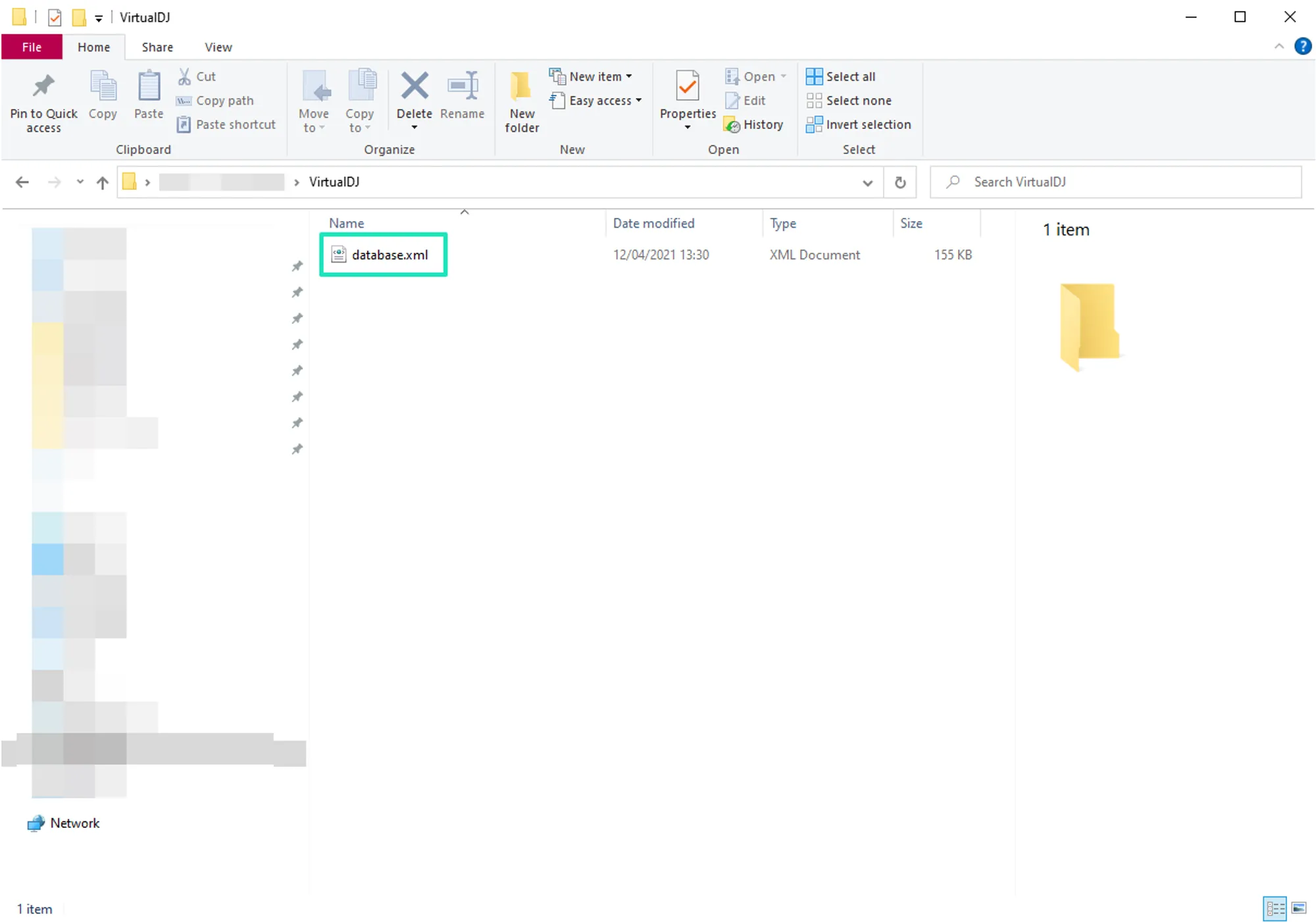
- Open the MIXO export folder at Music > MIXO > Exports > VIRTUALDJ
- Copy the exported database.xml file to your VirtualDJ folder.
Notes
MIXO does not import beat grids & cue points from Cross DJ.
MIXO currently only supports importing 1 .xml file at a time
Backups
MIXO will automatically backup your DJ Libraries every time you export.
It's also a good idea to regularly backup your source library and computer.