BACKUP REKORDBOX LIBRARY
1. Open Rekordbox and select File -> Library -> Backup library from the top menu.

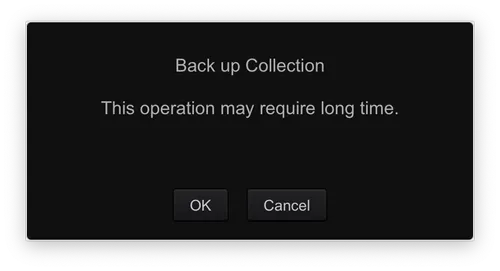
2. Choose your backup type: You will see two messages warning that this may take a long time. Click OK, then choose whether you want to:
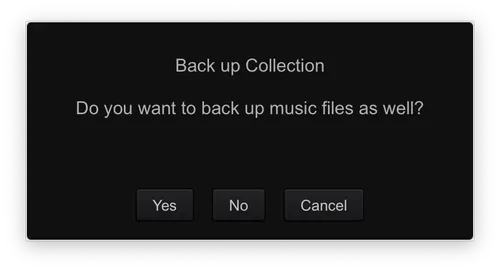
- Backup the database only - faster; saves all your cues, loops, and playlists.
- Include music files - slower; creates a full copy of every audio file in your library (recommended if you are moving to a new computer).
3. Select a secure destination to save your backup file (such as an external hard drive).

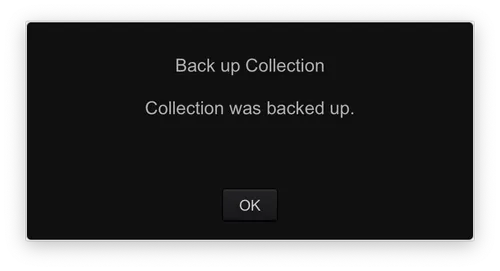
4. Wait for the progress bar to finish. You will receive a notification once the backup is complete.
Pro-Tip: Automated Cloud Backup
If you are using Rekordbox with a Creative or Professional plan, you can also use the Cloud Library Sync feature (via Dropbox) to keep a continuous backup of your database and music files in the cloud.