ADVANCED SETTINGS
To view advanced settings, go to Settings -> Advanced. There is an overview of the available
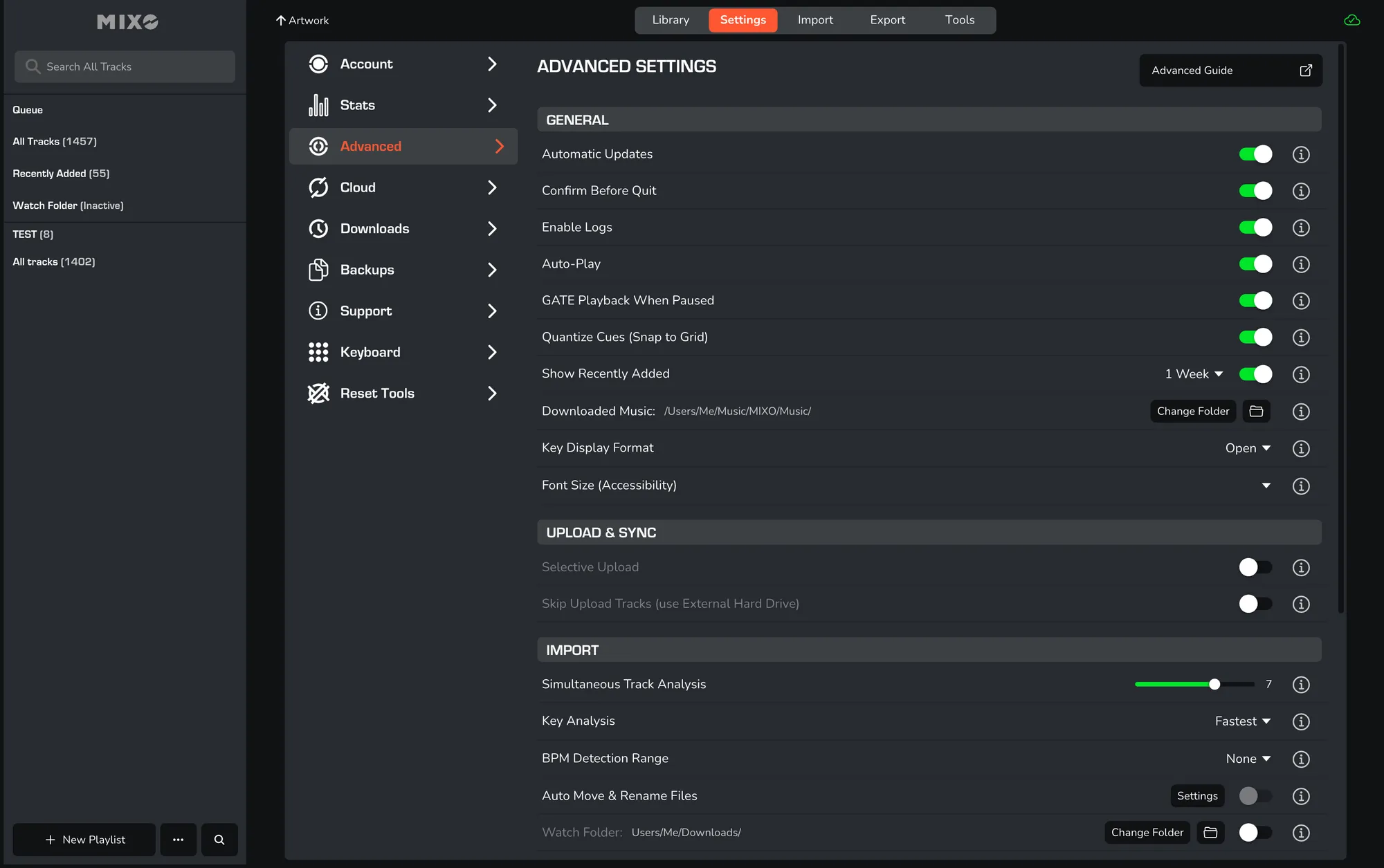
Advanced configurations:
Automatic Updates: when enabled, new versions will be displayed in the top left-hand corner of your screen.
Confirm Before Quit: when enabled, a confirmation dialog will appear to prevent accidental closing of the software.
Enable Logs: turning on logs will generate files in the MIXO folder with information about different events.
Auto-Play: when enabled, tracks will play consecutively and start playing as soon as they're clicked.
GATE Playback When Paused: when this setting is on, playback remains paused when cue points are clicked. You must click and hold to play.
Quantize Cues (Snap To Grid): sets new cues on the closest grid marker.
Show Recently Added: creates a new playlist under 'All Tracks' to see recently imported music.
Downloaded Music: set your preferred location for music downloaded from your cloud storage.
Key Display Format: set your preferred display format for musical keys such as Open, Camelot, or Musical.
UPLOAD & SYNC
Selective Upload: this will skip the Upload Tracks step during import, allowing you to selectively upload tracks later.
Skip Upload Tracks (Use External Drive) (default: off): if you store your music on an external drive/USB, this feature allows you to sync your library without the need to upload all your tracks.
IMPORT
Simultaneous Track Analysis: determines the number of tracks analyzed at once; increase for speed or decrease for performance.
BPM Detection Range: set the specific range for BPM analysis to improve detection accuracy.
Watch Folder: set a folder for MIXO to monitor for new music to import automatically.
Exclude Tracks Under 10s: prevents short audio files from being imported during analysis or drag-and-drop.
Exclude Serato Cues in Analysis: toggle this option to prevent Serato-specific cue points from being imported during analysis.
Exclude Duplicate Serato Markers in Analysis: toggle this option to ignore duplicate 'Serato Markers2' data during the analysis process.
Exclude MIK Cues in Analysis: toggle this option to prevent Mixed In Key cue points from being imported during analysis.
EXPORT
Auto-Export: automatically exports to your selected DJ software when a change is made.
MP3 offset fix: corrects cue and waveform alignment specifically for EngineDJ and VDJ.
Exclude AutoGrid Cues: prevents automatically generated grid markers from being included in exported files.
Export VDJ Legacy Playlists: enables compatibility for older versions of VirtualDJ.