ADD, EDIT & DELETE CUE POINTS ON DESKTOP
Once a track is selected, the Player view expands above your track list. Follow these steps to manage your cue points:
1. Locate Cue Points: at the top of the player view, you will find track metadata and artwork. The waveform is displayed in the center, with the cue points located directly underneath.
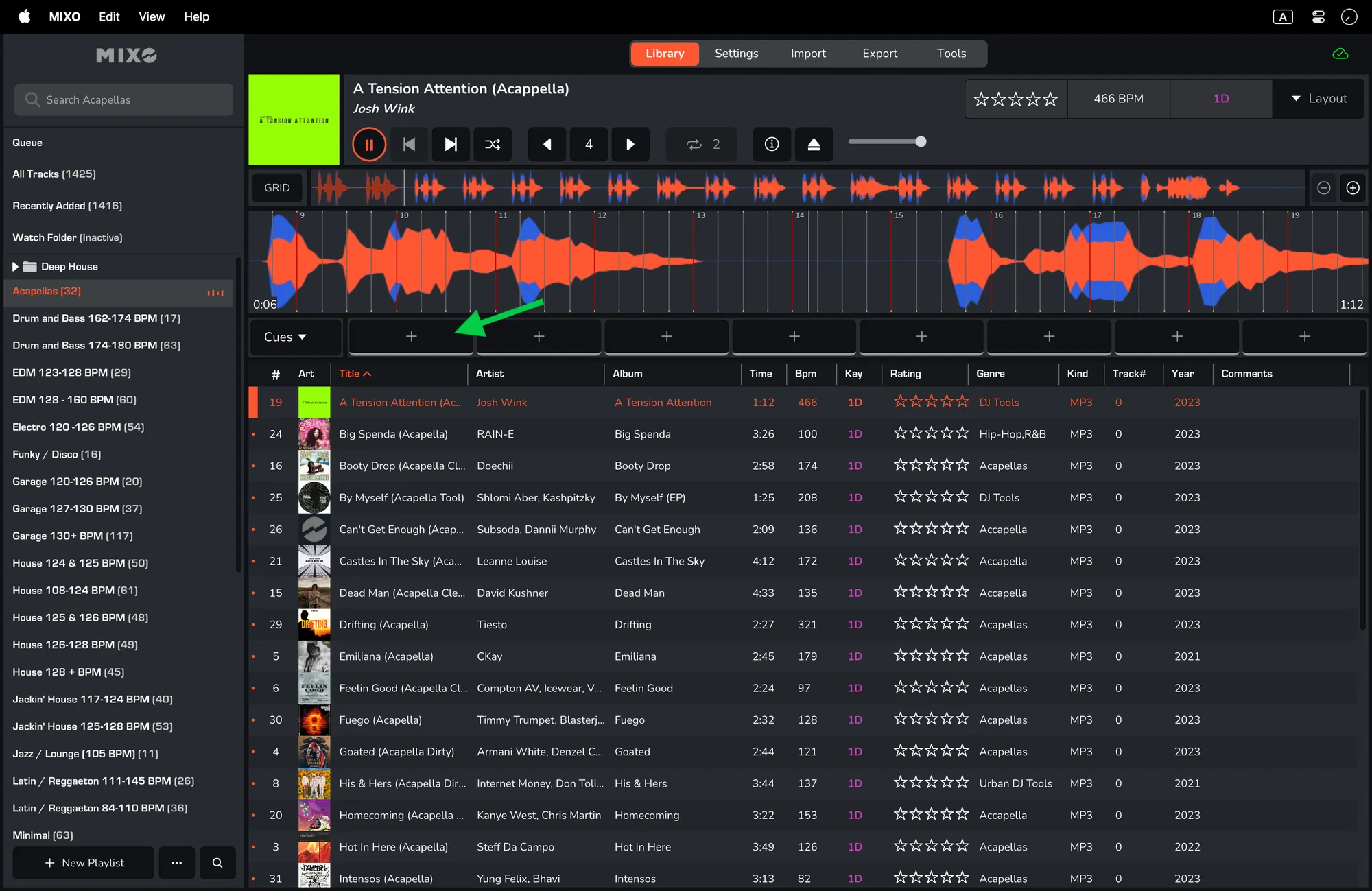
2. Add a Cue: seek through the waveform to your desired position and click one of the ‘+’ buttons underneath the waveform.
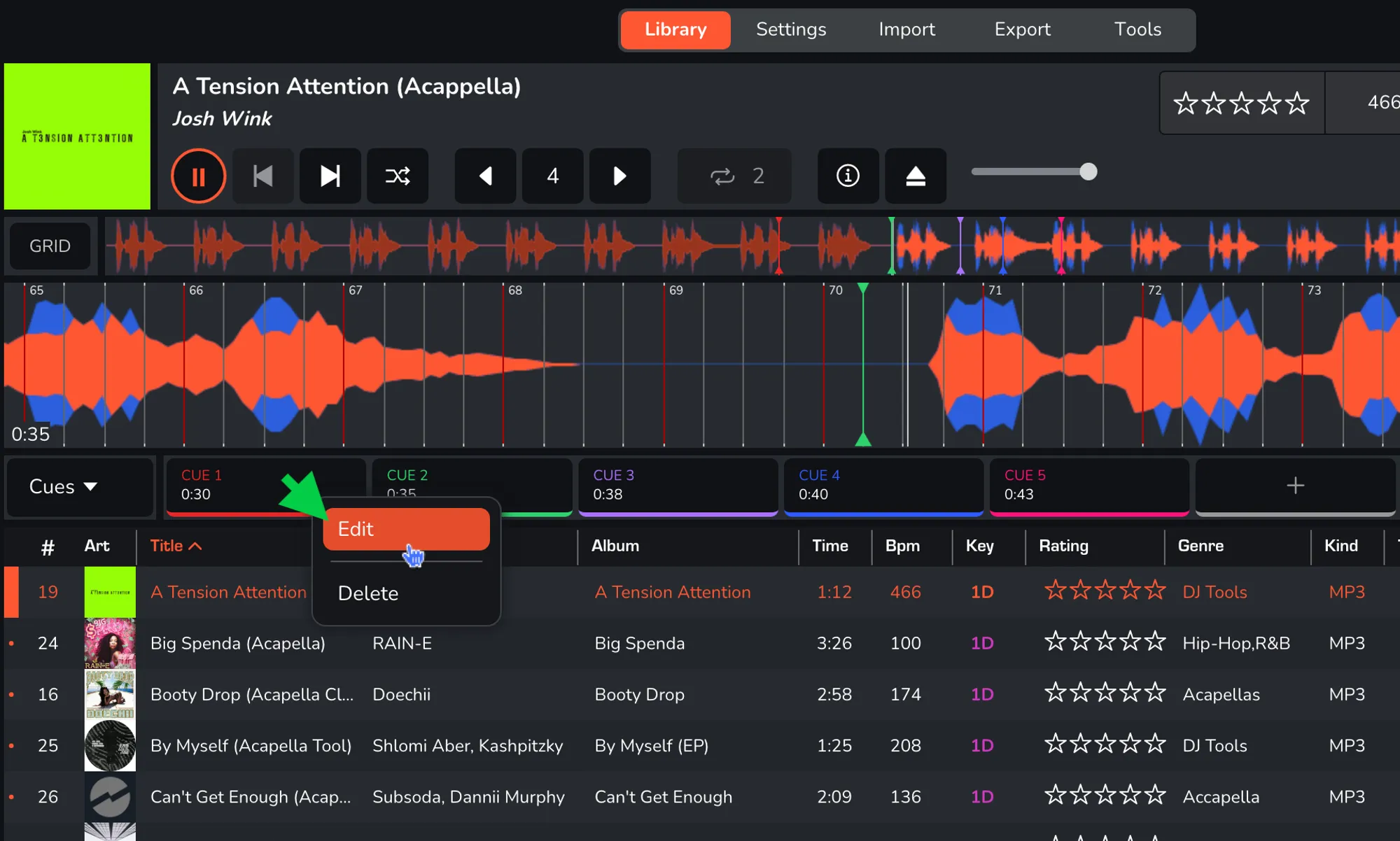
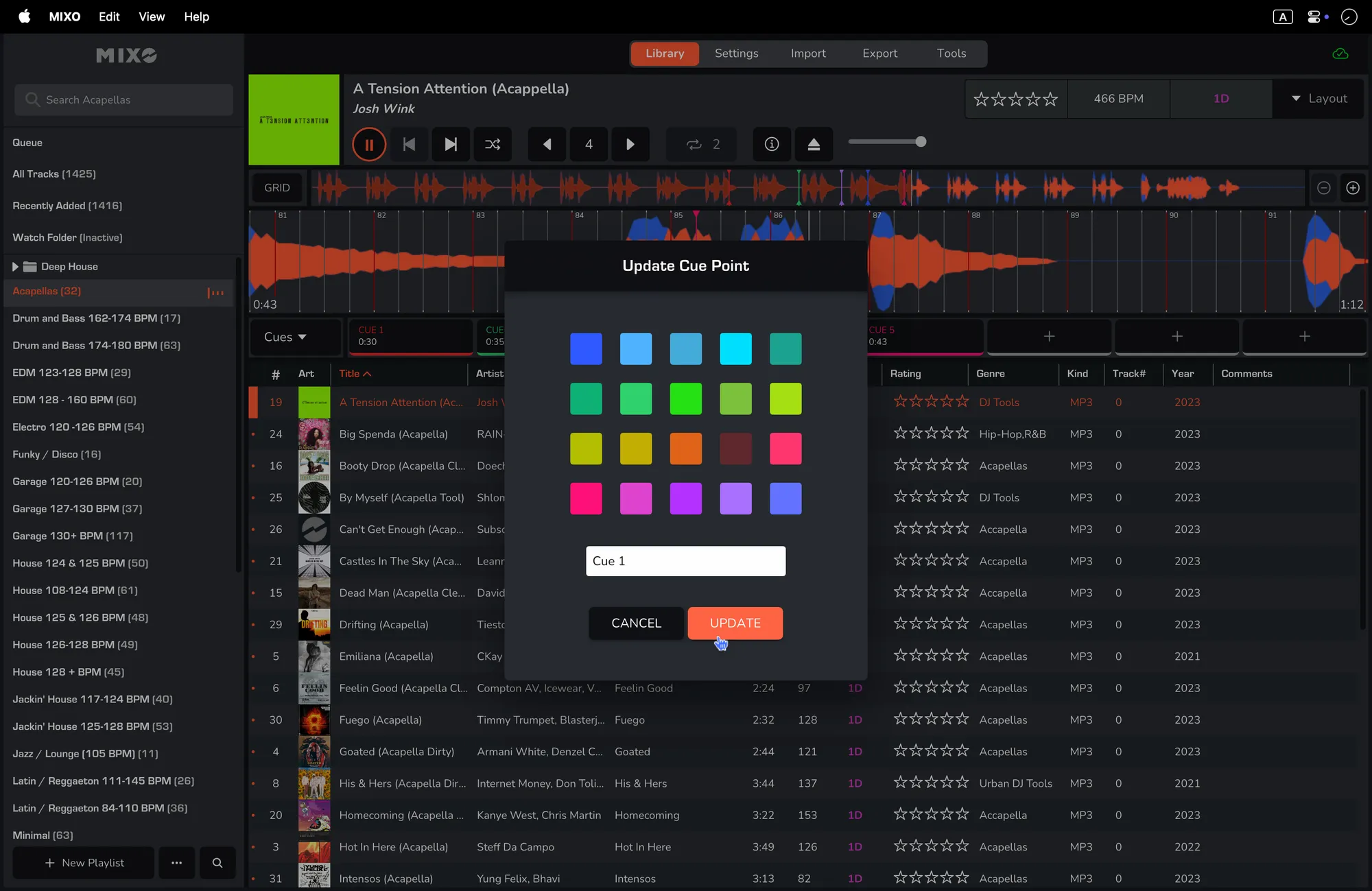
3. Edit a Cue: right-click an existing cue and select ‘Edit’. From here, you can change the cue's name and color.
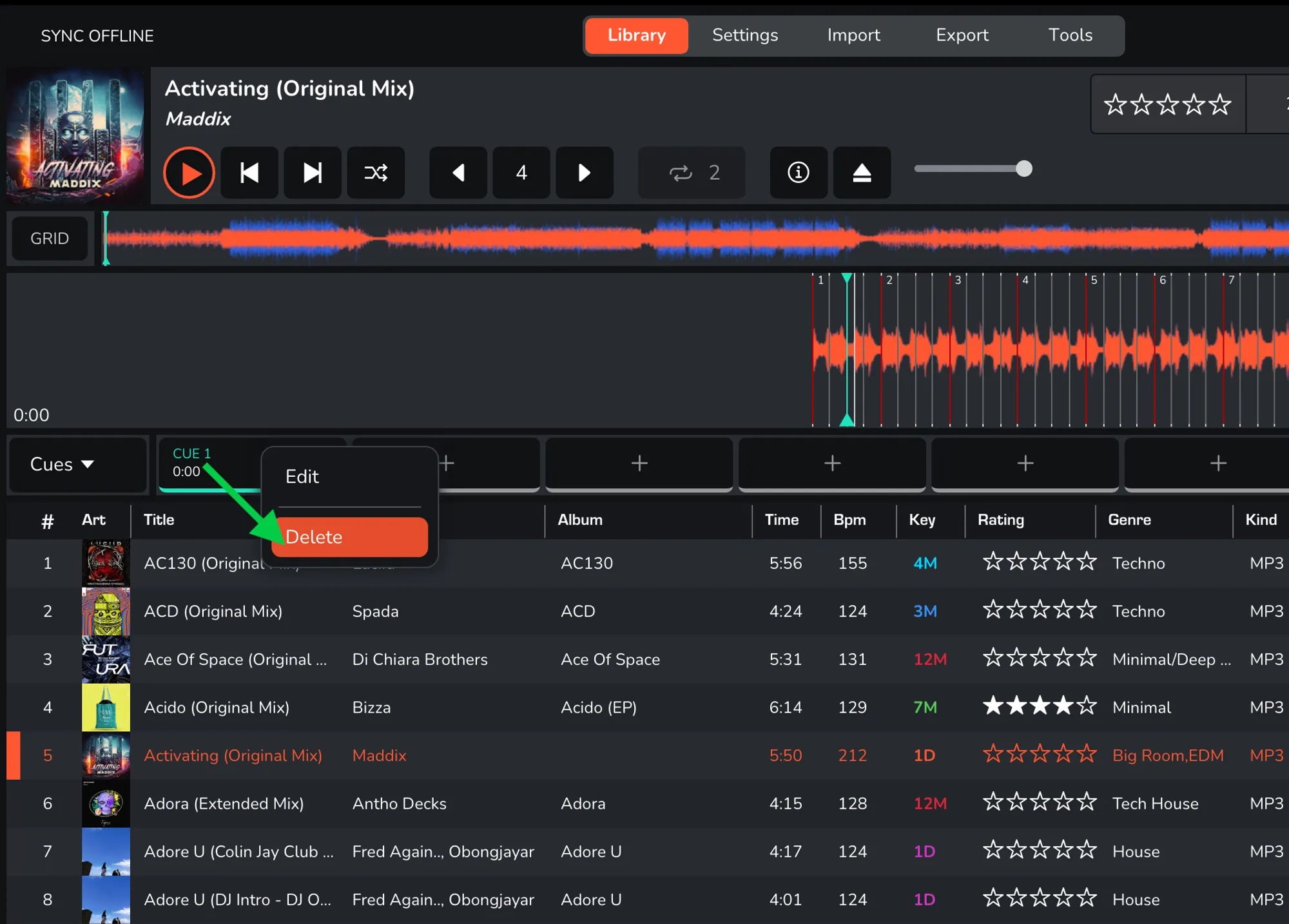
4. Delete a Cue: right-click the cue and select ‘Delete’.